I. Use T-code ZSD004 to create Sales order via uploading file from local.
1. Enter ZSD004 to select the followin steps
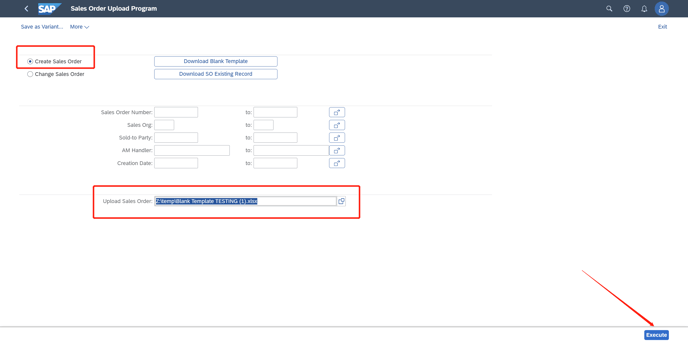
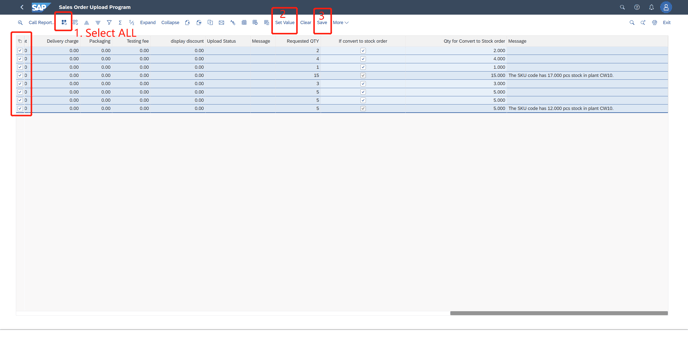
2. Follow the steps as below
<Set Value is the button can convert "Requested QTY" to '"Stock Order QTY'"
Clear button can clear all the actions
Save button is the one that go to "Execute" and save the sales order>
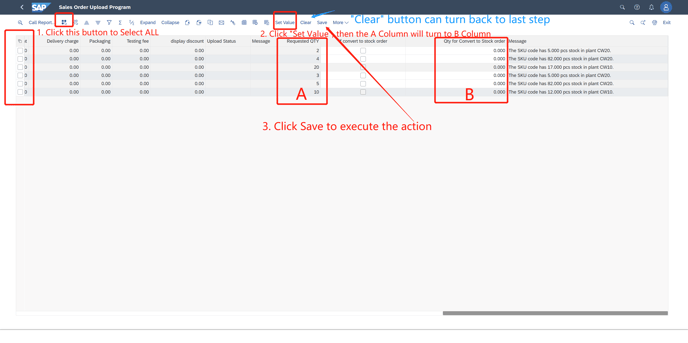
3. In the red lines,(not have enough available stock in the plant), if the "If convert wo stock order" is selected, then B Column must be filled, less than or eaqual to C Column, B <= C)and Choose "Save"
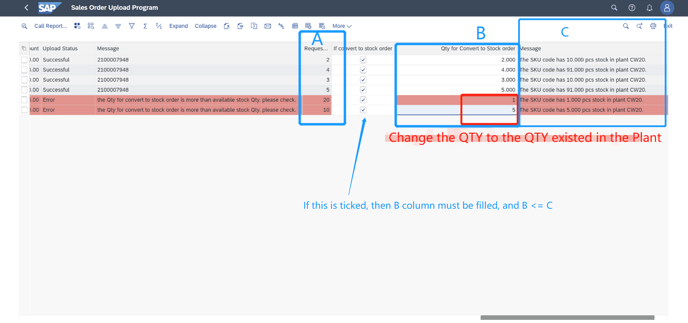
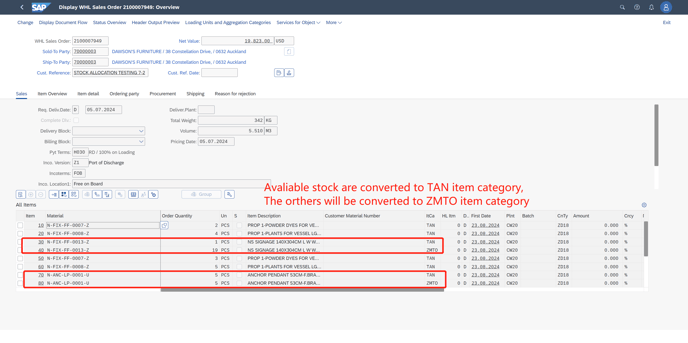
PS: Like the case above, Red Line reminds Stock QTY<SO QTY. If it converts to Stock number and filled the QTY, it will split into two lines. One is TAN item category, the other is ZMTO item category.
<<<Take above case as an example. B column I entered the stock number 1 and 5 in the red lines. Then it'll split 1 PCS Tan item category order, and 19(20-1) PCS ZMTO item category order.
Second line: Split into 5 PCS TAN item category order, and 5 (10-5) PCS ZMTO item category order.>>>
4. "Successful" means it is uploaded successfully.
Every "Error" has the message to remind where the problem is.
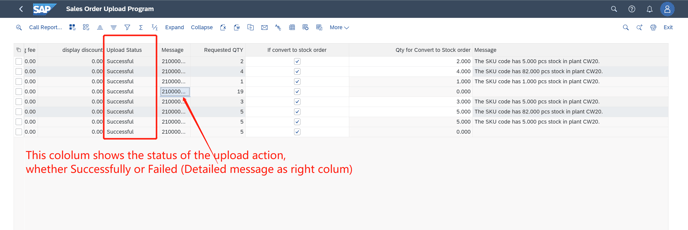
5. Double click the SO just generated to look for details.
II. Change Sales order information via uploading
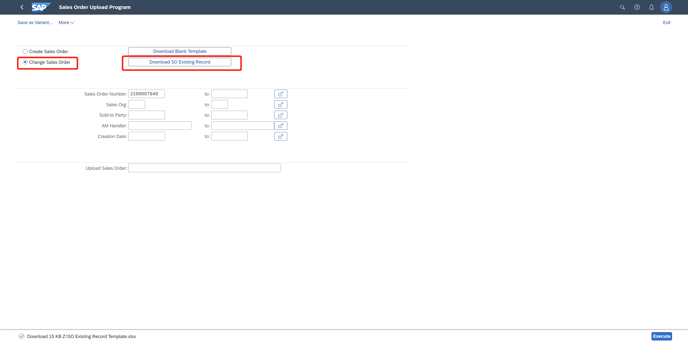
1. Click "change Sales order" and then Click Down load SO exisiting Record
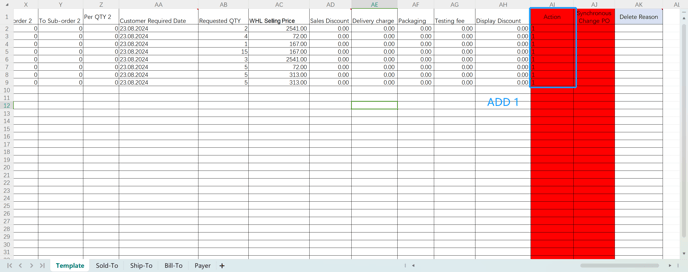
2. Change in this downloaded file and Add "1"(means update) in this Blue Column.
3. Re-upload the file
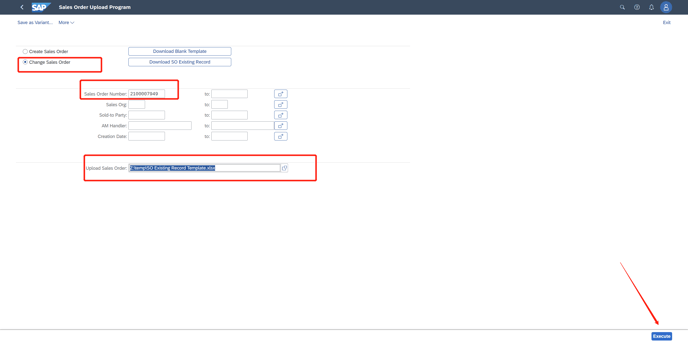
4. Select all, set value and click SAVE.
Then the SO is updated.