|
For Windows
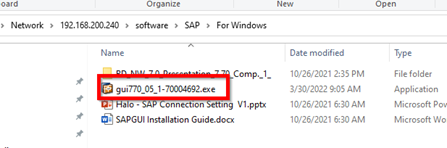
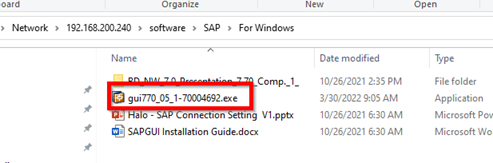
1. Go to \\192.168.200.241\hss\IT\Software\SAP\For Windows, copy the “Gui770” to local desktop.
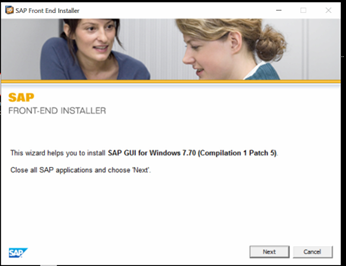
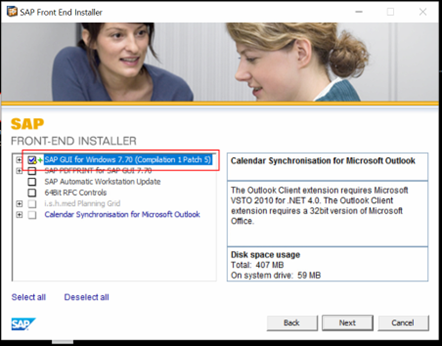
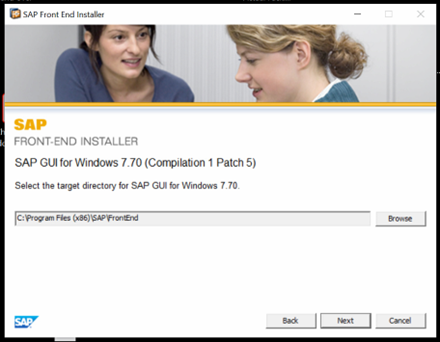
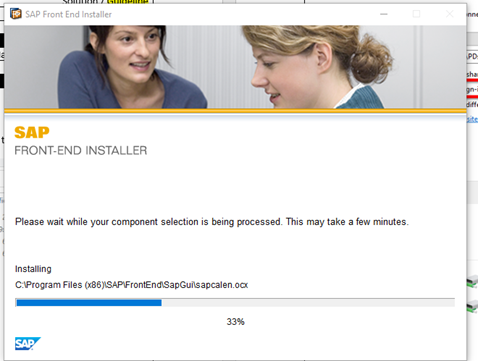
2. Run with admin and install.
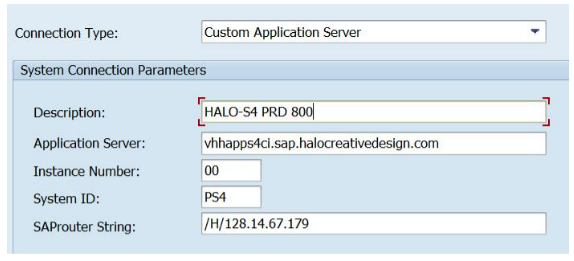
3. Start the SAP GUI and add the connection – “Halo-S4 PRD 800”.
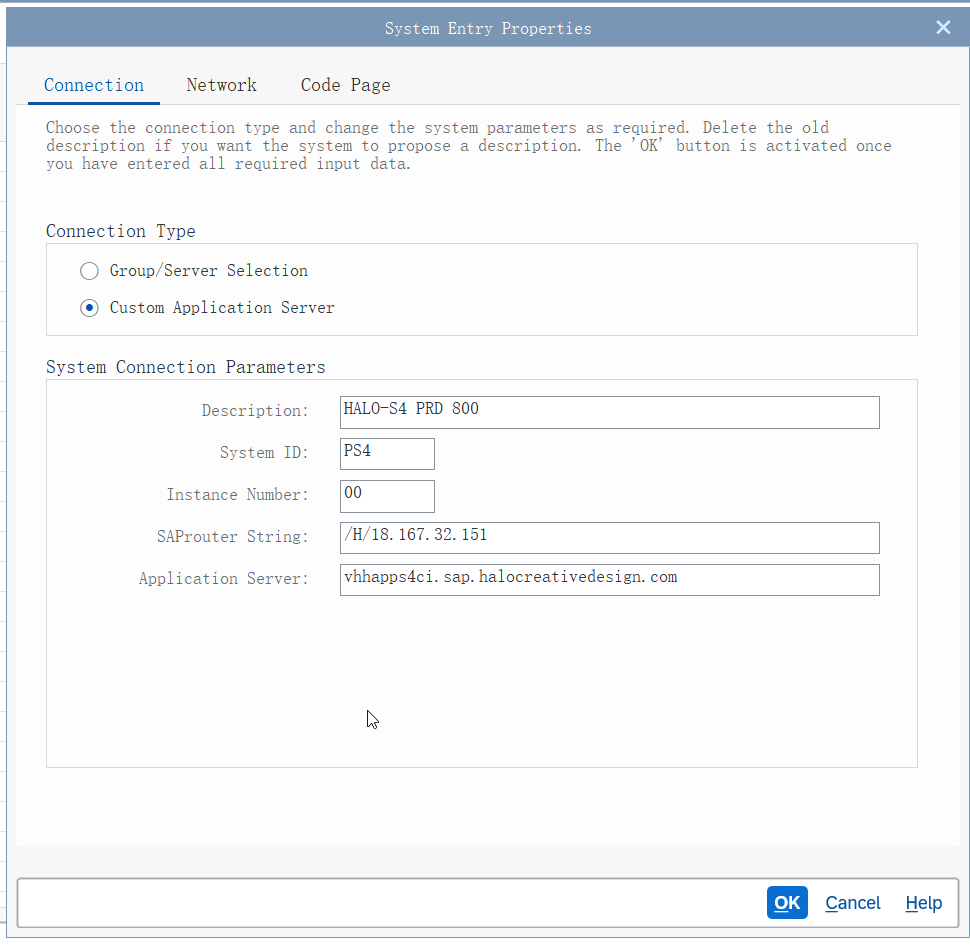
Description: Halo - HALO-S4 PRD 800 System ID: PS4 Instance Number: 00 SAProuter String: /H/128.14.67.179 Application Server: vhhapps4ci.sap.halocreativedesign.com
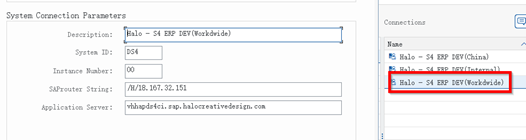
Or set the parameter as below (Dev environment): Halo - S4 ERP DEV(Workdwide)
Or set the parameter as below (test environment):
For Mac OS
1. Go to \\192.168.200.241\hss\IT\Software\SAP\For Mac\New Folder With Items, copy the “Gui770” and “JDK” to local desktop.
2. Install the Gui770 and JDK.
3. Start the SAP GUI.
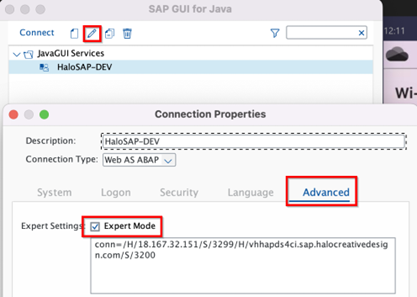
4. Add the connection below, select Advance, check “Expert Mode” and copy the path.
Description: Halo - HALO-S4 PRD 800 conn=/H/128.14.67.179/S/3299/H/VHHAPPS4CI.SAP.HALOCREATIVEDESIGN.COM/S/3200
Or set the parameter as below (Dev environment): Halo - S4 ERP DEV(Workdwide)
Or set the parameter as below (test environment):
END |