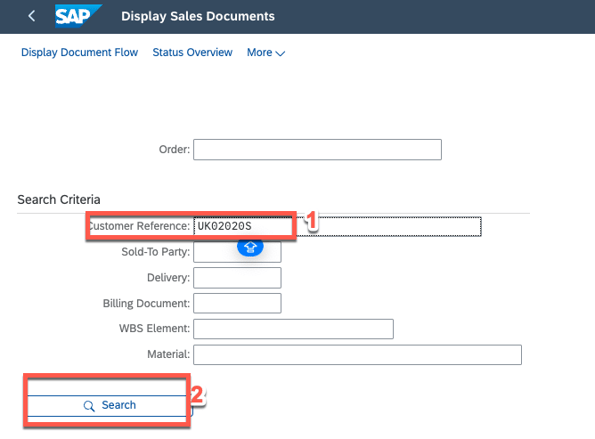
1. Go to SAP function 'Display Sales Orders' (VA03) and input the Sales Order number as below:
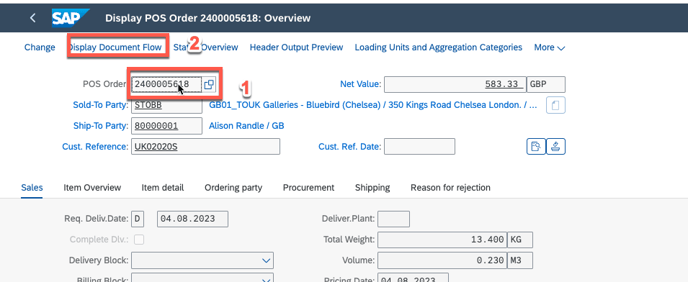
2. You then need to check if the billing of the order has been cleared by finance team - To do this, click once on the order number (step 1) and then click Display Document Flow (step 2)
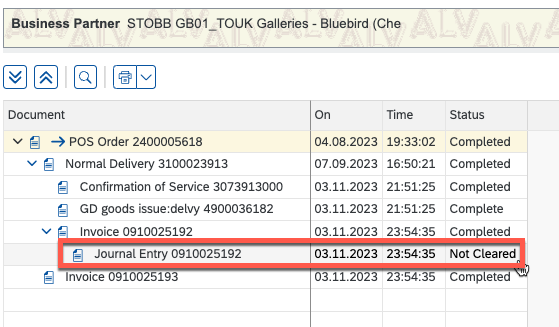
3. Depending on the status of the billing, either complete step 3a or 3b:
3a. If the billing is 'Cleared', this means the billing already has a link to the specific AR of the bank, and that you need to ask the Finance team to reverse the billing the SOP as : https://itsm.halocreativedesign.com/en/knowledge/sap-fin
before you can proceed with the next steps.
3b. If the billing is 'Not Cleared' you can go directly to reverse the billing of the order. This is done by cancelling the billing documents of any invoices linked to the order, as seen below:
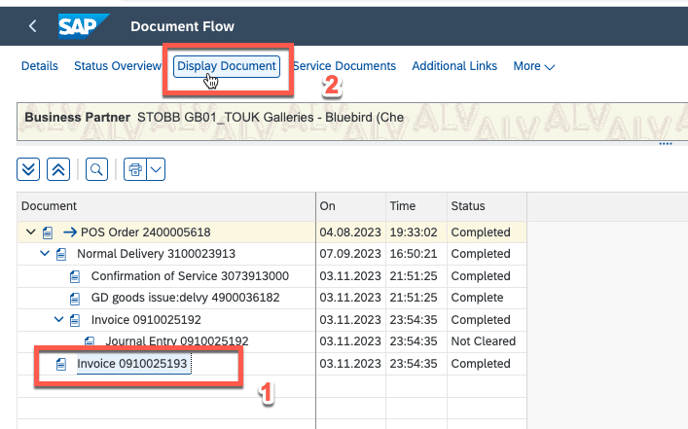
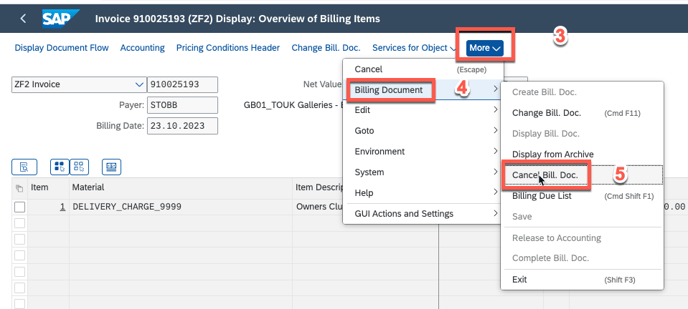
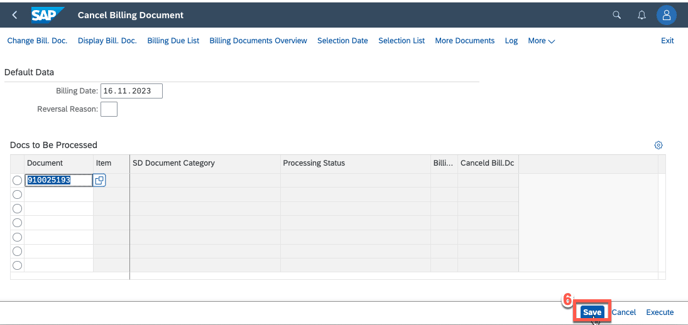
4. Complete the same process for all Invoices on the order:
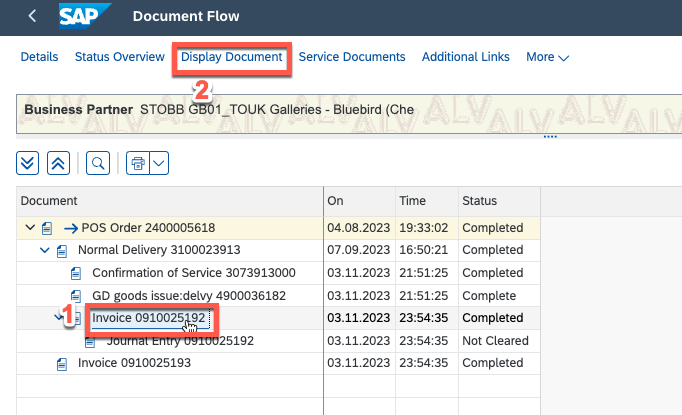
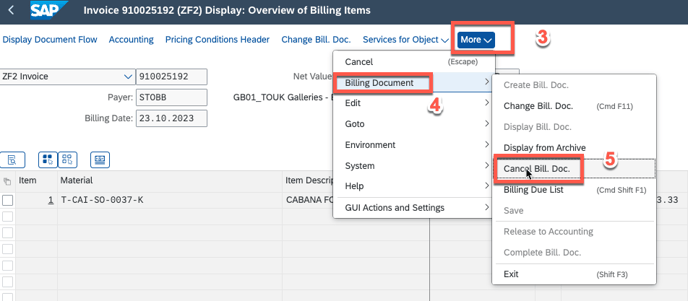
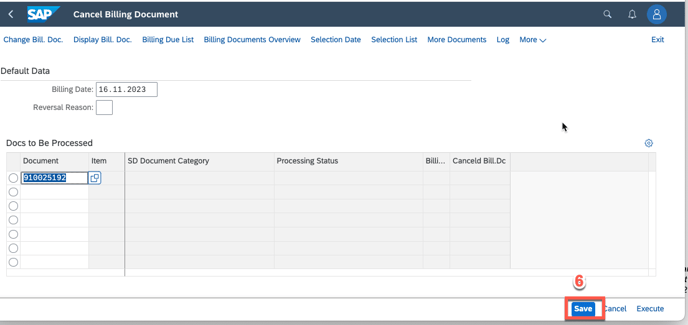
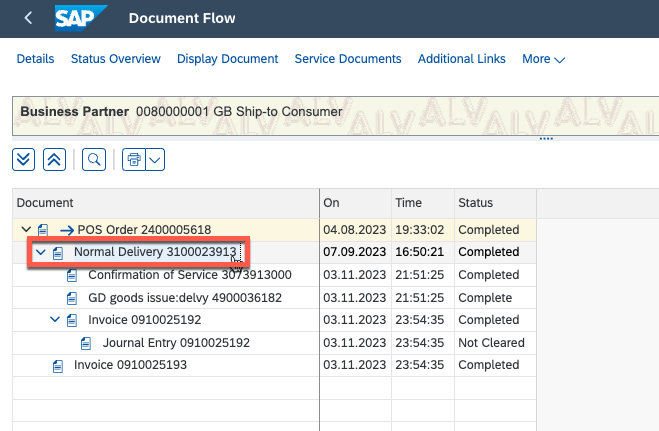
5. After cancelling the billing documents, you now need to reverse the Post Goods Issue (PGI).
This is done by copying the Delivery Note number as below going to the SAP function 'Reverse GI - Outbound Delivery' (VL09):
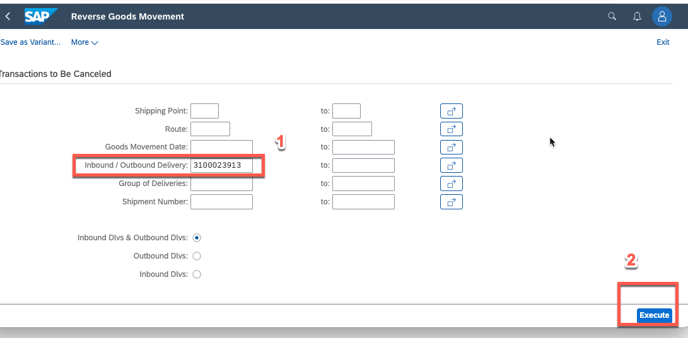
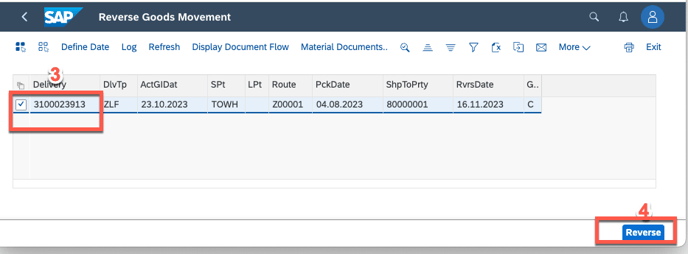
6. Go to the SAP function 'Reverse GI - Outbound Delivery' (VL09) and input the delivery note from step 5 in the 'Inbound/Outbound Delivery' section and follow steps 1-6 as below:

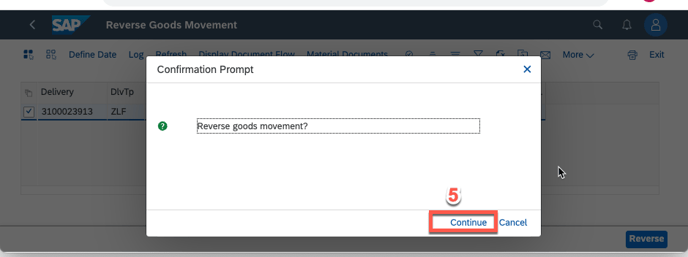
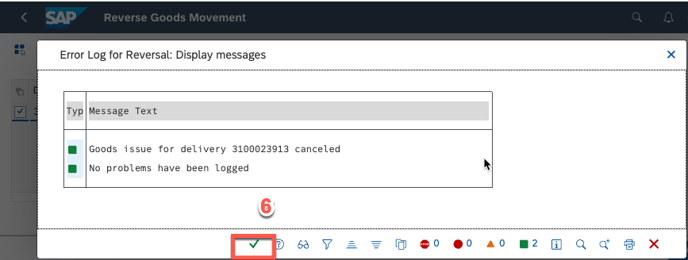
as just change the delivery charge and discount rate, no need to remove delivery note
7. go to TMS and sync the order with SAP using the orange button:
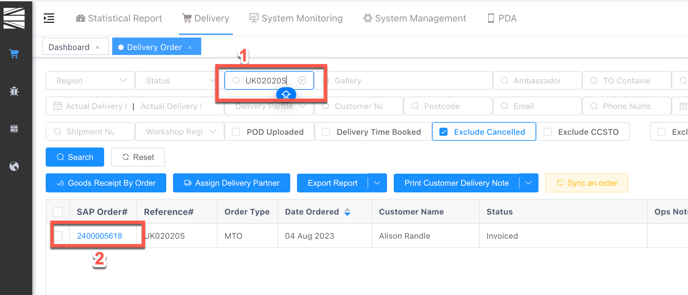
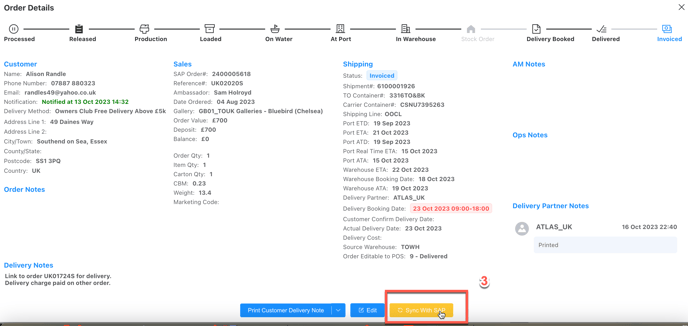
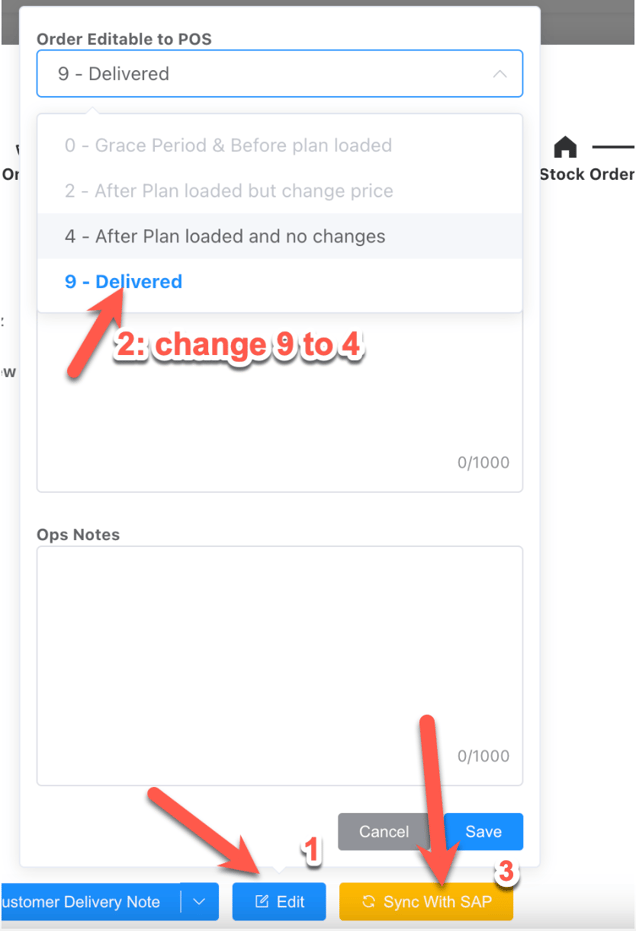
8. Then, change the TMS status from 9 to 4 using the 'Edit' button in the TMS order and once again sync with SAP using the orange button (the order status should then revert to '0-Grace Period & Before Plan Loaded':
9. You now need to reverse the order in UX, to do this, log in to the UX admin portal using this link-
https://admin.prod.uxretail.cloud/
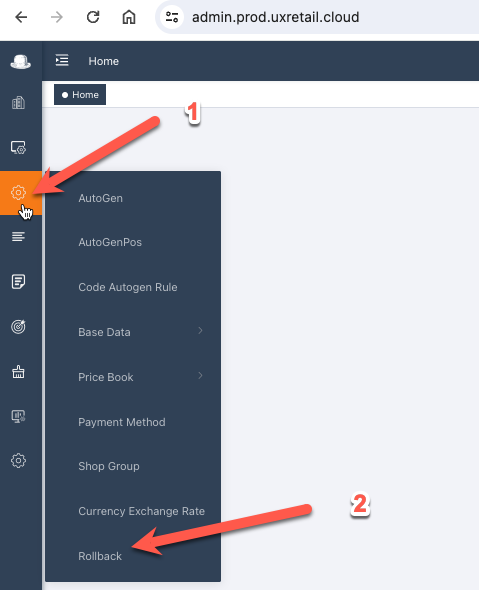
10. Click on the settings cog as below to open the dropdown list, select 'Rollback' and follow the below instructions:
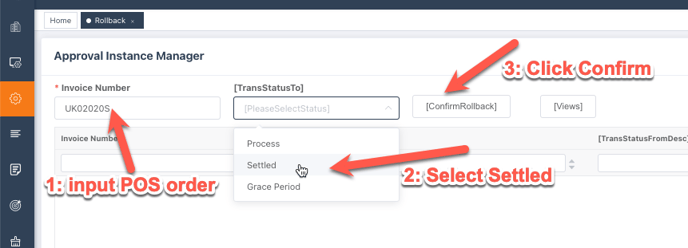
11. The order is now done and you can inform the Retail team that the order can now be refunded/edited in the UX system!