First time Installation:
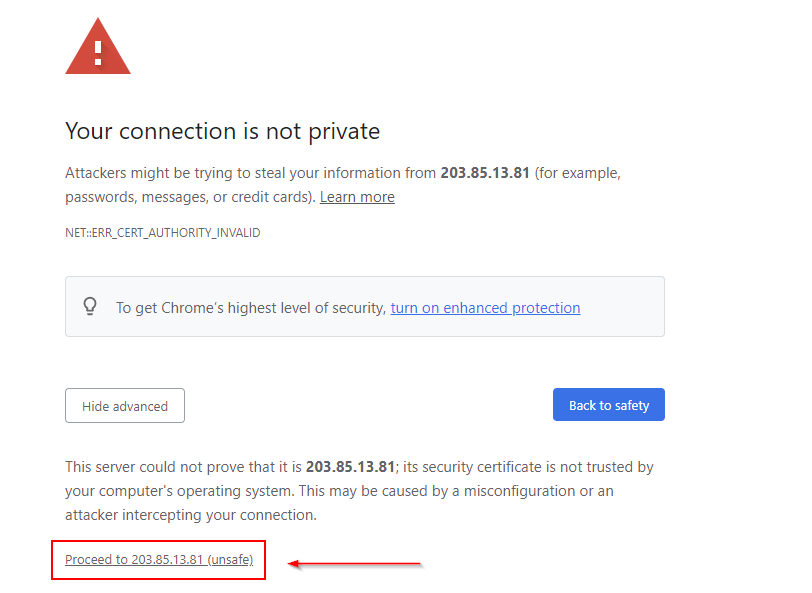
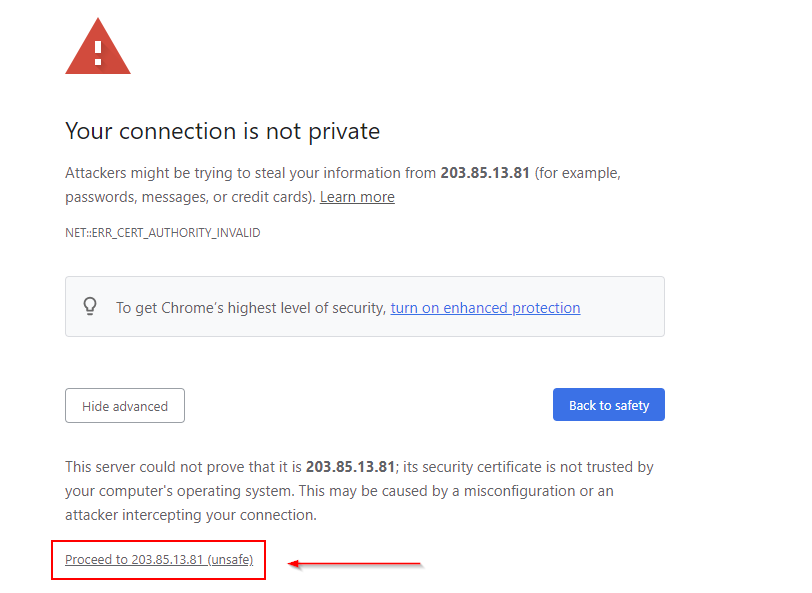
- Adding the user into 'HALO OPEN VPN' group the AD. Then start Edge, Chrome, or Safari browser, choose one of the link below, click “proceed to 203.85.13.81 (unsafe)”.
China Mainland user - https://116.6.52.130:943 internal URL: https://192.168.200.211/
Mac user:
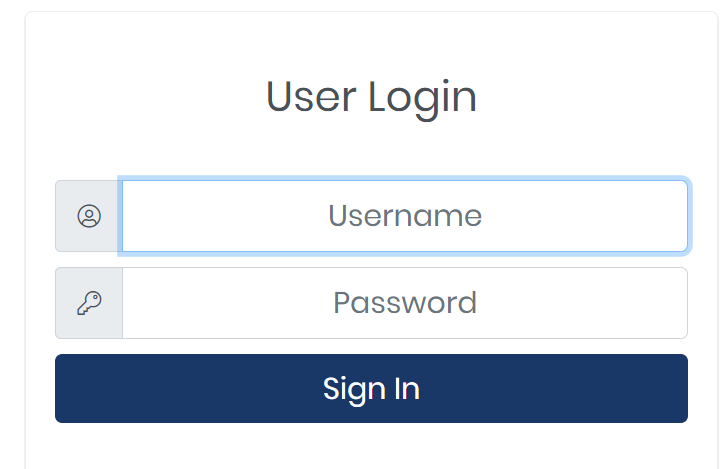
Username – IT will send you in separate email
Password – IT will send you in separate email
Windows user:
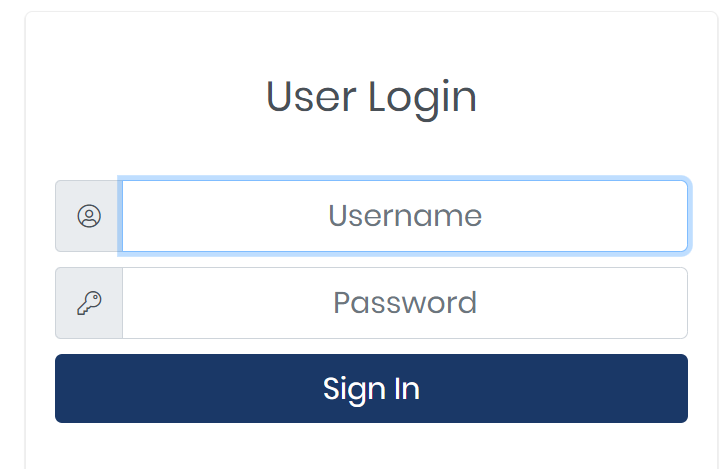
Username – first name.last name or email address
Example: sky.guo or sky.guo@halocreativedesign.com
Password – Windows login password
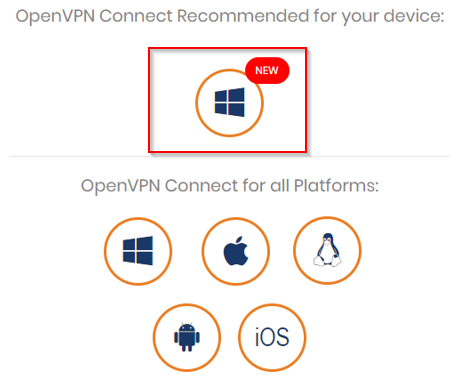
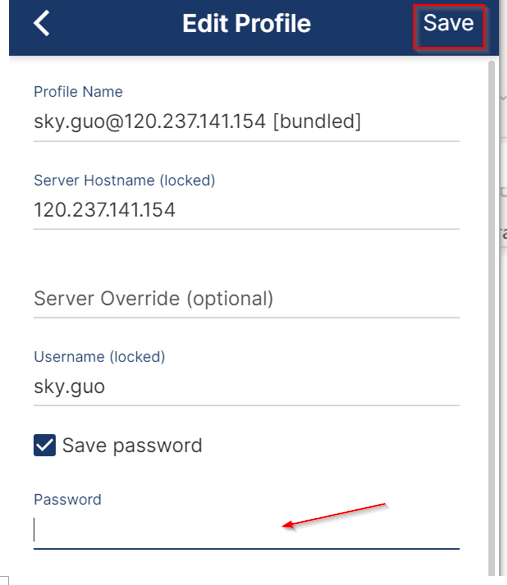
4, Start OpenVPN and click “Pencil” icon.
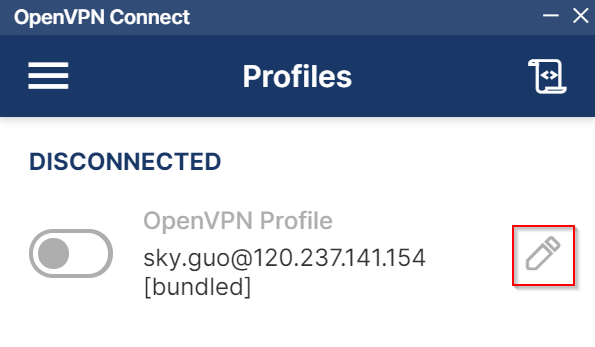
5, Tick the “Save password” and type your Windows password, save.
Part II: Import New Profile:
1, Start Edge, Chrome, or Safari browser, choose one of the link below, click “proceed to 203.85.13.81 (unsafe)”.
China Mainland user - https://https://116.6.52.130:943
Mac user:
Username – IT will send you in separate email
Password – IT will send you in separate email
Windows user:
Username – first name.last name or email address
Example: sky.guo or sky.guo@halocreativedesign.com
Password – Windows login password
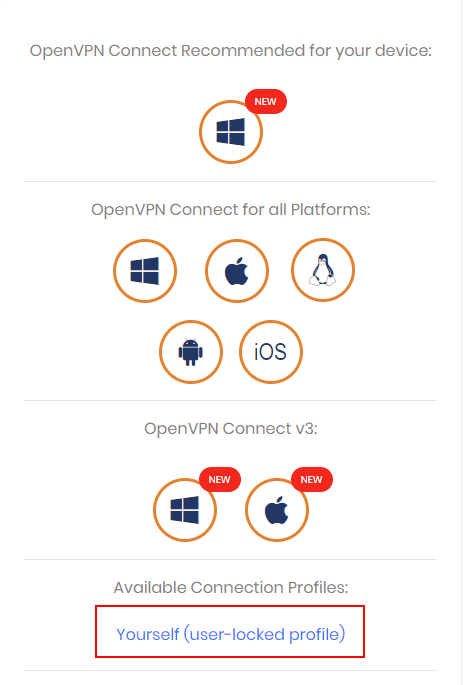
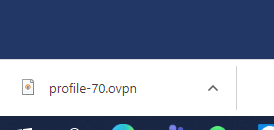
3, Click “Yourself (User-locker profile)”, the profile will be download.
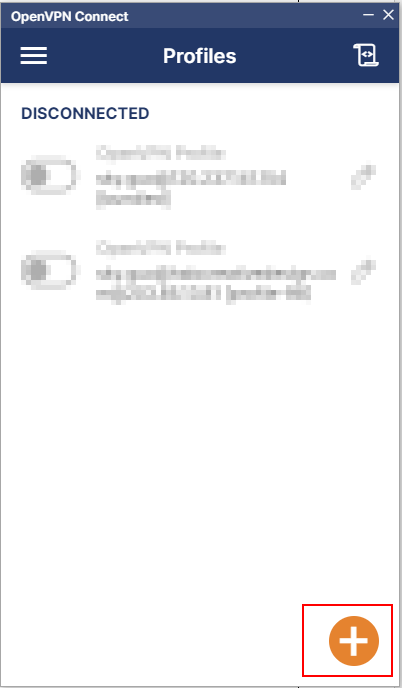
4, Start the OpenVPN application, click the “+”.
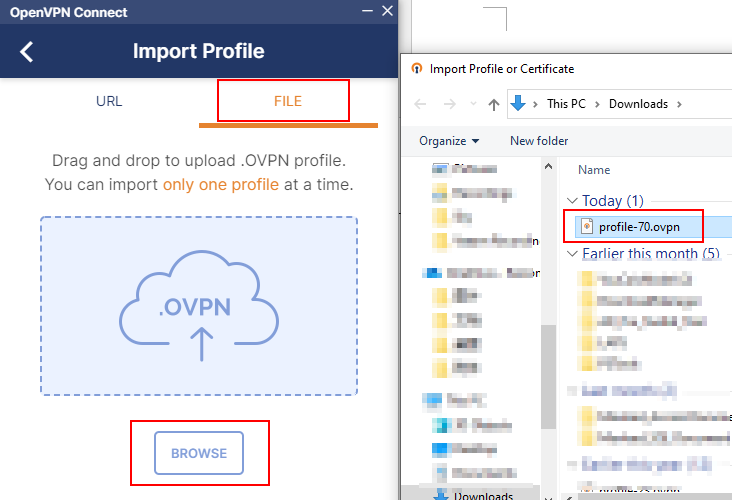
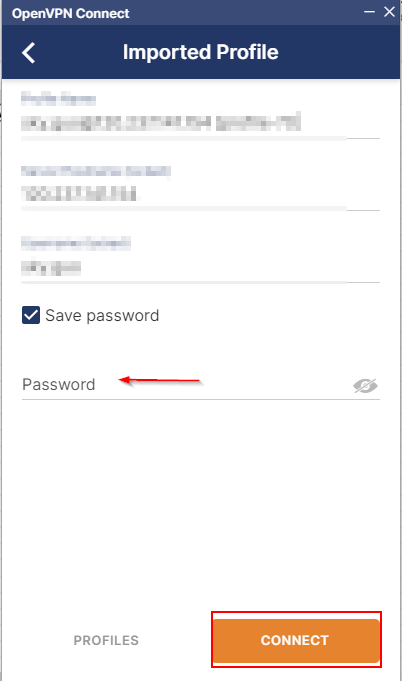
6, Tick the Checkbox ”save password” and input the password, click “connect”.
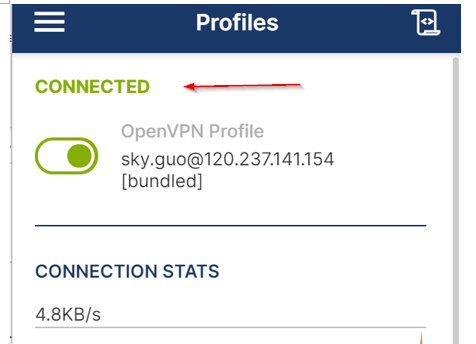
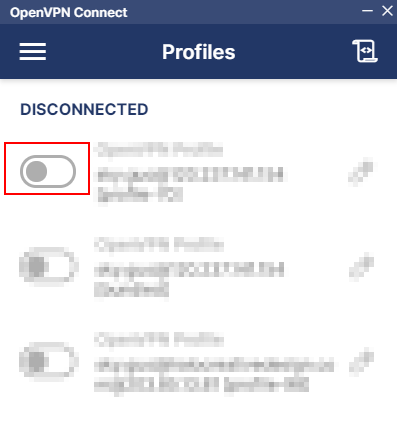
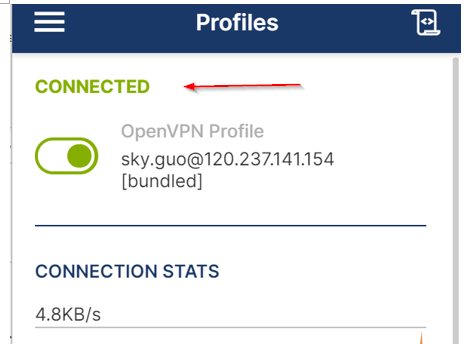
7, Enable the connection.
END