Skip to content
English
  • There are no suggestions because the search field is empty.

IPSec VPN Install & Configurations

Windows 10 & Mac OS applicable


Windows 10 

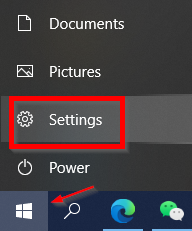
  1. Go to Start menu, select “Settings”. 

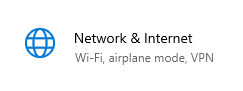
2,  Select “Network & Internet”. 

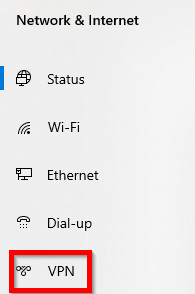
3,  Select “VPN”. 


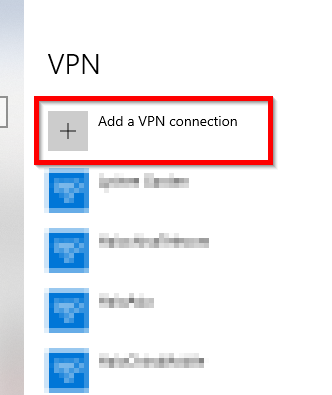
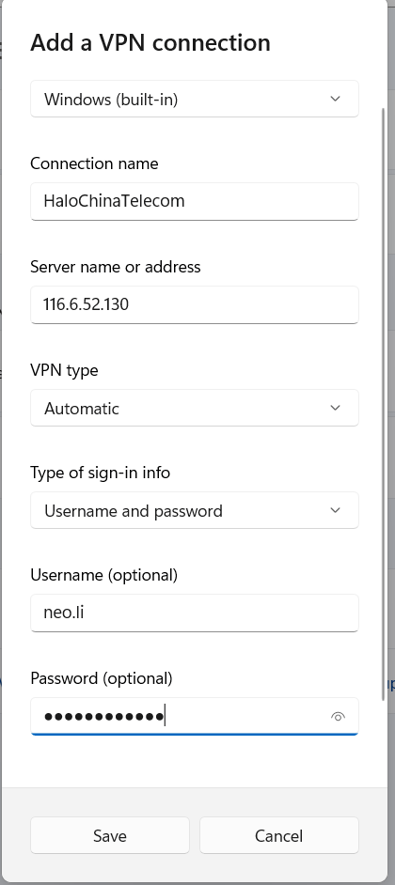
4,  “Add a VPN connection”. 

5,  There are 3 connections should be added.

a, HaloAsia

b, HaloChinaTelecom 
c, HaloChinaMobile 


HaloAsia:      

Connection name: HaloAsia 

Server name of address: vpn.haloasia.com 

VPN type: PPTP 

Type of sign-in info: User name and password 

User name: HSS\firstname.lastname or haloasia\ firstname.lastname 

Password: window login password                                                                         


HaloChinaTelecom: 

Connection name: HaloChinaTelecom 

Server name of address: 121.9.200.114 

VPN type: PPTP 

Type of sign-in info: User name and password 

User name: HSS\firstname.lastname or haloasia\ firstname.lastname 

Password: window login password                                                                         


HaloChinaMobile: 

Connection name: HaloChinaMobile 

Server name of address: 120.237.170.126 

VPN type: PPTP 

Type of sign-in info: User name and password 

User name: HSS\firstname.lastname or haloasia\ firstname.lastname 

Password: window login password                                                                         


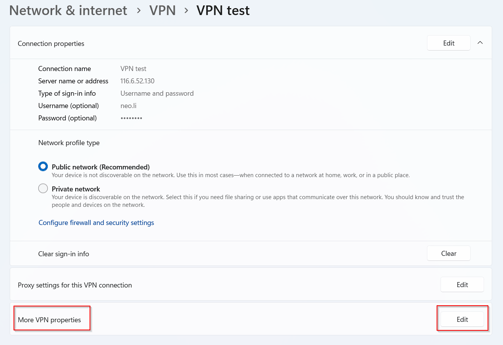
6,  Go to “Change adapter options”.

7,  Right click “HaloAsia” and select “Properties”.

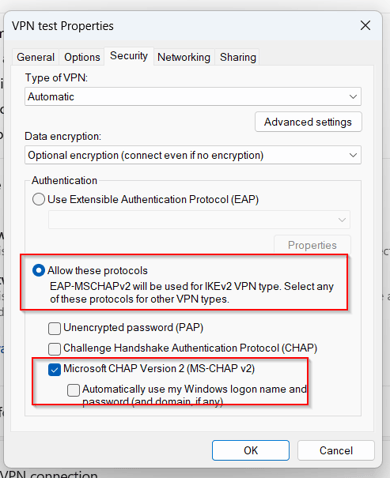
8,  Click “Security” tab, and select “Allow these protocols” and tick the “Challenge Handshake Authentication Protocol(CHAP)”, then hit “OK”. 

9,  Repeat step 8-9 for “HaloChinaTelecom” and “HaloChinaMobile” profile. 
10,  Now you can connect by selecting “wifi” icon. 

Account: window login account, for example:  

hss\first name.last name 

or 

haloasia\first name.last name 

Password: window login password 


Please noted that: 

  1. Connect “HaloAsia” when you are not in Mainland. 
  1. Connect “HaloChinaTelecom” or “HaloChinaMobile” when out of office in Mainland. 


Mac OS 

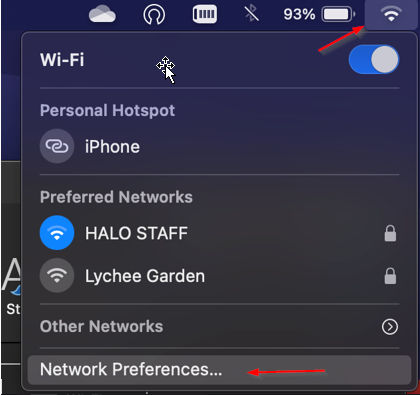
  1. Go to “WIFI” icon and select “Network Preferences”.                     

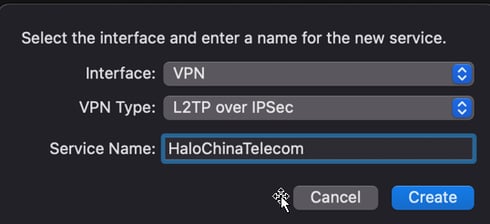
2,  Add with “+” and select the item from the drop list, then hit “Create”. 

Interface: VPN 

VPN: L2TP over IPSec 

Service Name: HaloAsia             

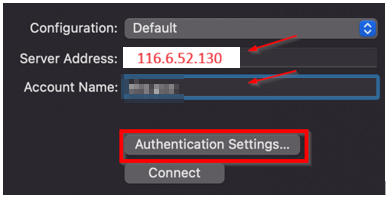
3,  Input the Server Address and the Account Name. 

Server Address: vpn.haloasia.com 

Account Name: Window login account, for example:  

  hss\firstname.lastname 

                or 

  haloasia\firstname.lastname 

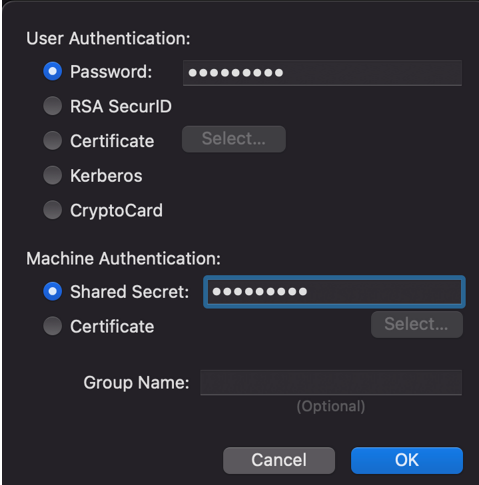
4,  Click “Authentication Settings” and input “Password” and “shared Secret”. 

Password: Window login password 

Shared Secret: OIS#17hk 

Then hit “ok”. 

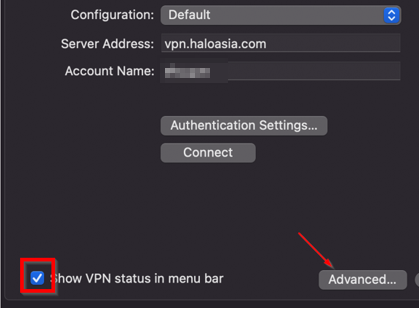
5,  Tick “Show VPN status in menu bar”, then click “Advanced”. 

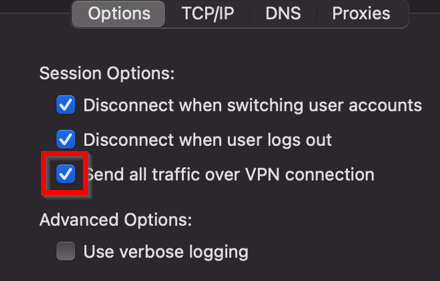
6,  Tick “Send all traffic over VPN connection” and click “ok”. 

7,  Repeat step 1-6 and add for “HaloChinaTelecom” and “HaloChinaMobile” profiles.

HaloChinaMobile: 

Server Name: HaloChinaMobile 

Server Address: 120.237.170.126 

Account Name: Window login account, for example:  

                hss\firstname.lastname 

                or 

                haloasia\firstname.lastname 

Password: Window login password 

Shared Secret: Halo#hss2020 


HaloChinaTelecom: 

Server Name: HaloChinaTelecom 

Server Address: 121.9.200.114 

Account Name: Window login account, for example:  

                hss\firstname.lastname 

                or 

                haloasia\firstname.lastname 

Password: Window login password 

Shared Secret: Halo#hss2020 


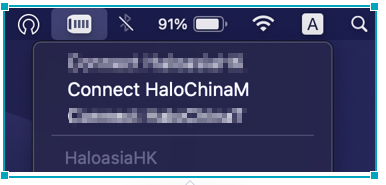
8,  You can see the VPN icon on the top of bar. 

Please noted that: 

  1. Connect “HaloAsia” when you are not in Mainland. 
  2. Connect “HaloChinaTelecom” or “HaloChinaMobile” when out of office in Mainland. 

END