First, log in to the system. After go to "Financial Reports".
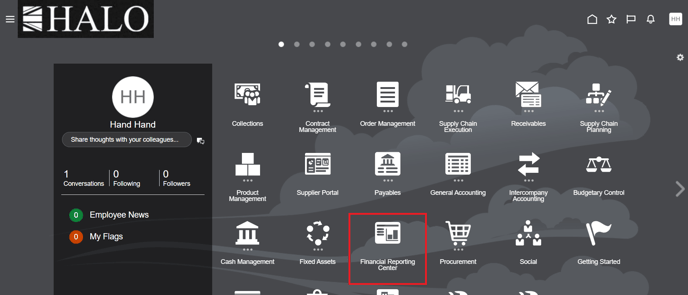
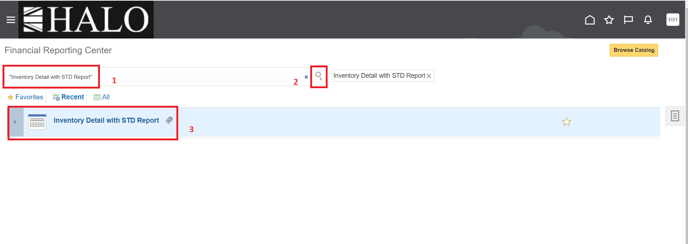
Then, input the name of the report, click on "search" icon and select the report.
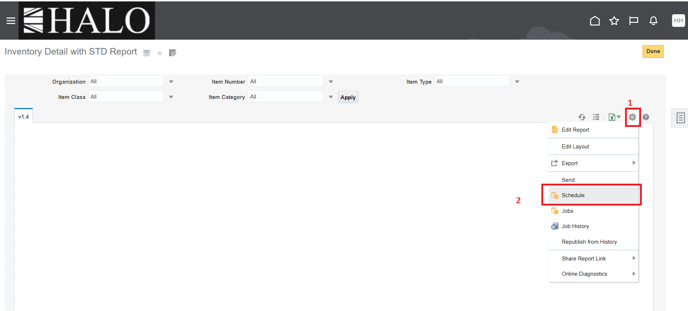
After that click on "actions" icon and then on "Schedule".
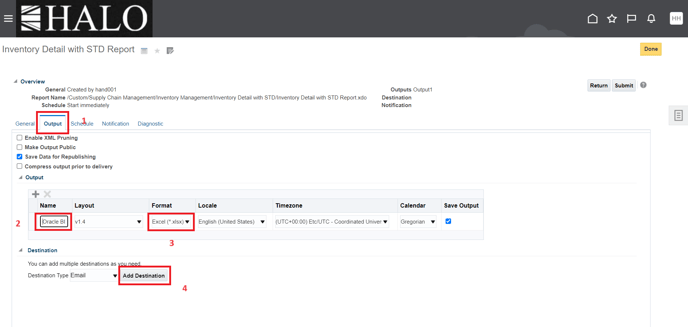
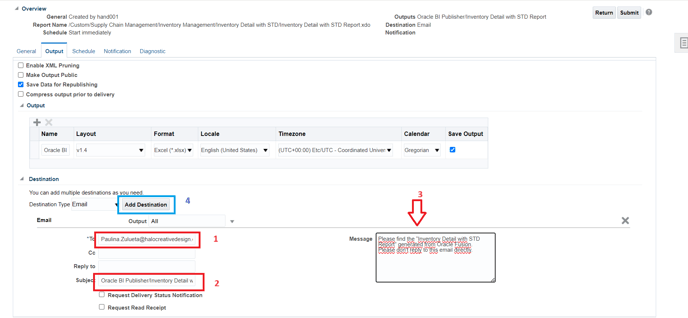
It will change the window. First, click on "Output" tab, then write the name of the file in "Name" field, select the format of the file and finally click on "Add Destination".
It will show more fields. Input the information of the destination: email, subject of the email and the message of the email. If is necessary to add more destinations just click again on "Add Destination".
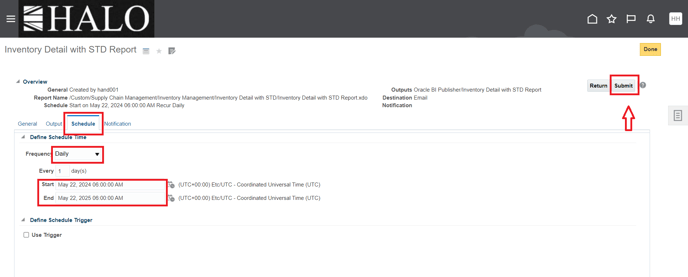
Then click on "Schedule" tab. Select the frequency and the time. The system time goes ahead 6 hours of Mexico City time. After that click on "Submit".
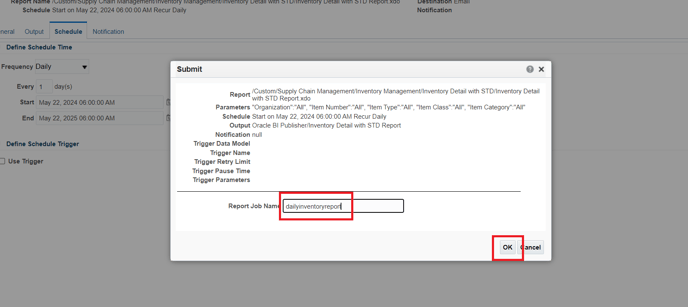
It will deploy a new window. Input "Report Job Name" and click "ok".
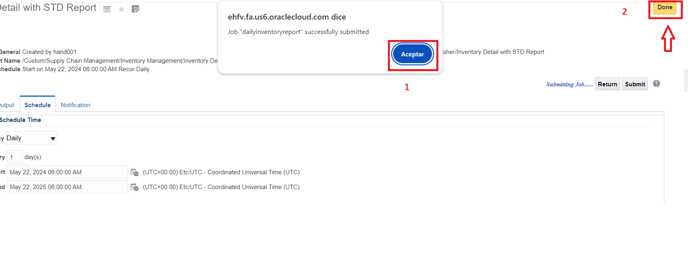
Finally, it will show the following message "Job (…) successfully submitted". Just click "accept" and finally on "Done".
This guide comes from the ticket "RE: Inventario Diario por Email", ID "2744522000".