How To Print Price Tag with Label LIVE on Mac OS
1, Add the Zebra printer to System Preferences
1.1, Go to APPLE icon> System Preferences > Printers & Scanners,
1.2, Click the +, and click Add Printer or Scanner,
1.3, Select the connected Zebra printer,
1.4, Click Select Software,
1.5, Search for “zebra” and select the driver that matches your printer and install.
2, Install Label LIVE Apps
IT will install Label LIVE via Intune in the backend for the Mac computer automatically, no need to install by manual.
3, Launch the program and start the design
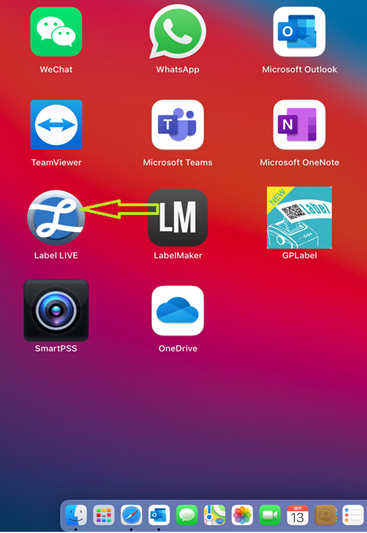
3.1, After installing the APP Label LIVE, you can go to the Dashboard and click on the icon to launch the program,
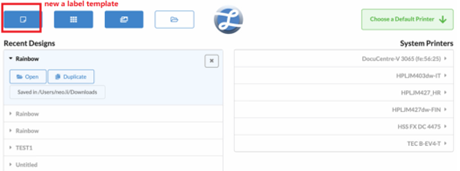
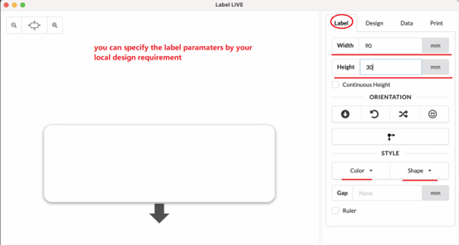
3.2, In the initial page, you can new a template for the label, and input the label size parameters,
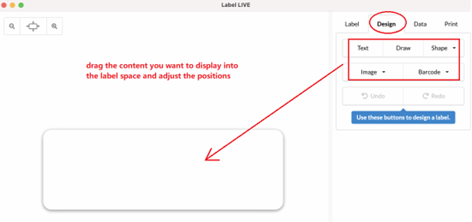
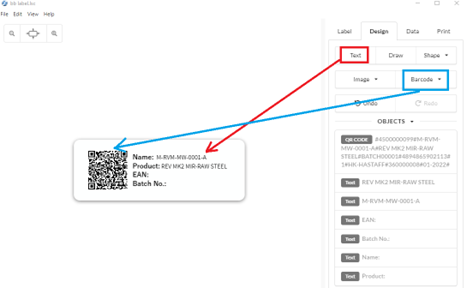
3.3, Drag the content you need to display into the space and adjust the position and size/type of characters, barcode as well,
4, Print a single label via the preview/actual printer
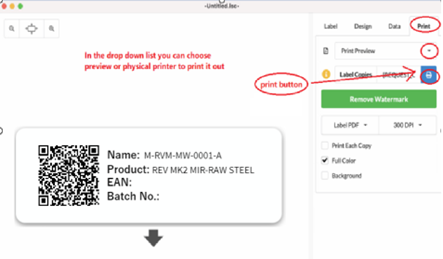
4.1, Finish the label design and hit ‘Print’, then choose Preview or Label Printer,
P.S. single price ticket SKU, Product Description, RRP info can be retrieved from UX-POS system:
1> Login UX POS system : https://pos.prod.uxretail.cloud/login?redirect=%2F
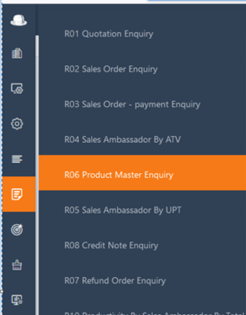
2> Go to sidebar R06 Product Master Enquiry.
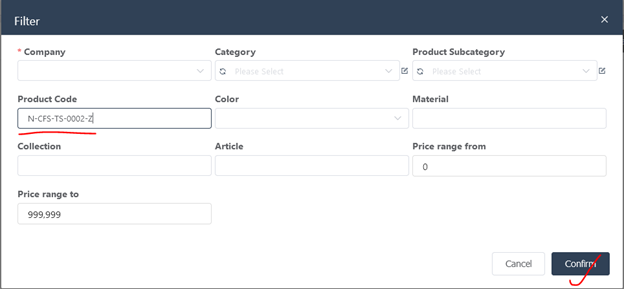
3> Input Product code you want to search and hit Confirm.
4> Got the product data like dimension, SKU, Product Description, RRP…

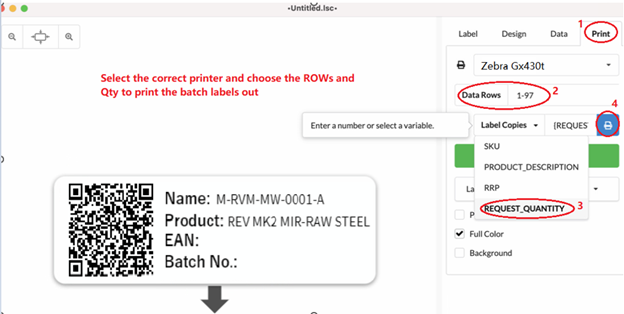
5, Batch print from a database
5.1, Ask data file from Sylvia Shen or GPDB team for batch refresh the price ticket and filter out an Excel spreadsheet for data storing, just keep SKU, Product Description, RRP, Qty columns.
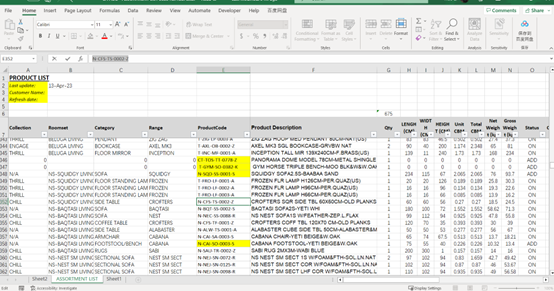
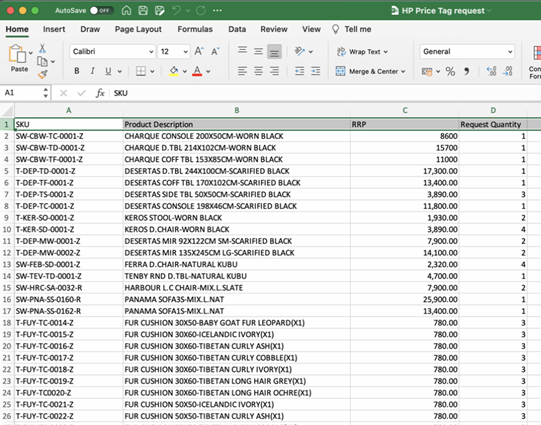
5.2, Remove the contents and pull the data from database then show the content,
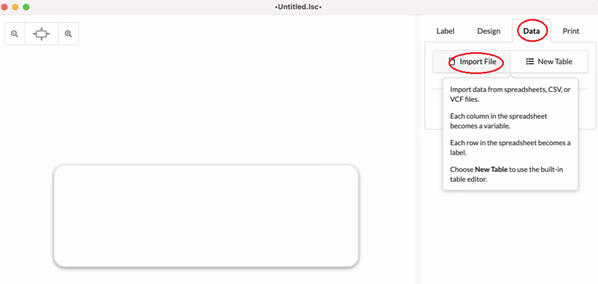
5.3, Locate the data file and open it,
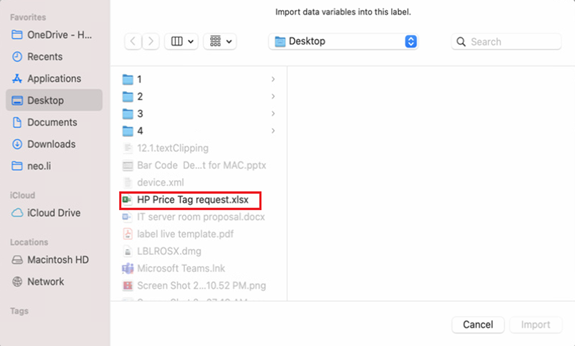
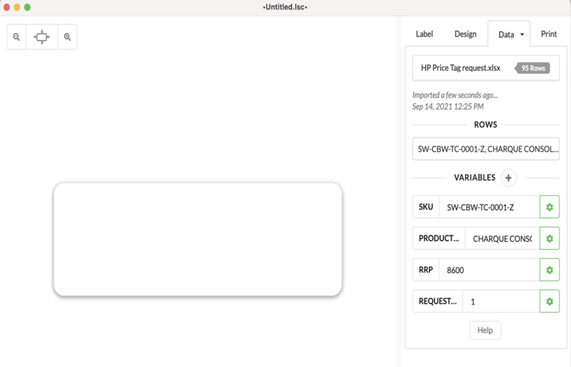
5.4, Display each row’s data correctly by changing the properties’ settings, such as setting as text or barcode which are depend on the column content you want to display.
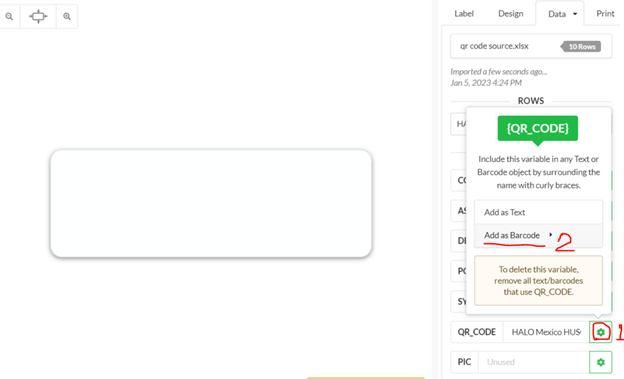
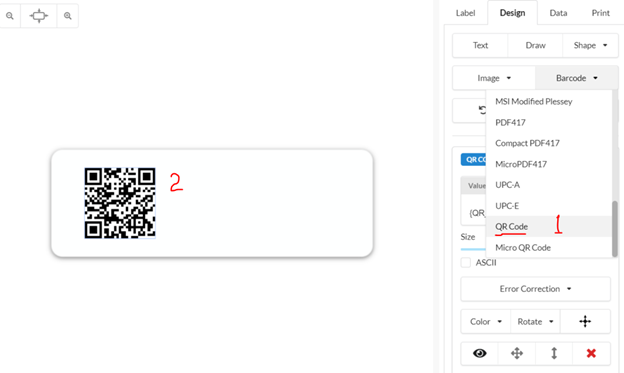
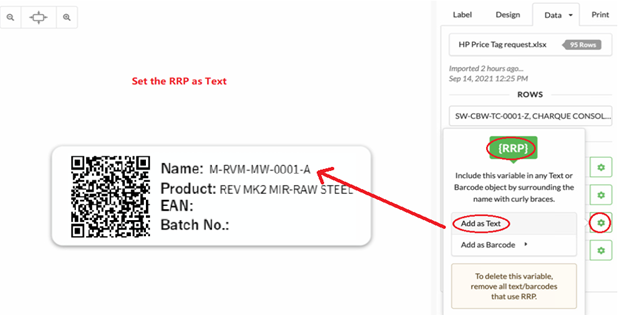
5.5, By clicking on the SAVE AS icon in the left down corner you can save the template as a copy in local computer and next time load it on Label LIVE and that will save much more time on the label design,
6, Video training as below URL https://www.youtube.com/watch?v=Vg-Zf9aeksQ
7, please contact IT support if there is any issue.
HALO IT Support ITSupport@halocreativedesign.com