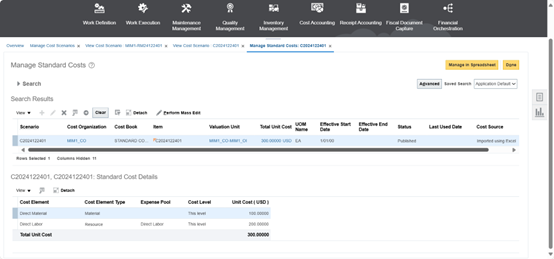
I. First you should check if the item status is OK. So follow the path:
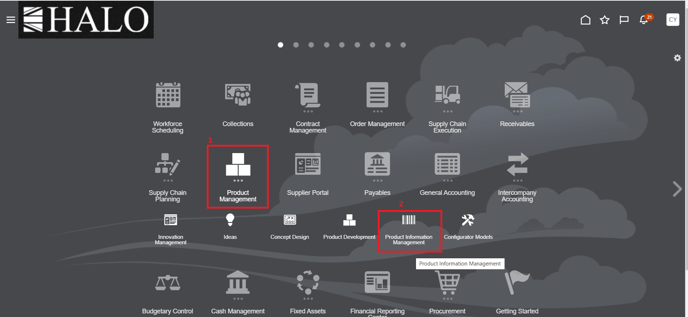
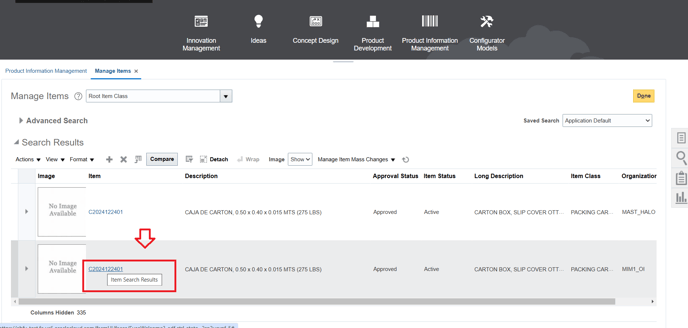
1. Product Management -> Product information Management
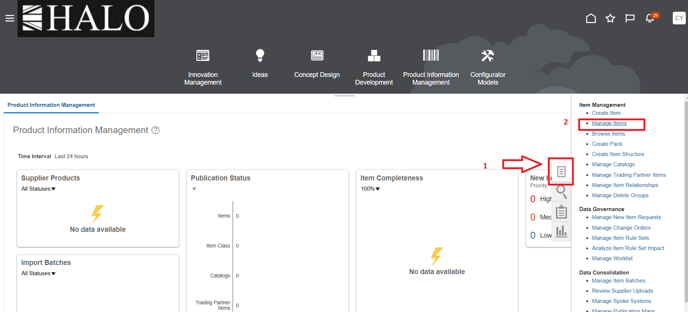
2. And after go to "tasks" icons -> Manage Items
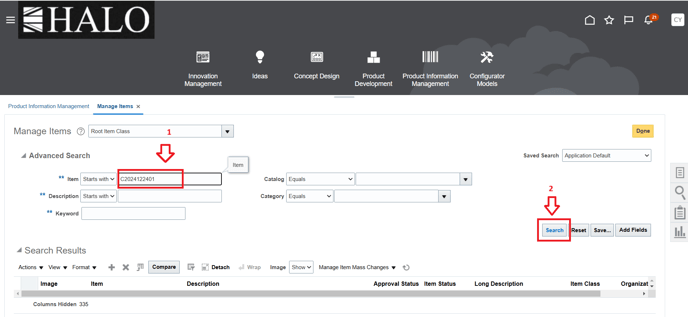
3. Input item number, click on "search".
4. Finally check it.
II. Now here starts the process. First is needed to create Cost Scenarios:
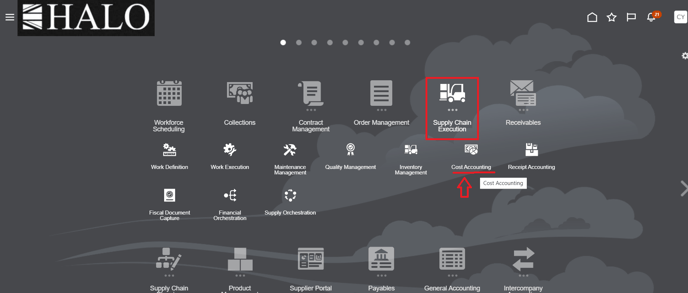
1. Go to Supply Chain Execution -> Cost Accounting.
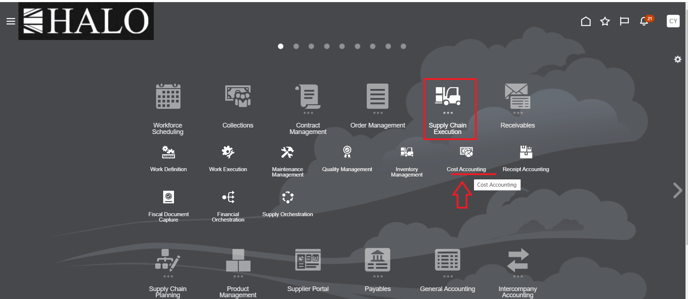
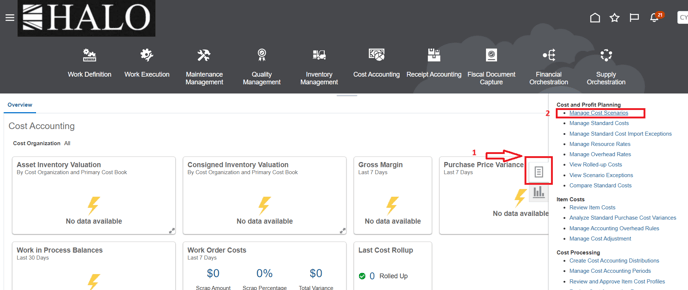
2. After that click on "tasks" icon and then on "Manage Cost Scenarios".
3. Then click on the "Create" button.
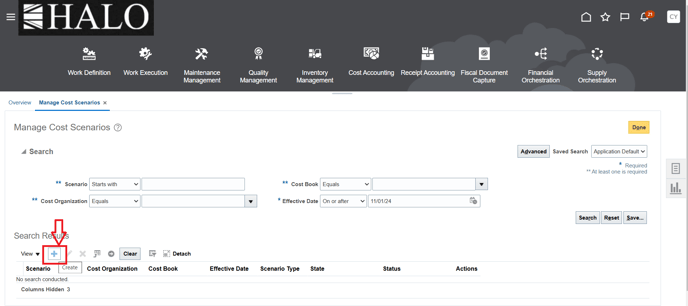
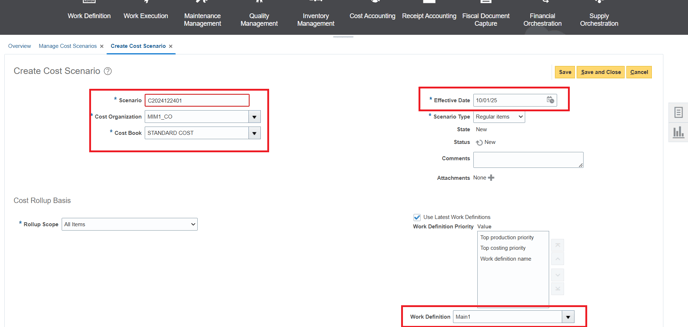
4. Input the necessary information.
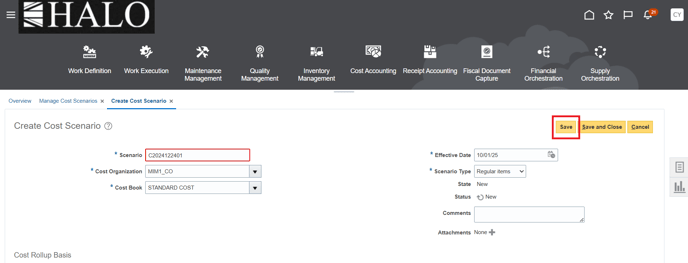
5. Then, click on "save".
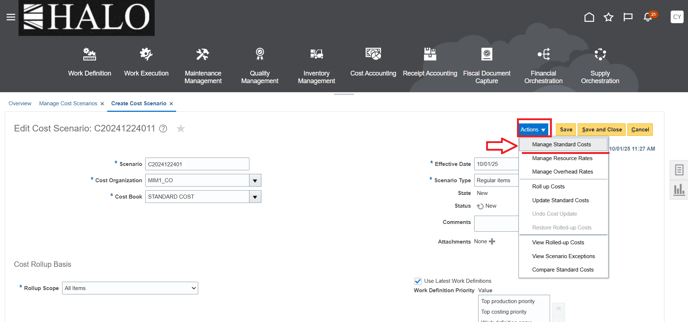
6. After that go to Actions -> Manage Standard Costs.
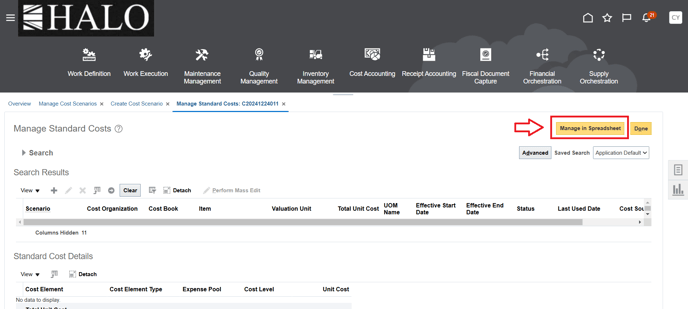
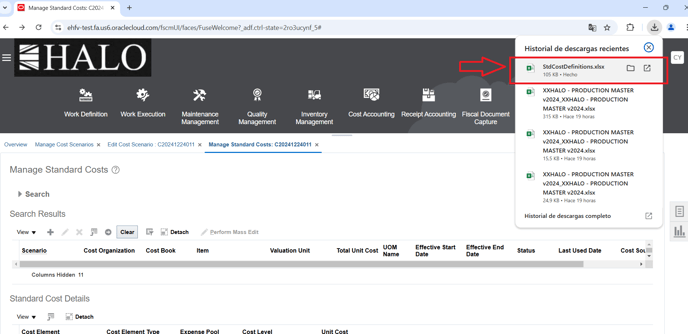
7. Click on "Manage in Spdreadsheet".
8. It will donwload an Excel file, open it.
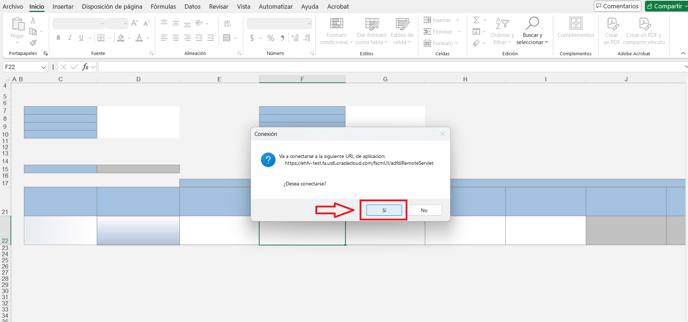
9. It will ask you if you want to connect, click on "Yes/Si":
10. Input your login information.

11. It will show the following:
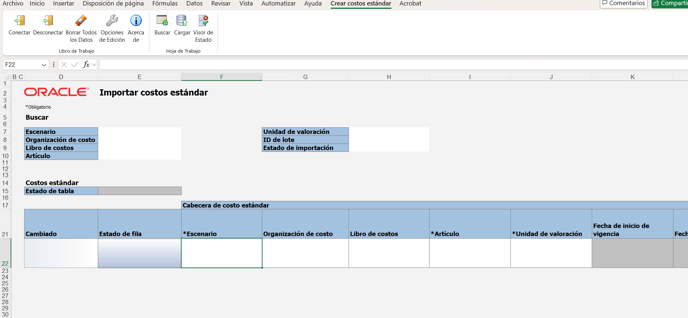
12. Input the necessary information:
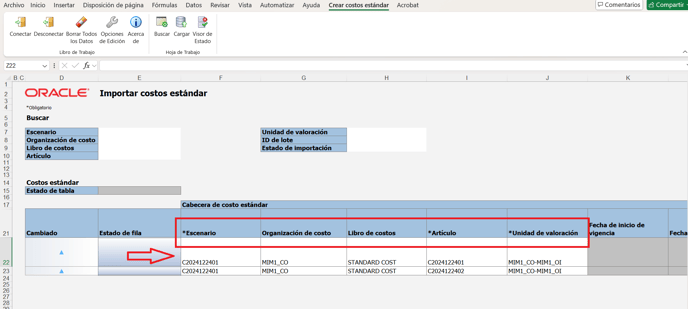
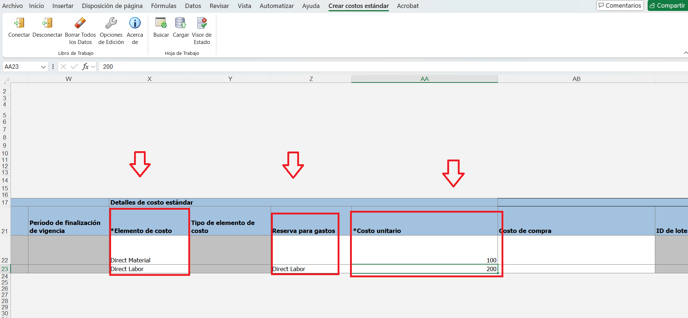
13. Continue inputting the information, which includes "Cost Element/Elemento de costo", "Expense Pool/Reserva para gastos" and "Unit Cost/Costo unitario". Note that "Expense Pool" column can be mandatory to fill it for certain types.
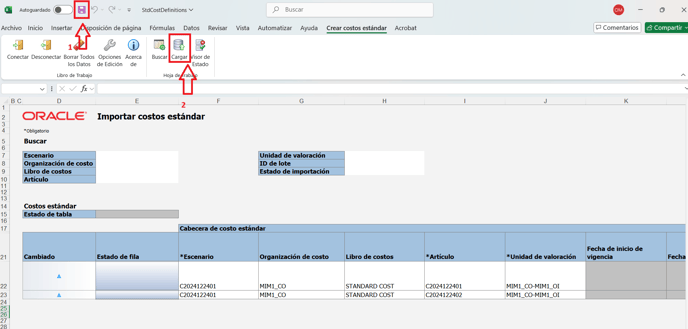
14. After that click first on "save/guardar" and then on "Upload/cargar". Note: for this example there is just 1 item but you can add more.
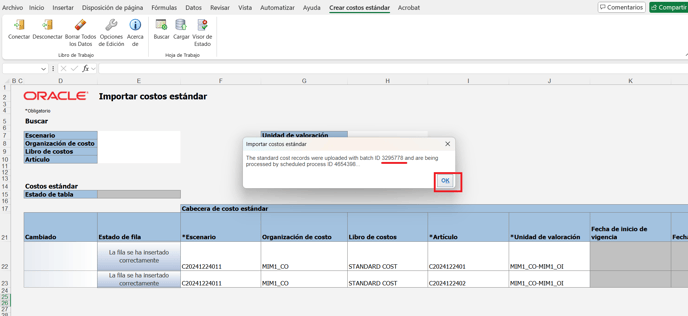
15. When the uploading process is finished it will show the process ID in a small window. On the other hand, the "Row Status/Estado de fila" will change to "Row inserted sucessfully/La fila se ha insertado correctamente". Just take note of the ID and then click on "Ok".
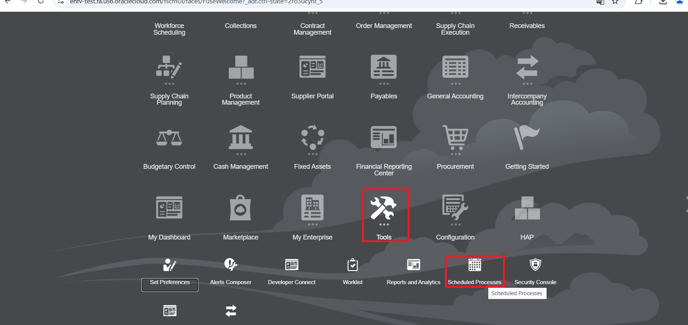
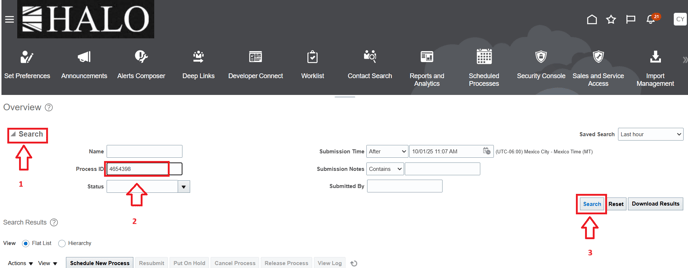
16. After that go to Oracle and follow the path: Tools -> Scheduled Processes.
17. Click on "search" on the left, after that input the process ID and and then click on "search" on the right. Check wether the Status is "Succeeded".
18. After that check if the item cost update were sucessfully or not. So first go to Supply Chain Execution -> Cost Accounting.
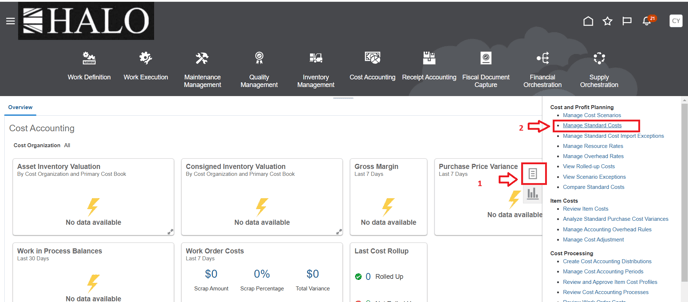
19. Then click on "tasks" icon and then on "Manage Standard Costs".
20. Input the item number and click on "search".
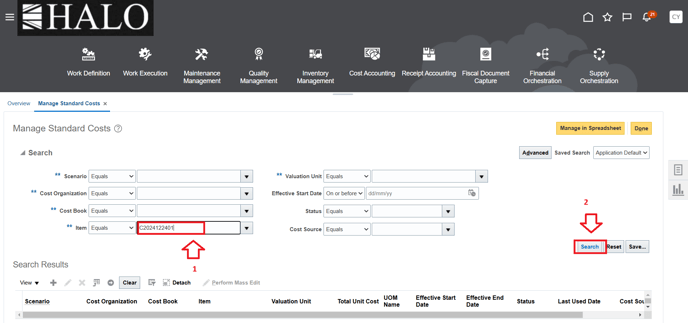
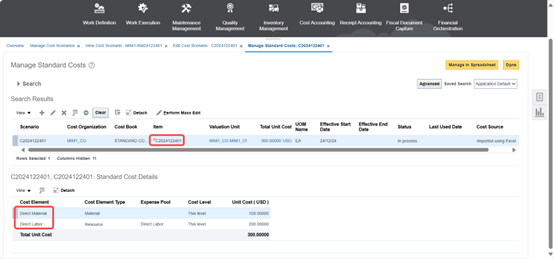
21. Confirm if the cost is correctly updated.
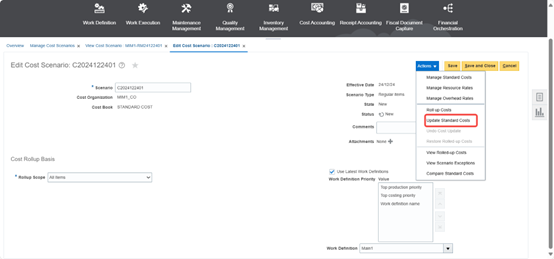
22. After that you have to update the "Standard Cost", so click on Actions -> Update Standard Costs.
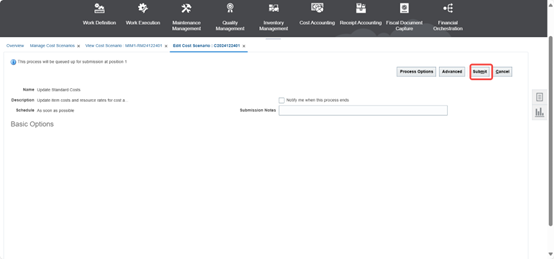
23. Then clikc on "Submit".
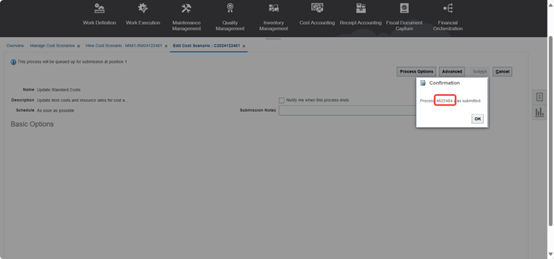
24. It will show the process ID, take note of it and click on "Ok".
25. Go again to "Schedule processes" to check wether the process were sucesfully ran. After that status will auto change to published.