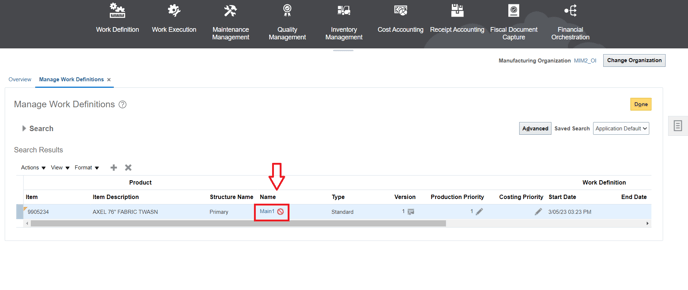
Before starting the process you have to kepp in mind the following information:
Batch ID is unique and need to be used different each time.
The item can't have open Work Order.
Batch updates cannot be updated too much at a time, and the system request can be stuck.
Now let's start.
1. Open the "WorkDefinitionTemplate" file.
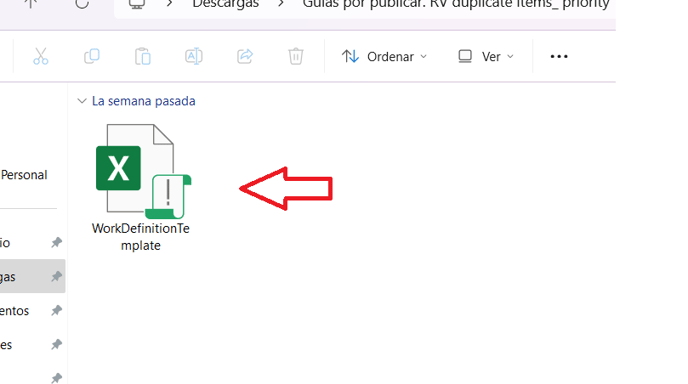
2. Then, go to "Import Batches" tab.
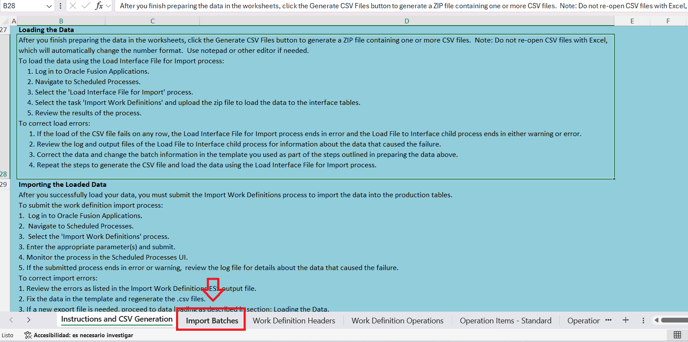
3. Input the corresponding value in the "INTERFACE_BATCH_CODE" column. The "INTERFACE_BATCH_NAME" column can also have the same value.

4. Now go to "Work Definition Headers" tab.
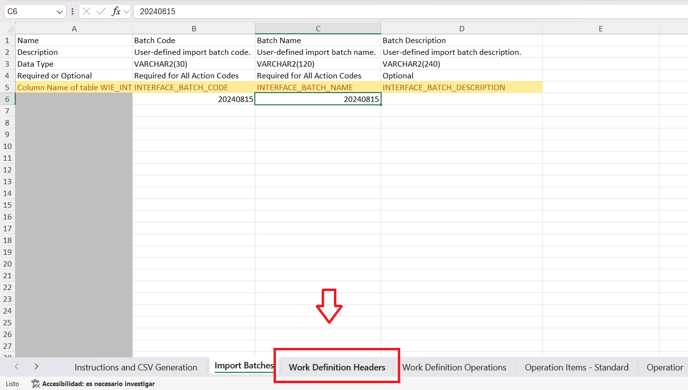
5. "ACTION_CODE" column has the following fixed value: "UPDATE".
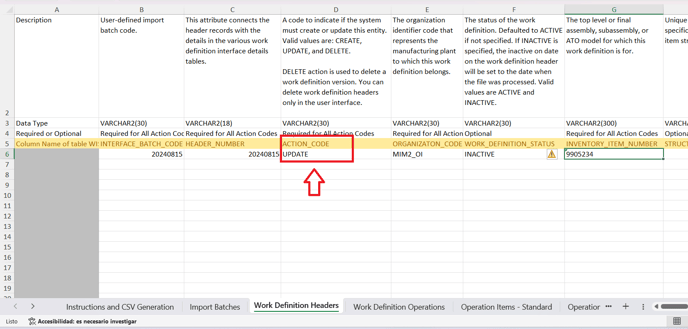
6. In "ORGANIZATION_CODE" column you have to input the code of the organization you are going to invalidate.

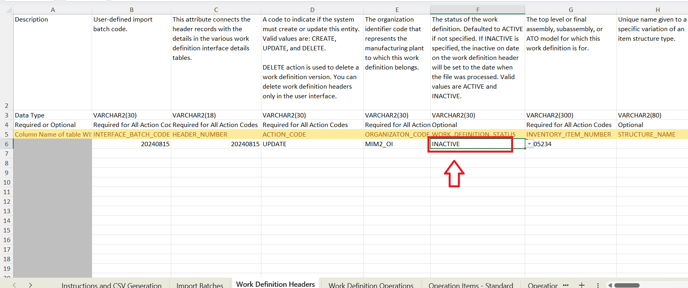
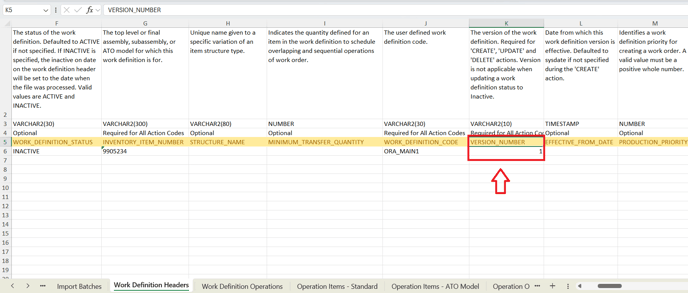
7. By other hand, "WORK_DEFINITION_STATUS" column has the "INACTIVE" fixed value.
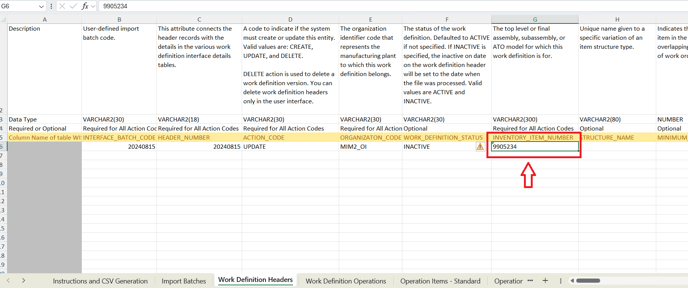
8. In "INVENTORY_ITEM_NUMBER" column input the item number you need to inactivate.
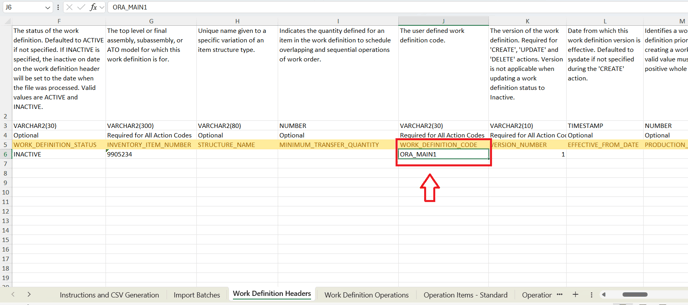
9. "WORK_DEFINITION_CODE" column is the Work Definition name.
10. By other hand, "VERSION_NUMBER" column is the Work Definition version.
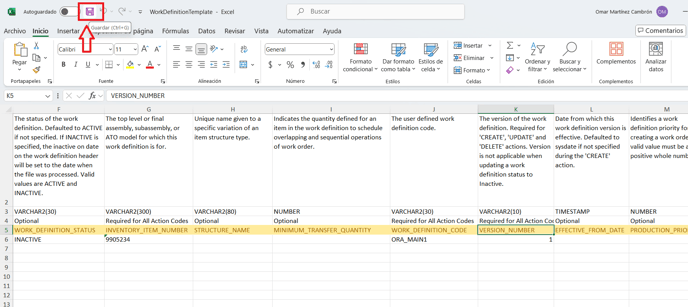
11. After entering this information click on "save" icon.
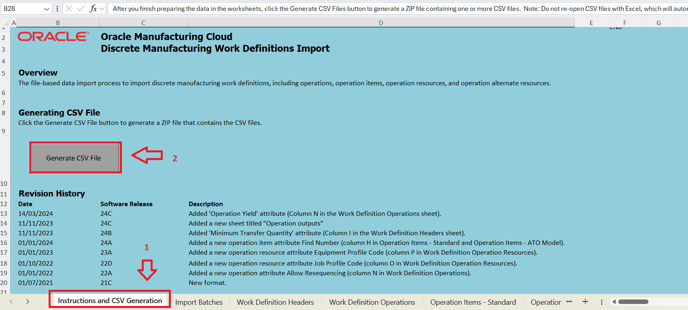
12. Then go to "Instructions and CSV Generation" tab and click on "Generate CSV File".
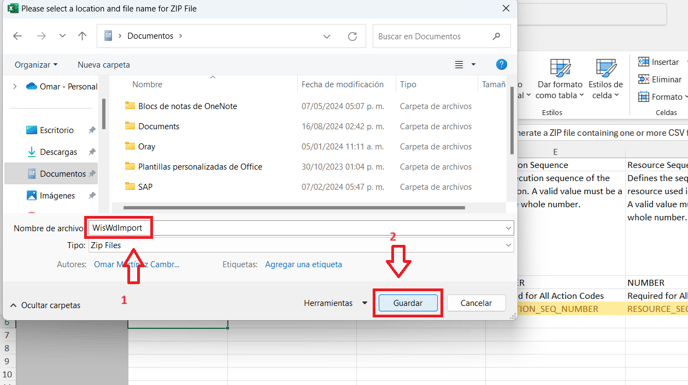
13. Input name and click on "save" or "Guardar". It will generate a zip file.
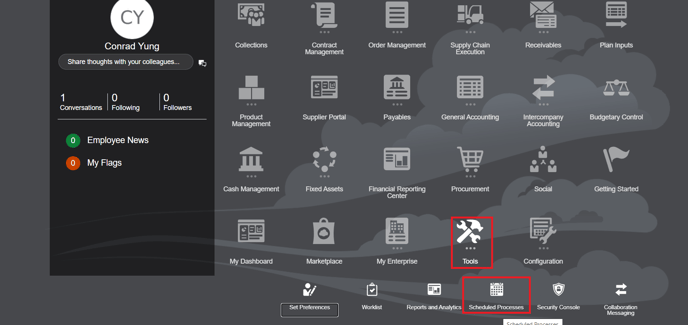
14. Now go to Tools -> Schedule Processes.
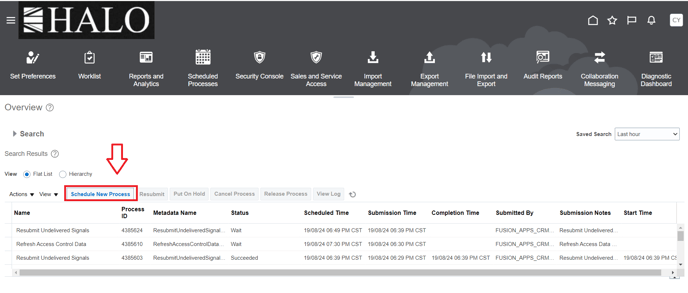
15. Click on "Schedule New Process".
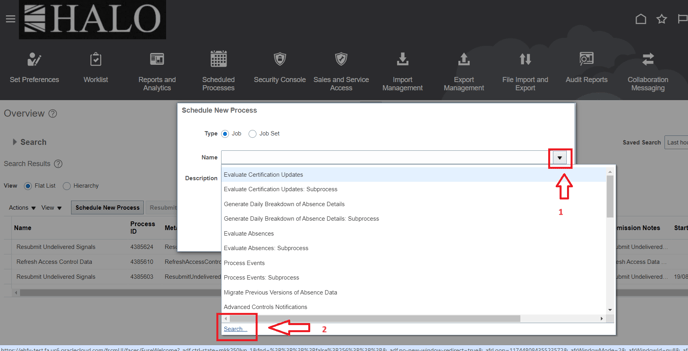
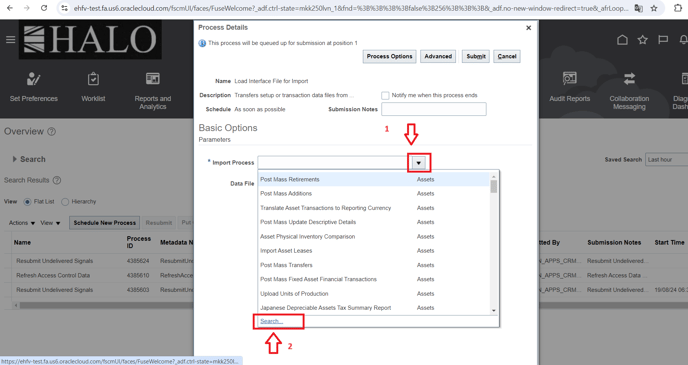
16. Click on more options icon and then on "search".
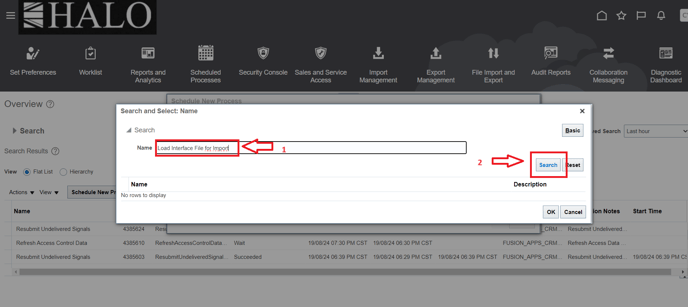
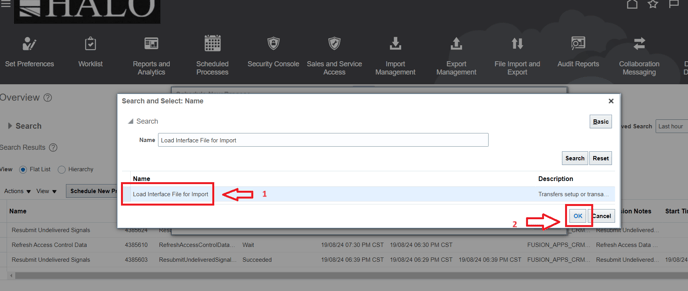
17. Input "Load Interface File for Import" and click on "search".
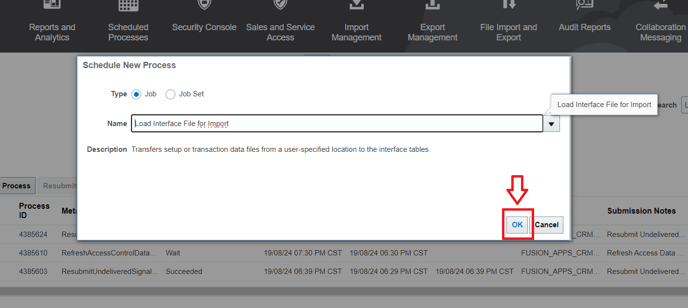
18. Select that option and click on "Ok".
19. Click again on "Ok".
20. Now click again on the more options icon and click on "search" again.
21. Input "Import Work Definitions" and click on "search".
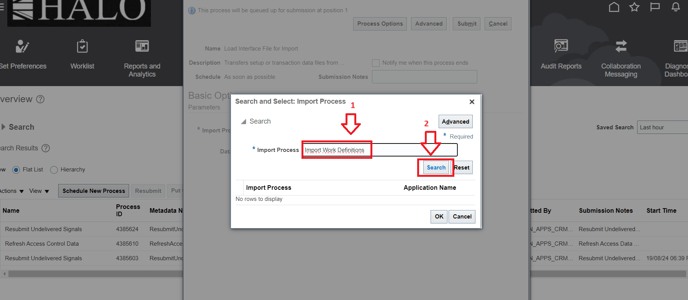
22. Select it and click on "Ok".
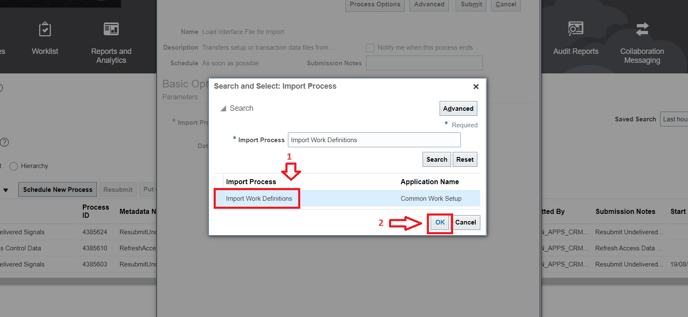
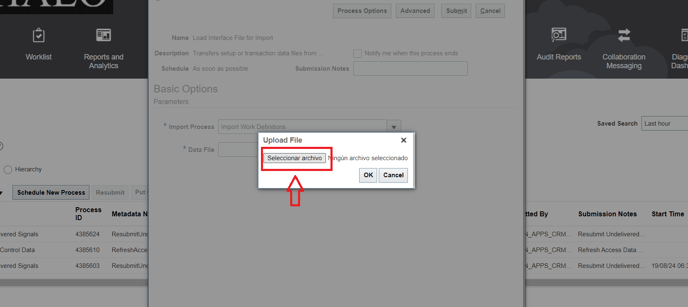
23. You will go back to the previous window. Now in the Data File field click on the more options icon and click on "Upload a new file".

24. Click on "Seleccionar archivo" or "select file".
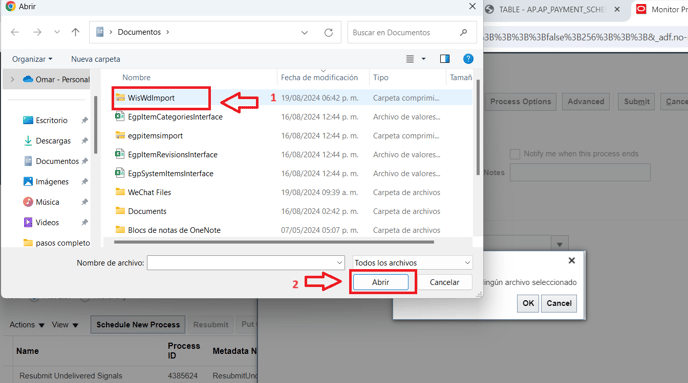
25. Select the zip file you created and click on "open" or "abrir".
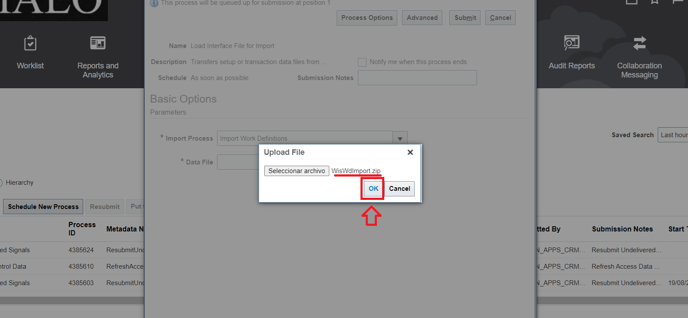
26. Click on "Ok".
27. And now click on "Submit".
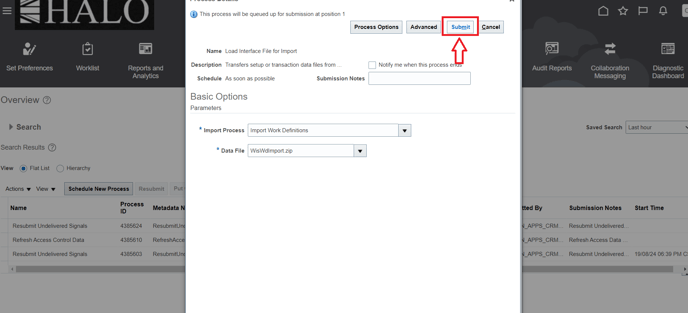
28. It will show process ID. Click on "Ok".
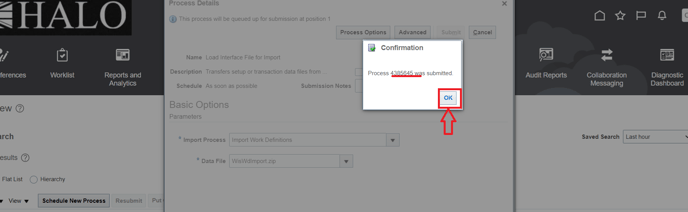
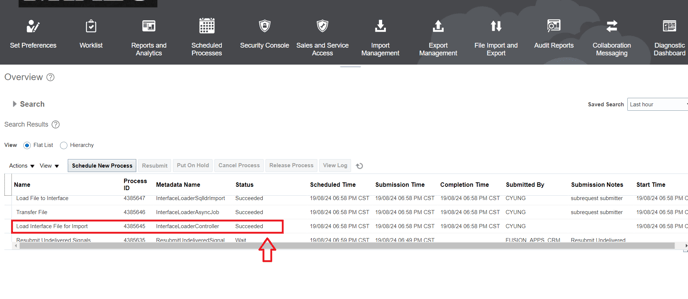
29. Wait until process is succeeded.
30. Now click again on "Schedule New Process".
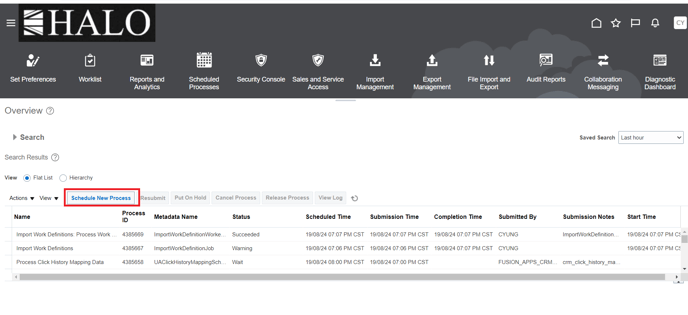
31. The steps are the same.

32. Now input "Import Work Definitions".
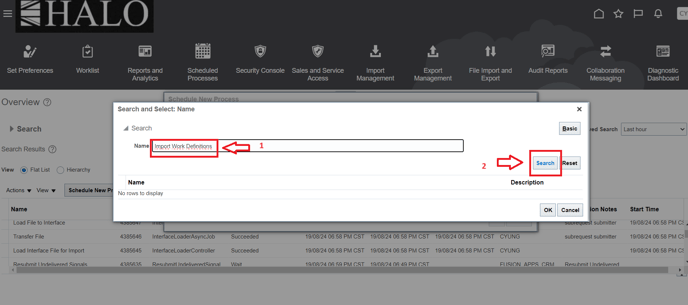
33. Select it and click on "Ok".
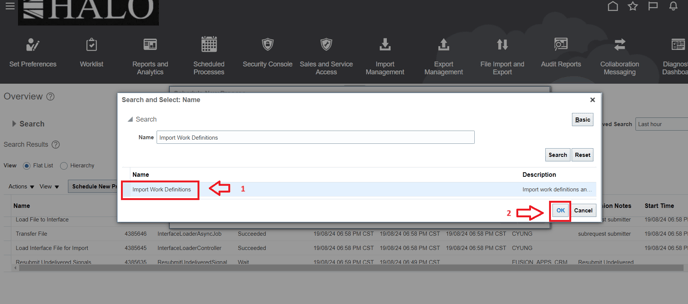
34. Click again on "Ok".
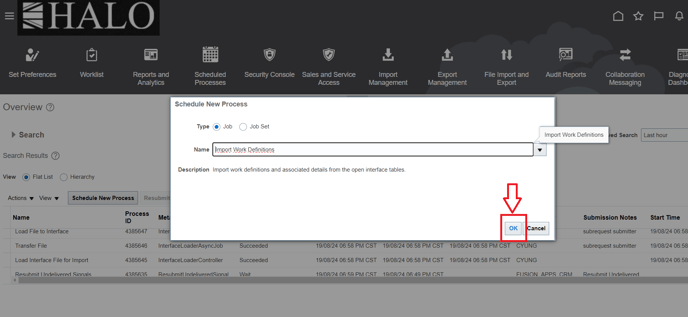
35. In the "Batch" field click on the more options icon and then select the option to the corresponding batch ID.

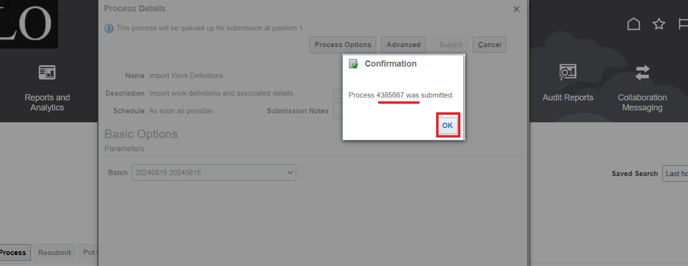
36. Finally click on "Submit".
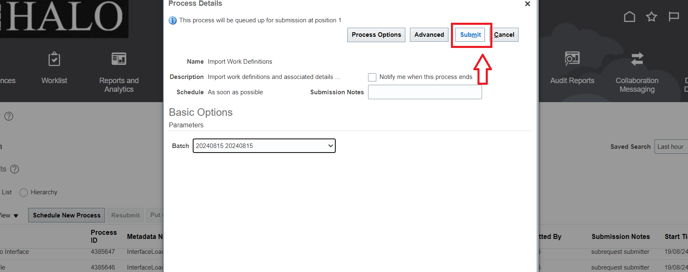
37. It will show the ID for this process. Wait until it is finished.
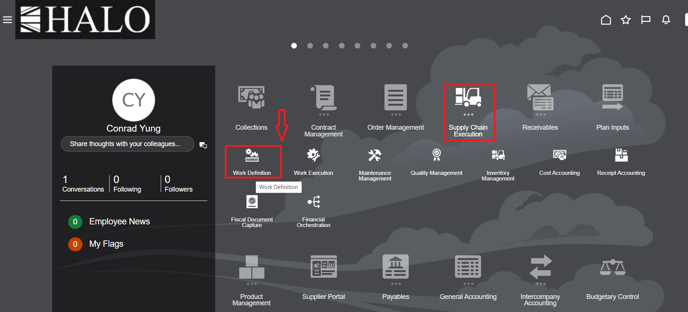
38. Now go to Supply Chain Execution -> Work Definition.
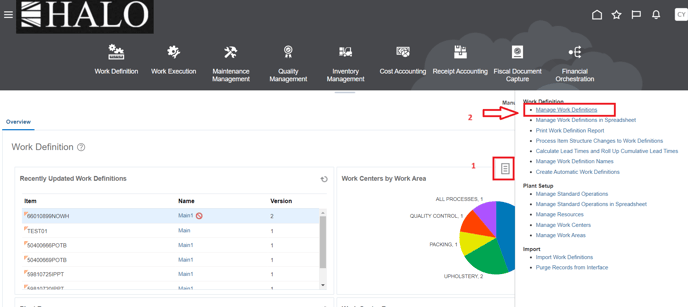
39. Click on tasks icon and then on "Manage Work Definitions".
40. Input the item's number and click on "search".
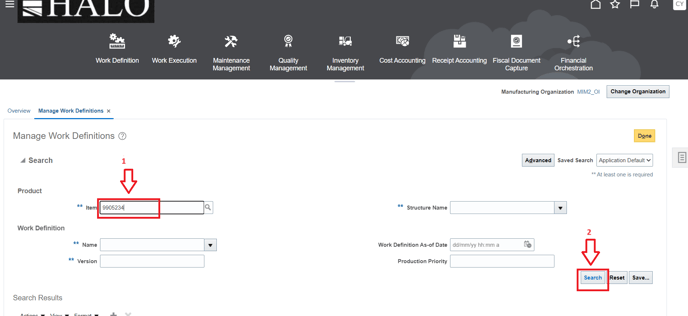
41. In this step you can finally check that the results are as expected.