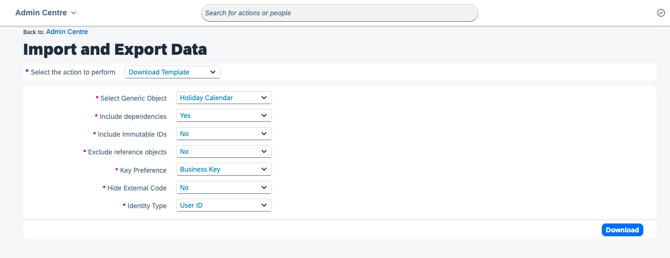
IF1. go to SAP SF - Import and Export Data and select Download Template
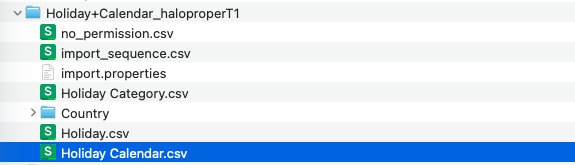
2. double click the ZIP file to get the file in the download folder

3. after un-zip, get the file as below - Holiday Calendar.csv
4. fill in the data in to the template, some data is the code can get from the as below:
TO China Calendar as below:
name.zh_CN: CN Calendar
country.code: CHN
externalCode: CN_CALENDAR
holidayAssignments.date: input the specify date (MM/DD/YYYY)
holidayAssignments.holidayClass: FULL or HALF (if it is the full day, then select FULL, if just half day, then select HALF)
holidayAssignments.holidayCategory.externalCode:FULL or HALF (if it is the full day, then select FULL, if just half day, then select HALF)
holidayAssignments.holiday.holidayCode: base on different type select specify type
For weekend -> CN_WEEKEND
For new year day -> CN_NEWYEARDAY
For Chinese New Yearday1 ->CN_CNY1
For Chinese New Yearday2 ->CN_CNY2
For Chinese New Yearday3 ->CN_CNY3
Women Day --> CN_WOMENDAY
For Qing Ming Festival -> CN_QINGMING
For Labor day -> CN_LABORDAY
For Youth day -> CN_YOUTHDAY
For Tung Ng Festival -> CN_TUENNG
Chinese Mid-Autumn Festival -> CN_MIDAUTUMN
For National day1 -> CN_NATIONALDAY1
For National day2 -> CN_NATIONALDAY2
For National day3 -> CN_NATIONALDAY3
To HK Holiday as below:
name.zh_CN: HK Calendar
country.code: HKG
externalCode: HK_CALENDAR
holidayAssignments.date: input the specify date (DD/MM/YYYY)
holidayAssignments.holidayClass: FULL or HALF (if it is the full day, then select FULL, if just half day, then select HALF)
holidayAssignments.holidayCategory.externalCode:FULL or HALF (if it is the full day, then select FULL, if just half day, then select HALF)
holidayAssignments.holiday.holidayCode: base on different type select specify type
For weekend -> CN_WEEKEND
For new year day -> HK_NEWYEARDAY
For Lunar New Year's Day ->HK_CNY1
For The second day of Lunar New Year ->HK_CNY2
For The third day of Lunar New Year ->HK_CNY3
The forth day of Lunar New Year ->HK_CNY4
For Qing Ming Festival -> HK_CHINGMING
Good Friday --> HK_GOODFRIDAY
The day following Good Friday --> HK_DAYAFTERGOODFRIDAY
Easter Monday --> HK_EASTERMONDAY
Birthday of the Buddha --> HK_BUDDHABIRTHDAY
For Labor day -> HK_LABORDAY
Tuen Ng Festival --> HK_TUENNG
Hong Kong Special Administrative Region Establishment Day -> HK_HKSAR
The second day following the Chinese Mid-Autumn Festival -> HK_DAYAFTERMIDAUTUMN
National Day -> HK_NATIONALDAY
Chung Yeung Festival -> HK_CHUNGYEUNG
The day following Chung Yeung Festival -> HK_DAYAFTERCHUNGYEUNG
The first weekday after Christmas Day -> HK_CHRISTMAS
The second weekday after Christmas Day -> HK_SECONDCHRISTMAS
To CN_Calendar 2023 for QC team
name.zh_CN: CN Calendar
country.code: CHN
externalCode: CN_Calendar 2023
holidayAssignments.date: input the specify date (DD/MM/YYYY)
holidayAssignments.holidayClass: FULL or HALF (if it is the full day, then select FULL, if just half day, then select HALF)
holidayAssignments.holidayCategory.externalCode:FULL or HALF (if it is the full day, then select FULL, if just half day, then select HALF)
holidayAssignments.holiday.holidayCode: base on different type select specify type
For weekend -> CN_WEEKEND
For new year day -> CN_NEWYEARDAY
For Chinese New Yearday1 ->CN_CNY1
For Chinese New Yearday2 ->CN_CNY2
For Chinese New Yearday3 ->CN_CNY3
Women Day --> CN_WOMENDAY
For Qing Ming Festival -> CN_QINGMING
For Labor day -> CN_LABORDAY
For Youth day -> CN_YOUTHDAY
For Tung Ng Festival -> CN_TUENNG
Chinese Mid-Autumn Festival -> CN_MIDAUTUMN
For National day1 -> CN_NATIONALDAY1
For National day2 -> CN_NATIONALDAY2
For National day3 -> CN_NATIONALDAY3
Below are the example

5. after fill in all the data, and then go to upload choose file
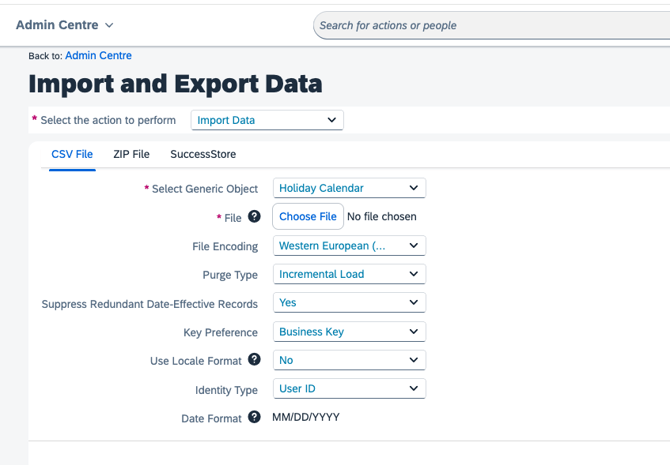
6. after load to view the result
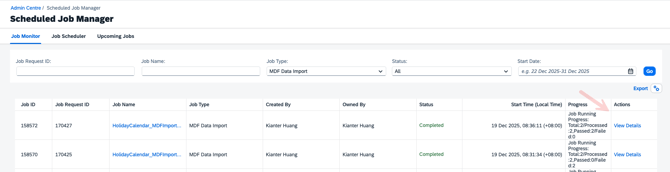
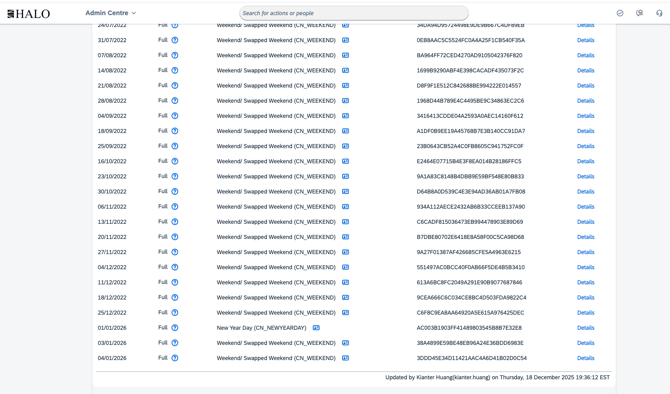
7. go to see the actual result