Skip to content
English
  • There are no suggestions because the search field is empty.

How to Export & Delete Users’ Online Archive Emails

How to Export & Delete Users’ Online Archive Emails


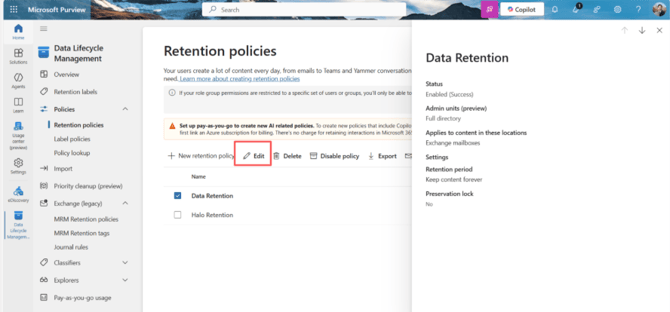
1, Exclude User from Retention Policy 

Exclude users from the Retention Policy(Microsoft Purview->Data Lifecycle Management->Retention Policies) who need to clean up the Online Archive’s Emails. 
A screenshot of a computer

AI-generated content may be incorrect.

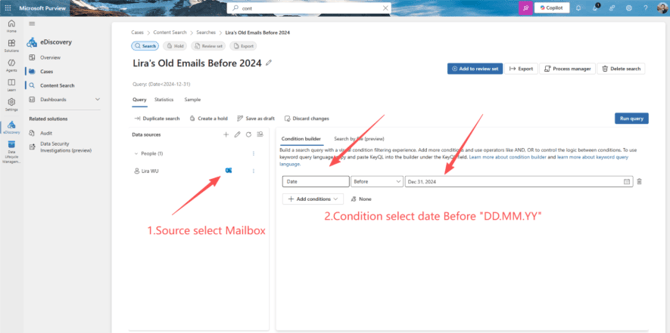
2. Backup User’s Emails  

Create a case in eDiscovery and select the correct condition of the range of the User’s deletion date.
 A screenshot of a computer

AI-generated content may be incorrect.

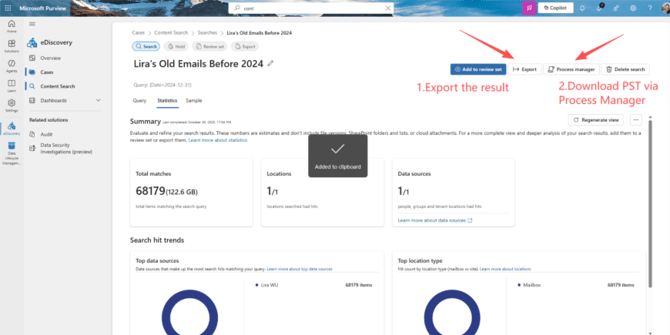
3, Download User’s Emails via Content Search 

Download the PST file from the 'Process Manager' when the export finishes. 
A screenshot of a computer

AI-generated content may be incorrect.

4, Delete Emails from Achieve Mailbox 

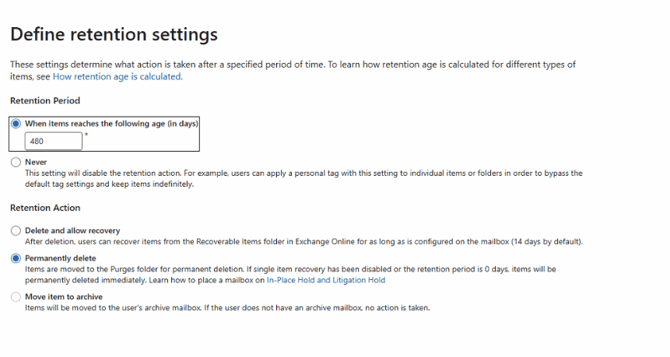
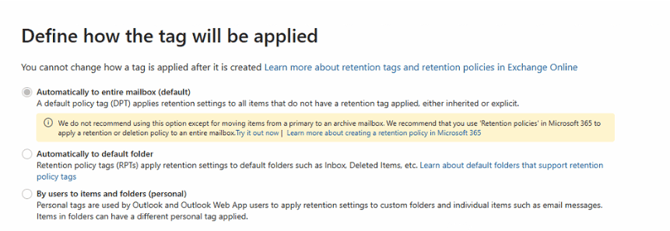
Create a Retention Tag and Policy, select the correct time that needs to be deleted, then apply it to a user. 

PS: TAG must select “Automatically to entire mailbox” and “Permanently delete” 
A close-up of a text

AI-generated content may be incorrect.

A screenshot of a computer screen

AI-generated content may be incorrect.


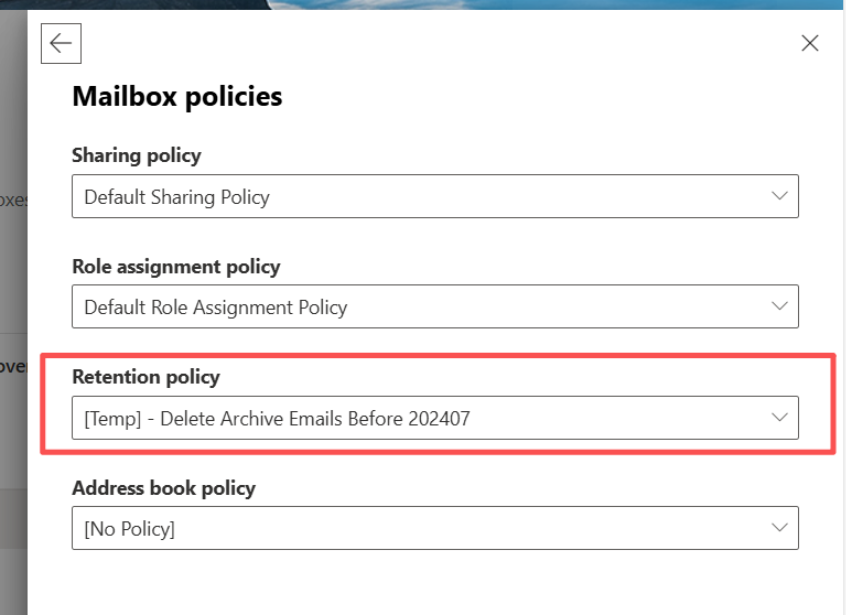
4.1, Apply the delete policy on the user. 
A screen shot of a computer

AI-generated content may be incorrect.


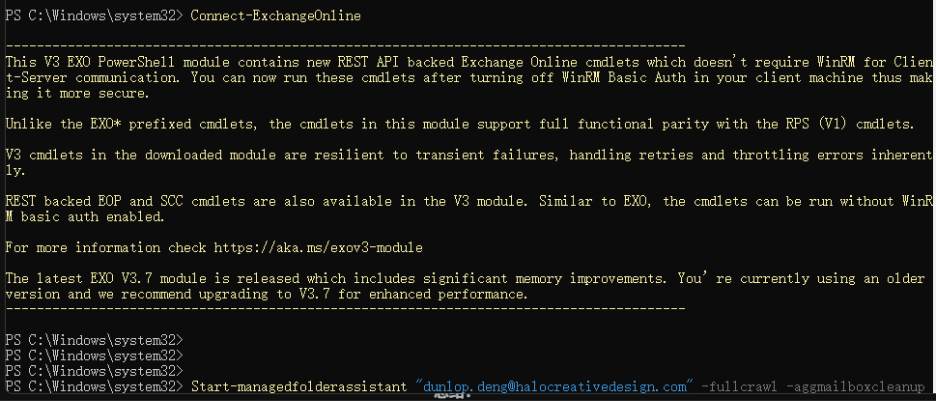
4.2, Run PowerShell Command :

Start-managedfolderassistant "xxx@.com" -fullcrawl -aggmailboxcleanup  
A screenshot of a computer program

AI-generated content may be incorrect.


5, Wait for Deleing to finish 

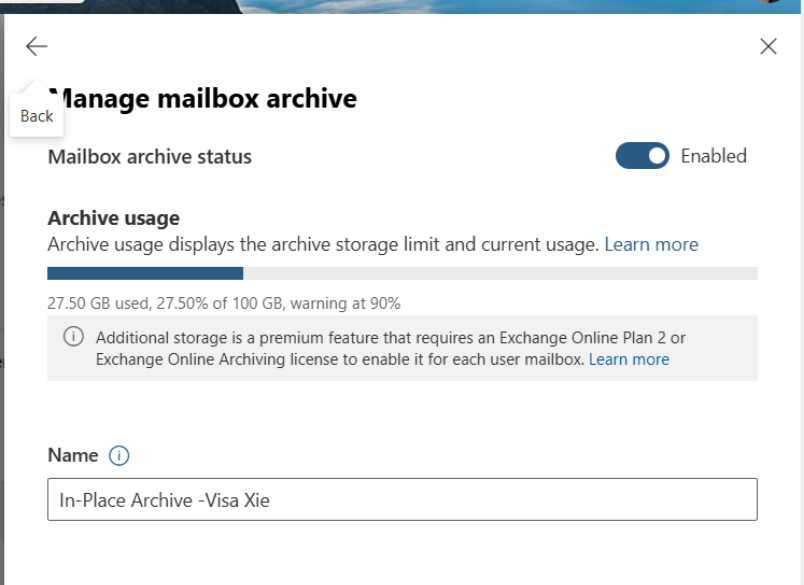
5.1, Check in Exchange Admin Center whether the Online Archive Emails storage has decreased or not 
A screenshot of a mailbox

AI-generated content may be incorrect.

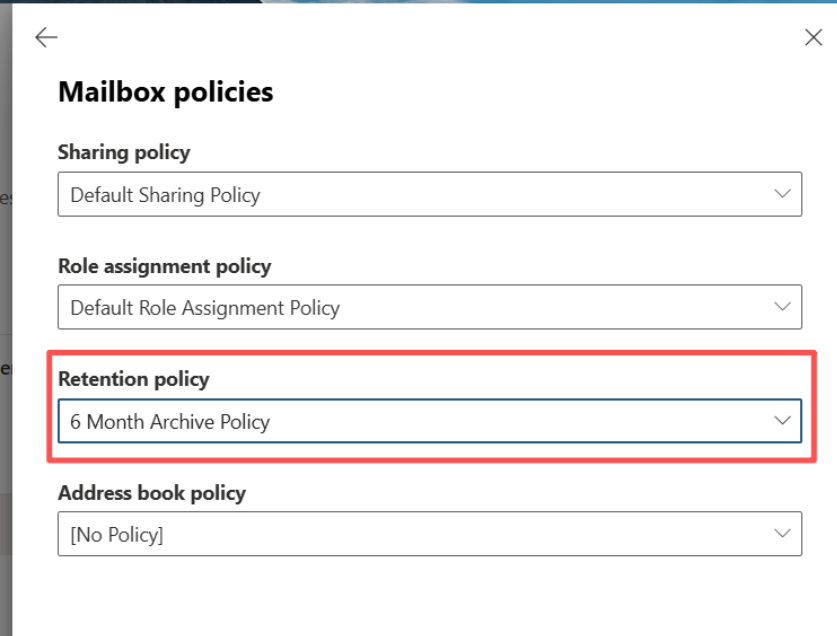
5.2, Change the User’s retention policy back to normal 
A screenshot of a computer

AI-generated content may be incorrect.