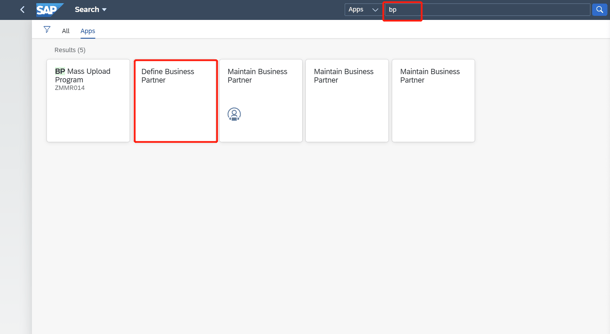
1. You can enter BP as a shortcut to find "Define Business Partner", which is the "Create Business Partner" interface
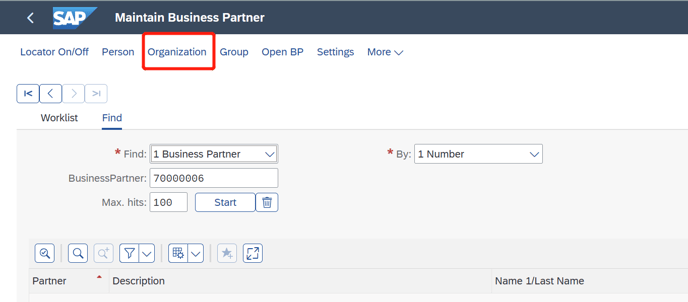
2. In the interface below, you can click "Organization" as you need, which is the category of a business partner.
An orgnization represents unit such as a company, a department of a company, or an association.
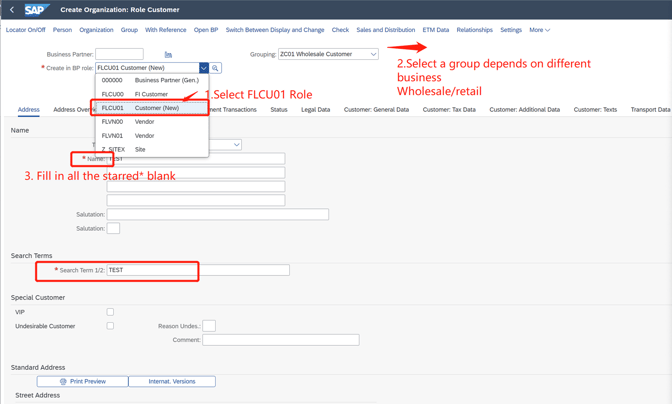
3. After you chose the "Organization" category, you'll see the interface below,
i. Let's choose "FLCU01" as the first role to start.
after selecting the role, also need to select a Grouping
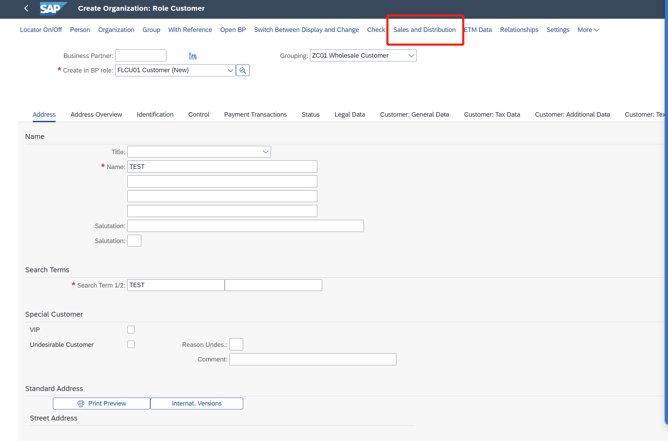
Then, fill in all the Starred* blank with the correct information (As below) in General interface
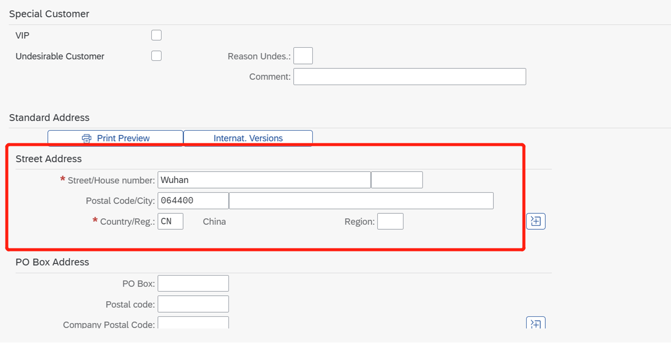
This is the "General" interface in FLCU00. Finishing that, click the rectangle below to change into "Sales and Distribution" interface
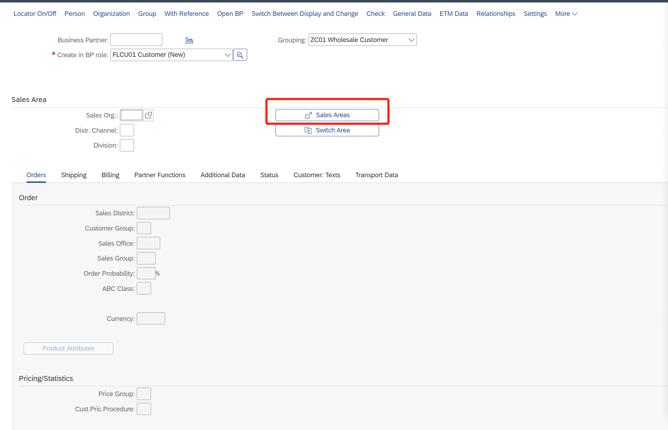
Turn to "Sales and Distribution"interface, click the button as follows
a. choose a sales area
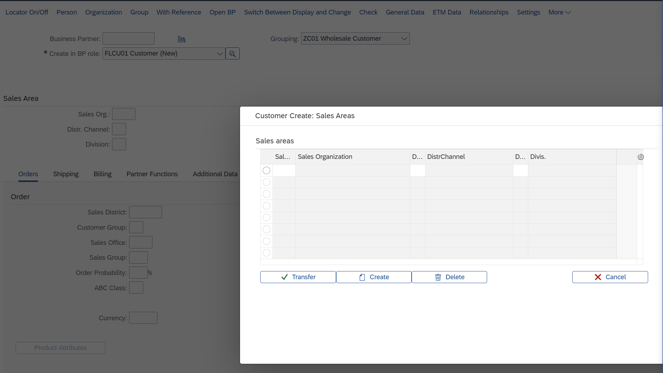
Choose the one you need from the following sales areas.
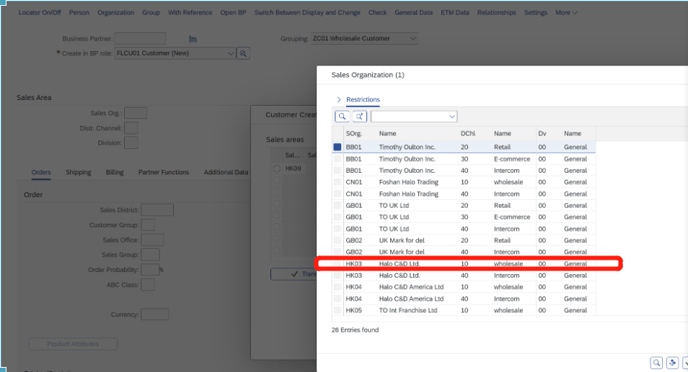
Let's just take this HK03--10--00 as an example
After select the sales area or fill the sales orgnization you need, don't forget to press "Enter" to turn the grey blanks into white--which means you can edit not
(all the grey one means you can't fill in anything, we can edit only white blanks)
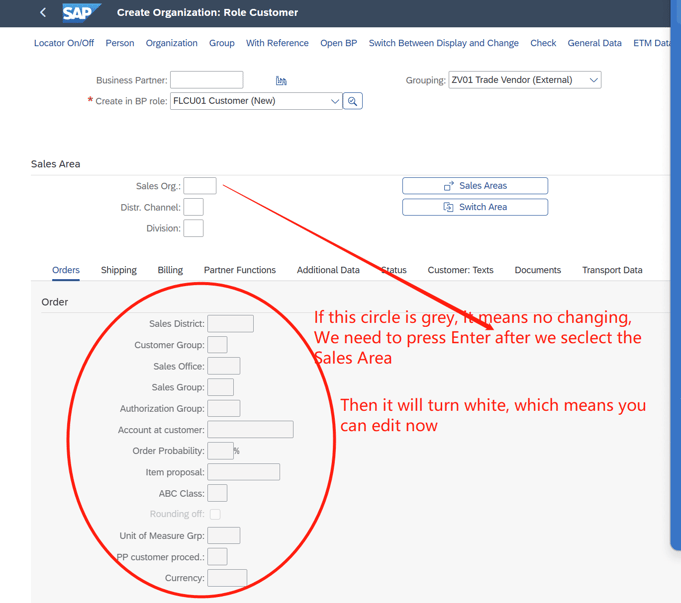
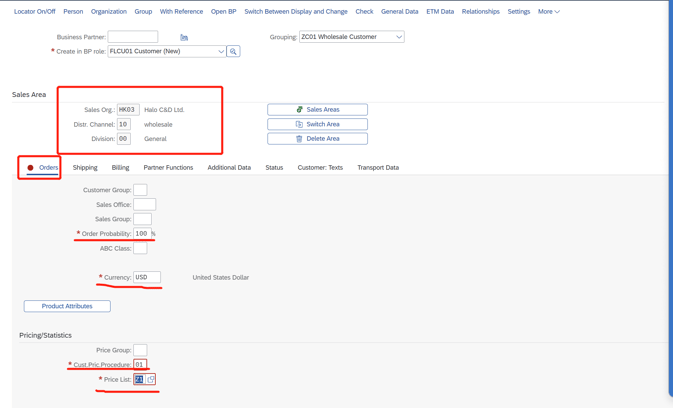
In this sales area, plz fill in all the starred* blank with the correct and true business information
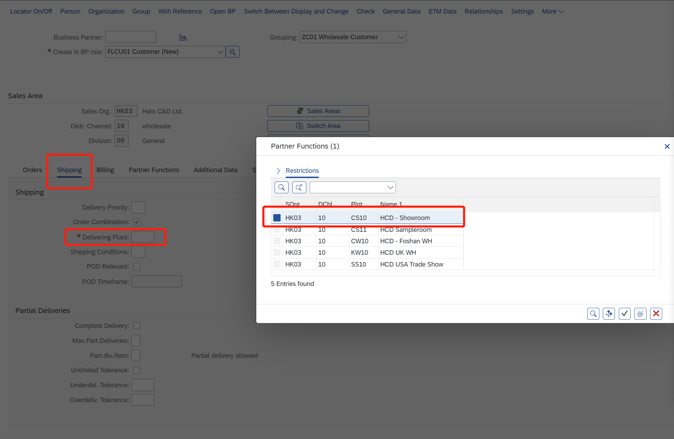
Next, change to Shipping interface, choose a delivery plant
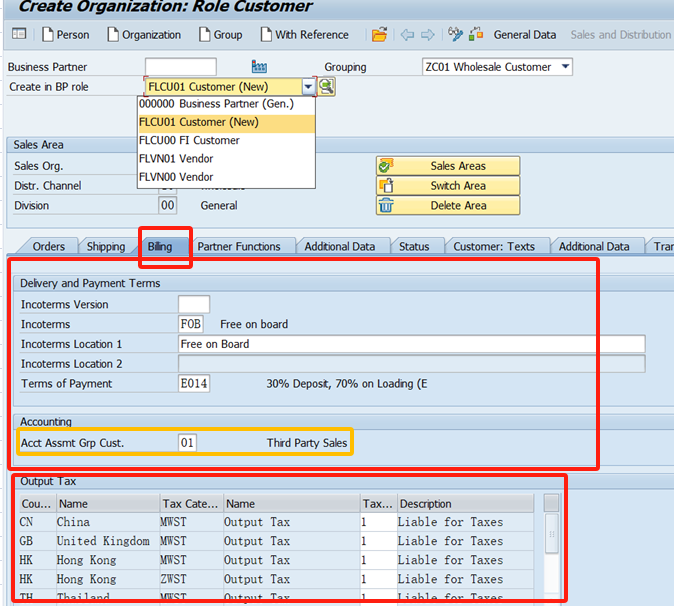
Third, turn to "Billing"
below highlighted yellow should be filled in “01” third party sales
ii. now change another role "FLCU00"
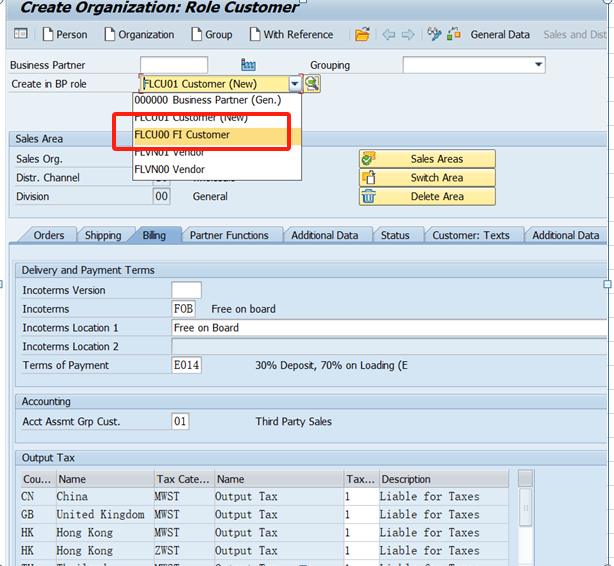
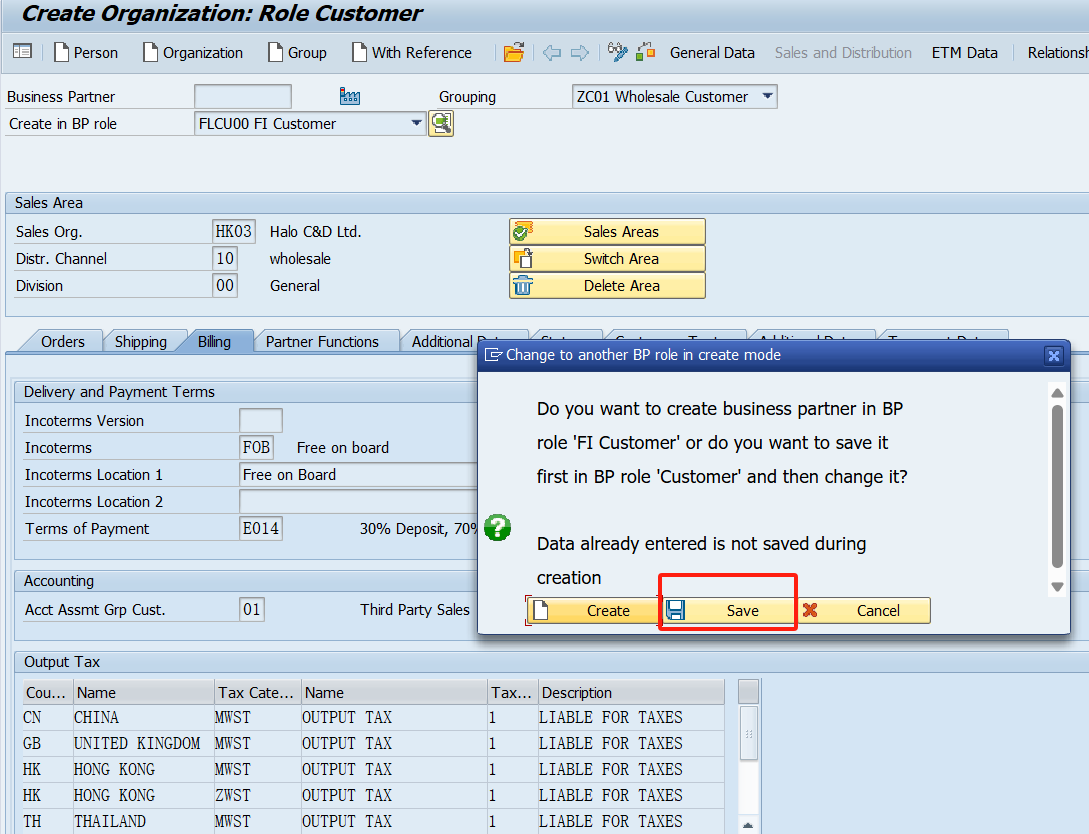
before it turns to another page, don't forget to choose "save" to save all the information that you filled in just now.
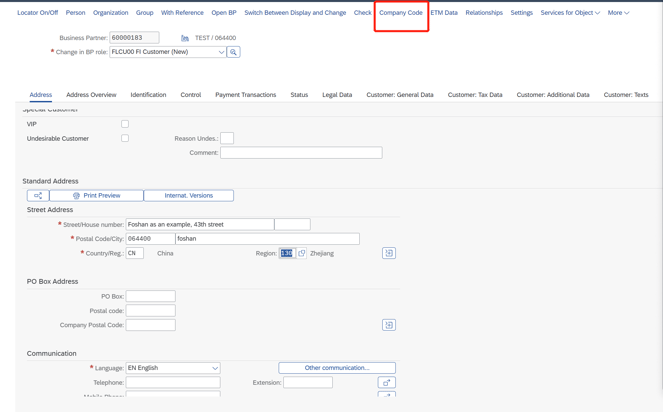
cause we just finished "General" page, let's just start with "Company" interface
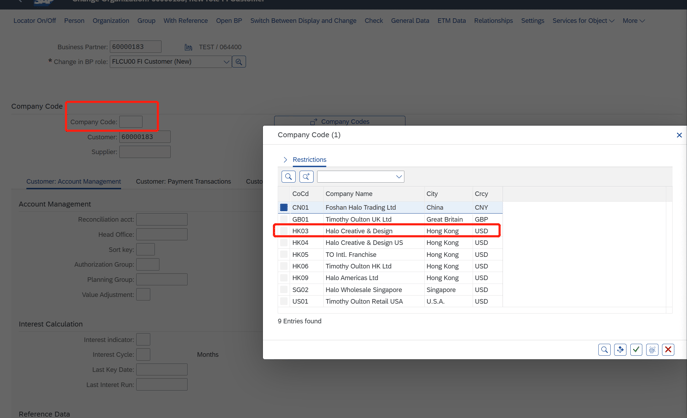
Also selcet the company
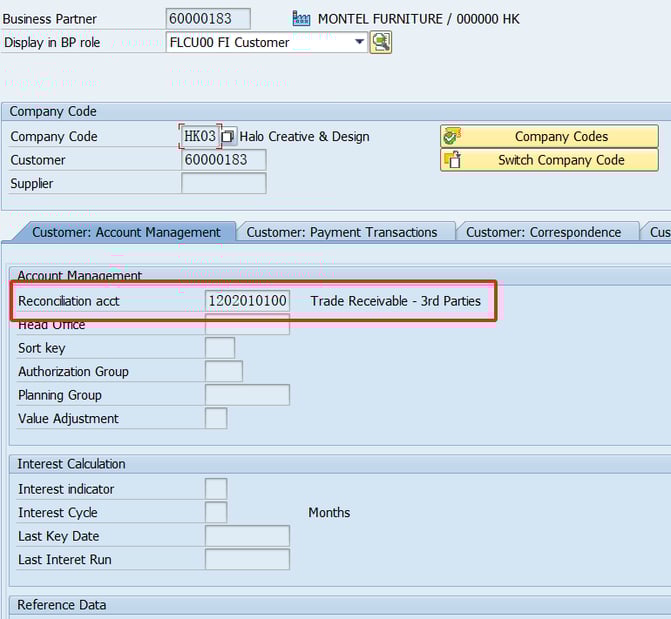
below account should be“1202010100 Trade Receivable - 3rd Parties“
Next page
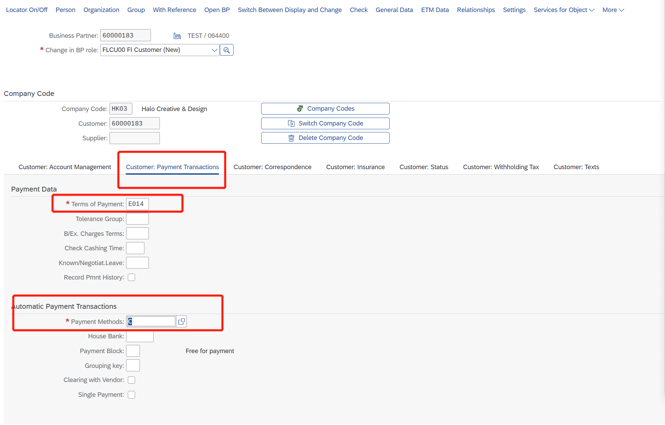
After finishing all the information above, remember to "save" your customer that you just created and take down the number of that partner!!!
PS: the screenshot above can be the reference when you create the business partner, but the detailed information should follow the correct true one! Don't just copy from it~