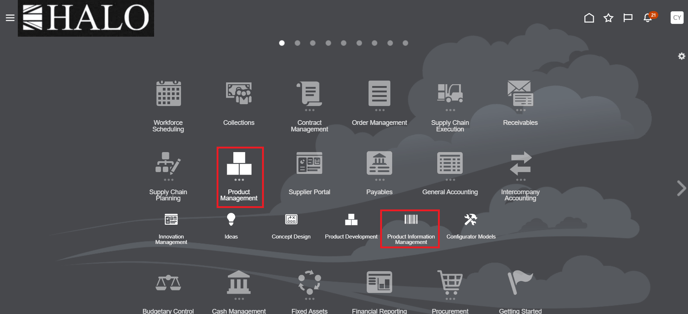
1. Go to Product Management -> Product Information Management
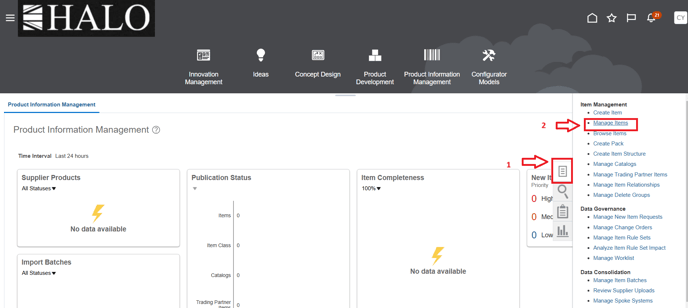
2. Then click on "tasks" icon and after on "Manage Items".
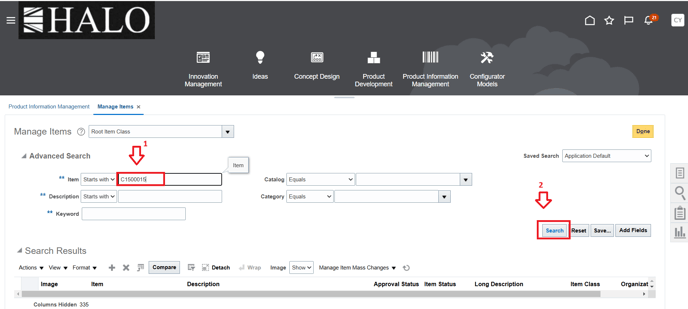
3. Search for the item you need to check the "Where use": Input code and click on "search".
4. Select the item in the organization needed. For this example is "MIM1".
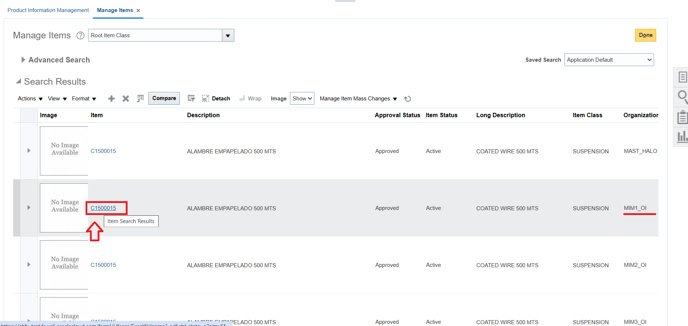
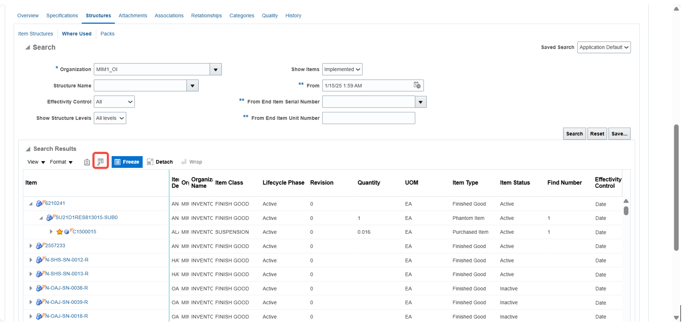
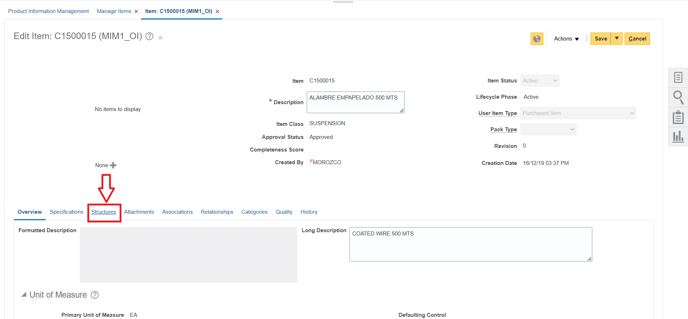
5. When item information is displayed scroll down and click on "Structures" tab.
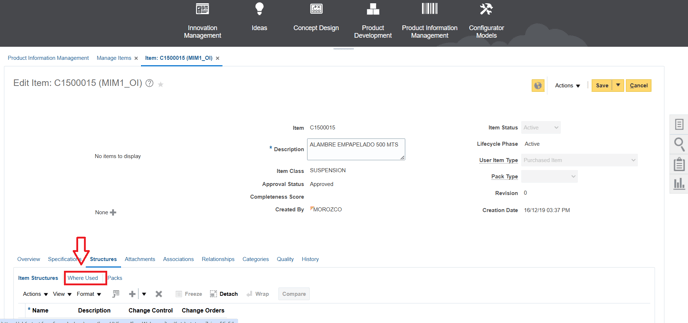
6. After that click on "Where Used".
7. You can change the selection criteria to export different data.
Show Structure Levels:
First Level means related Phantom item
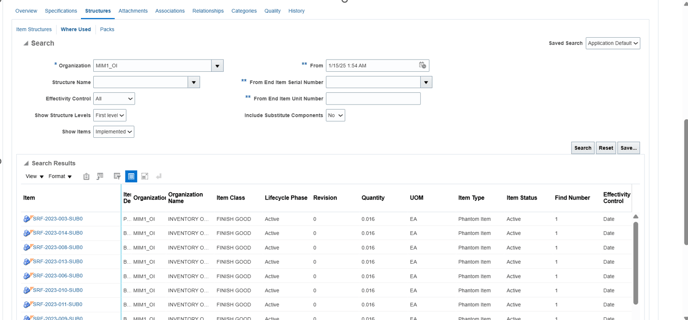
8. Top Level means related Finished Goods
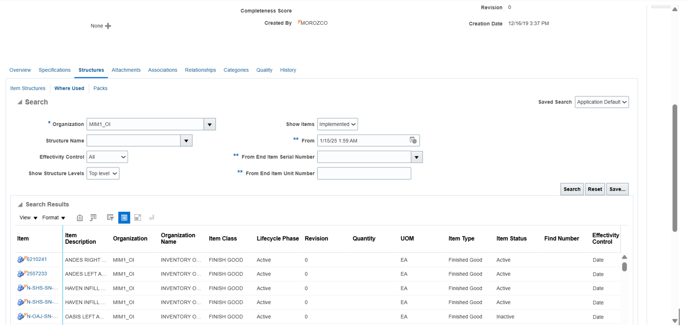
9. All levels mean related Finished Goods and Phantom item
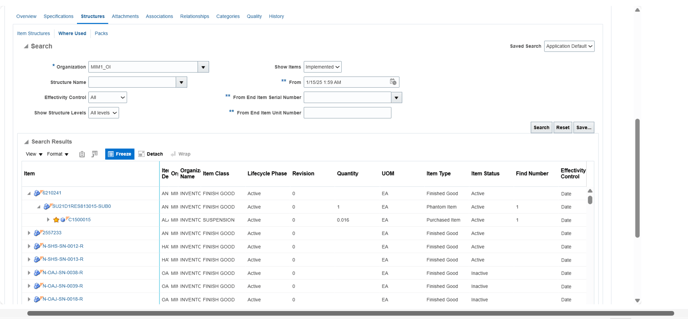
10. Aditionally, you can export data that you need. Just click on "Export" icon.