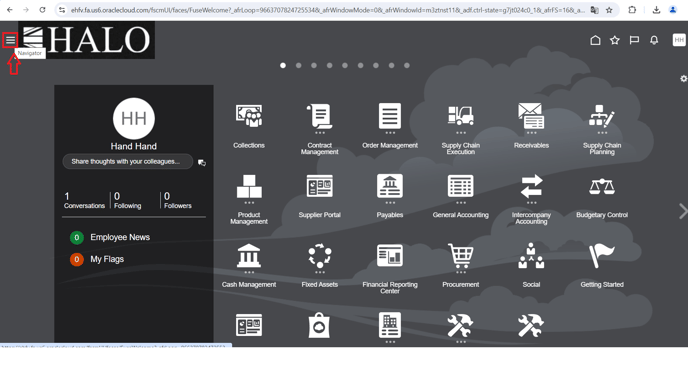
1. Click on "Navigator" icon on the top left corner.
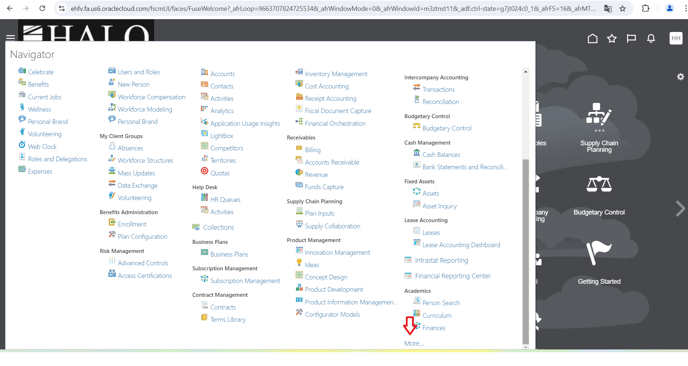
2. Then go to "More".
3. After that click on "Download Desktop Integration Installer" button.
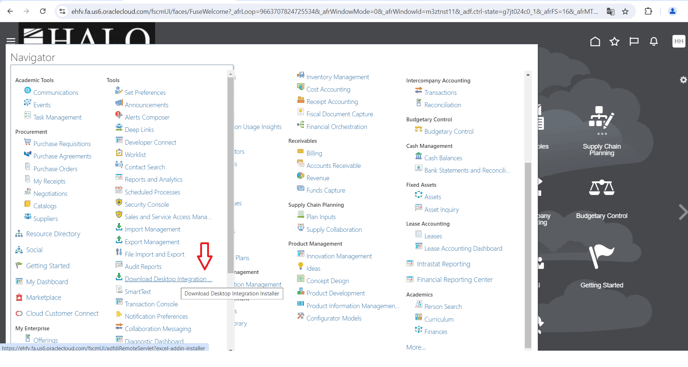
4. It will download a file.
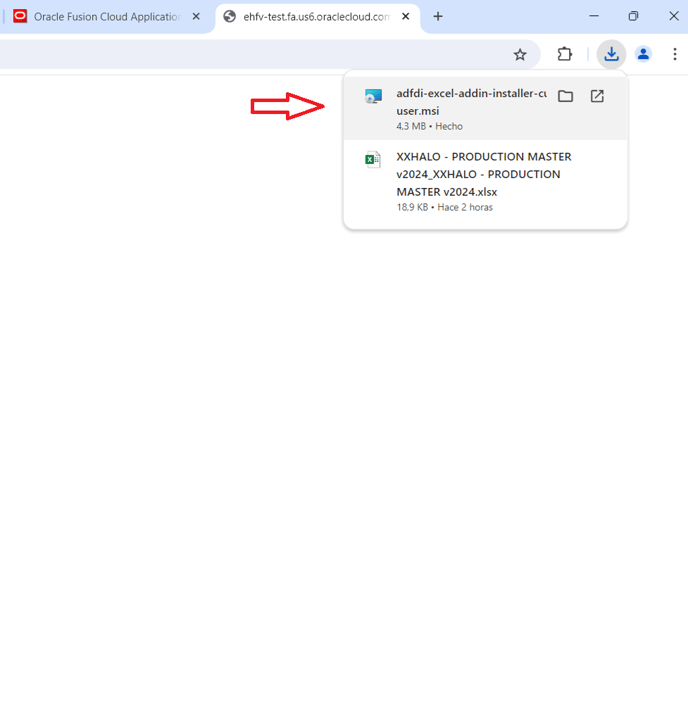
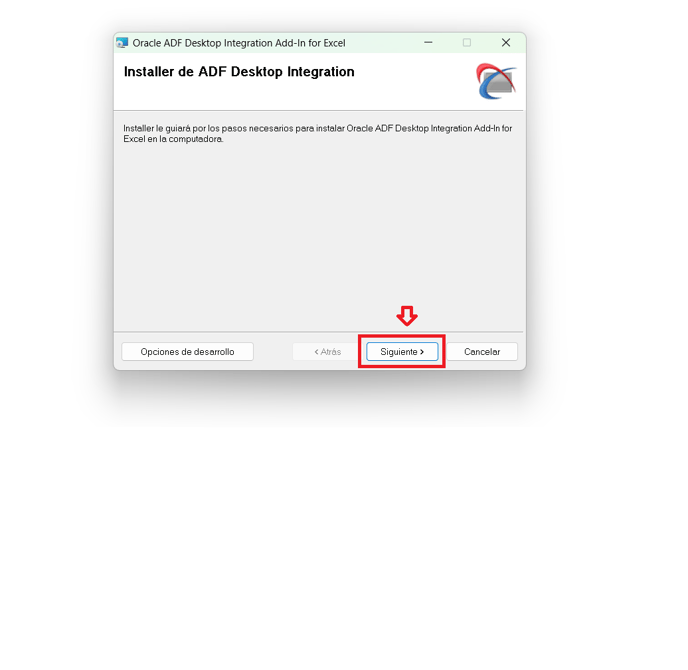
5. Follow all the necessary steps to install it.
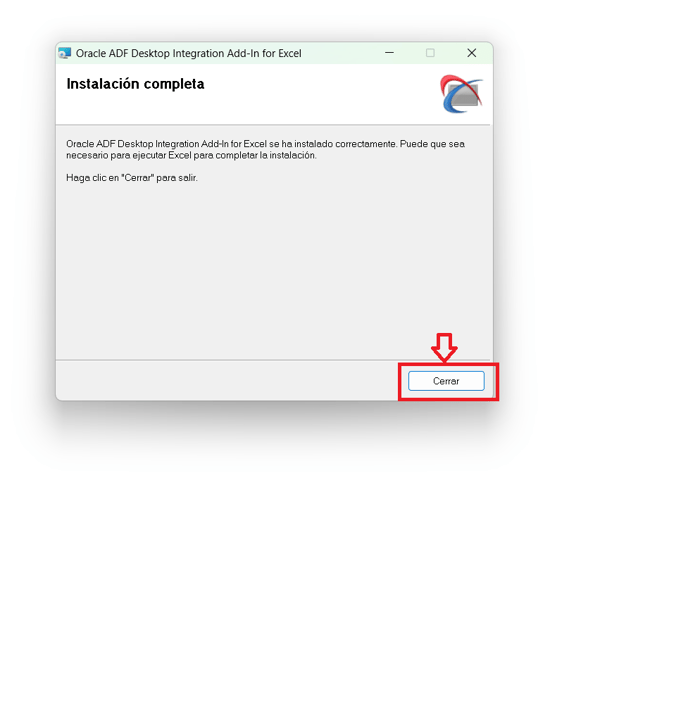
6. Finish the installation.
7. After that go to Order Management -> Pricing Adminstration.
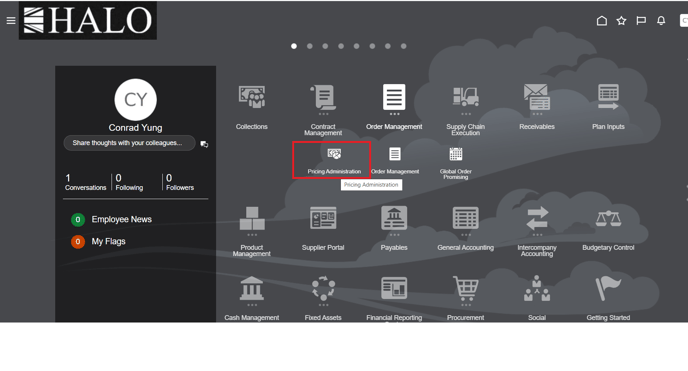
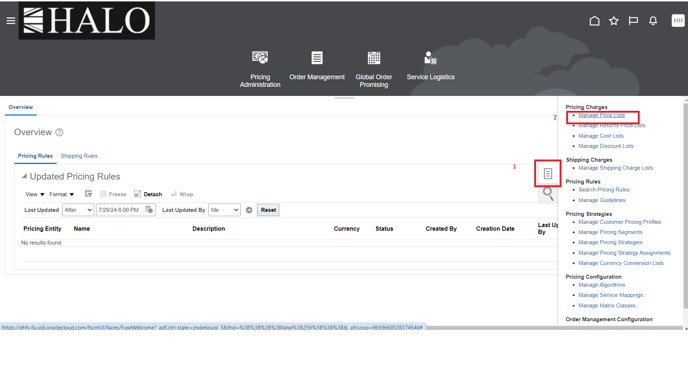
8. Click on "tasks" icon and then on "Manage Price Lists".
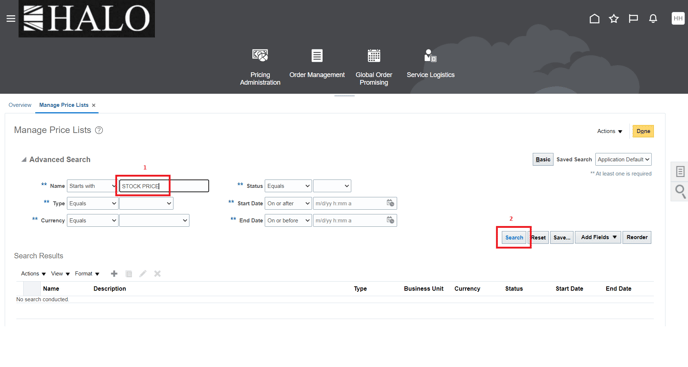
9. Input Price List name and click on "Search".
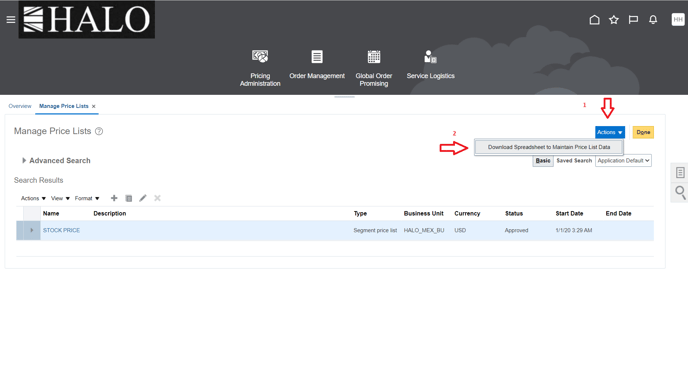
10. Click on "Actions" and then on "Download Spdreasheet to Maintain Price List Data".
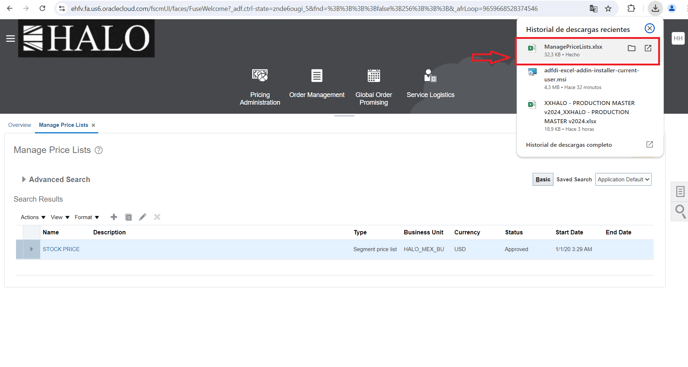
11. Open the downloaded file.
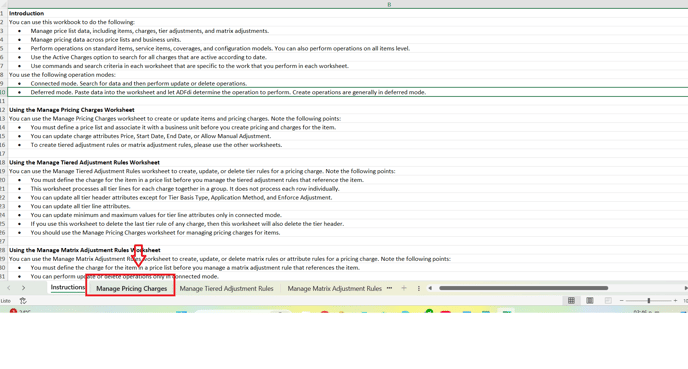
12. After opening the Excel file go to "Manage Pricing Charges" page.
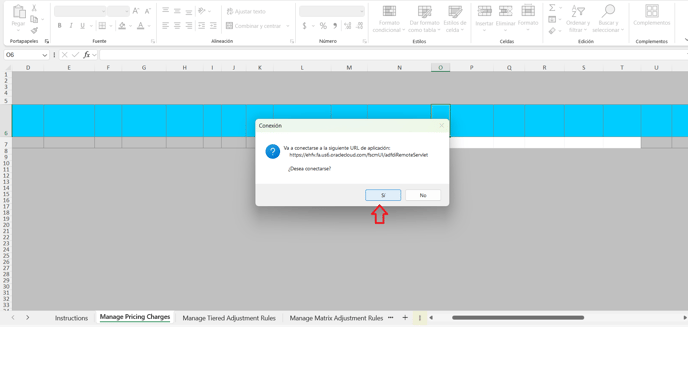
13. It will show a window asking if you want to open an URL, click on "Yes/Sí".
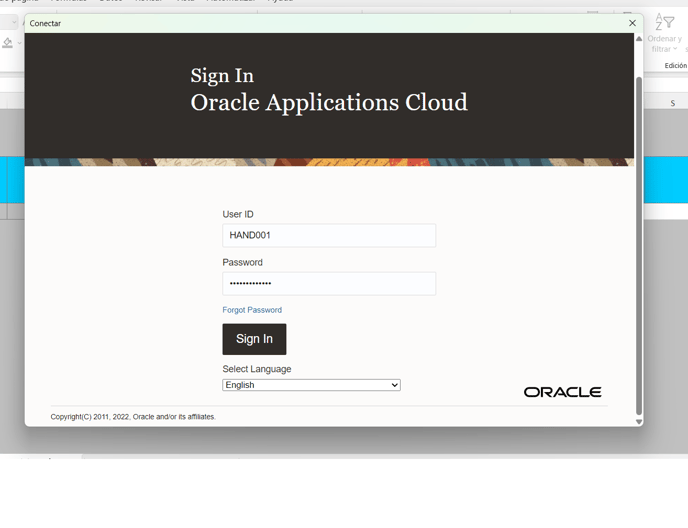
14. You will have to login Oracle again.
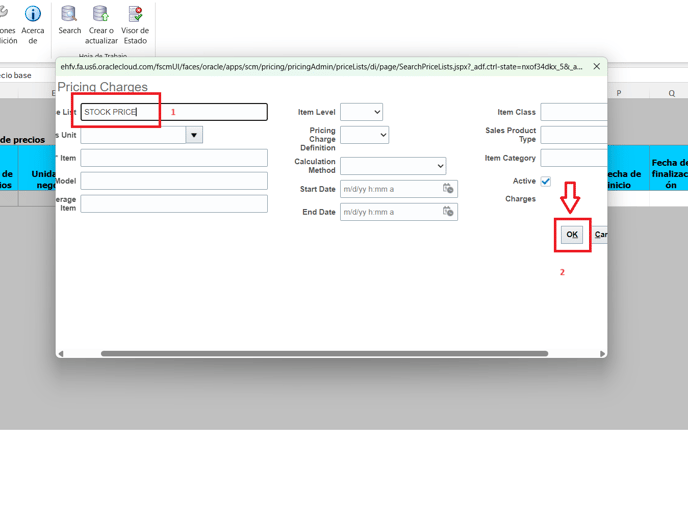
15. After that go to "Maintain Price List Data/Mantener Datos de Lista de Precios" and then click on "Search".
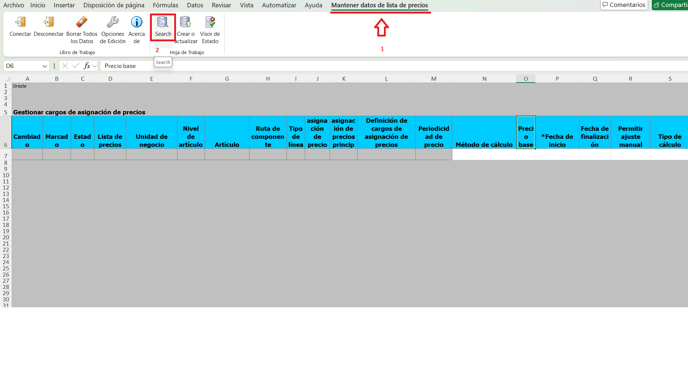
16. You will have to input again the price list name. After that click on "Ok".
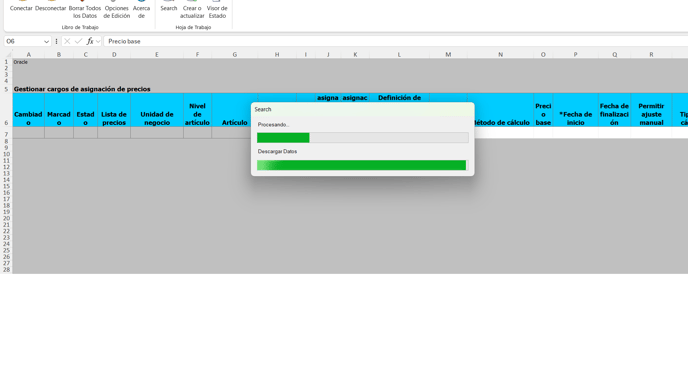
17. Wait while Price List is imported to the Excel file.
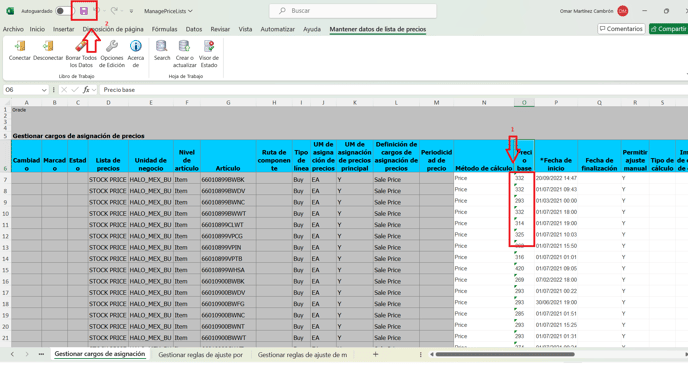
18. When Price List is opened then update "Base Price/Precio Base" and then click on "Save" icon.
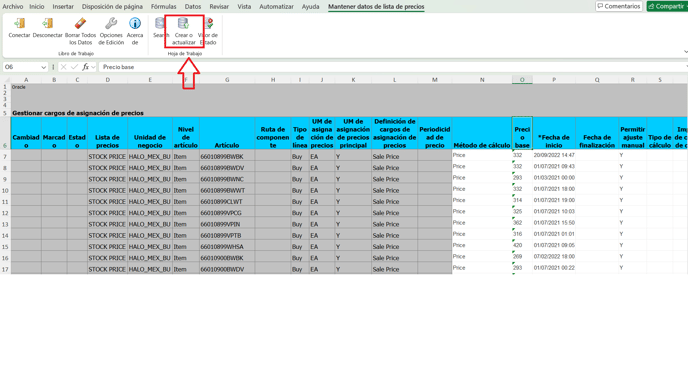
19. Finally, click on "Create or Update/Crear o Actualizar" and close the file.
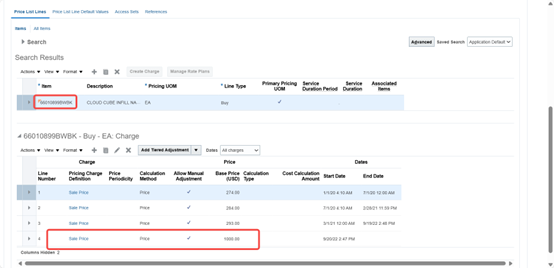
20. After that check the Price List in system to confirm is updated.