I. Edit Item import template section.
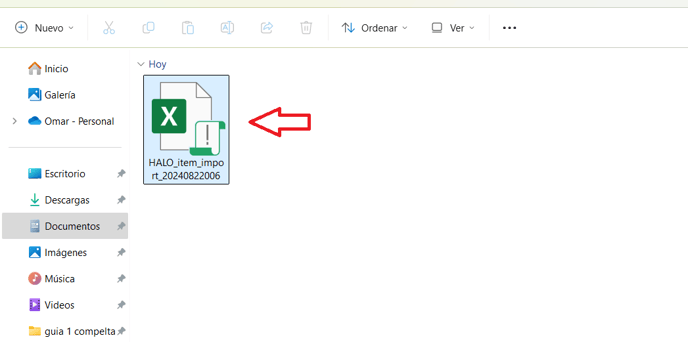
1. Open the "Halo_item_import" template.
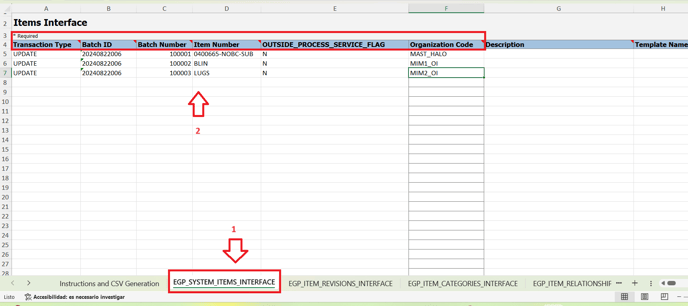
3. Finally, input the new list price in the "List Price" column (it is in the IA column).
.png?width=688&height=196&name=3.%20finally%20input%20the%20new%20list%20price%20(is%20in%20the%20IA%20column).png)
4. Now go to "Instructions and CSV Generation" tab and click on "Generate CSV file".
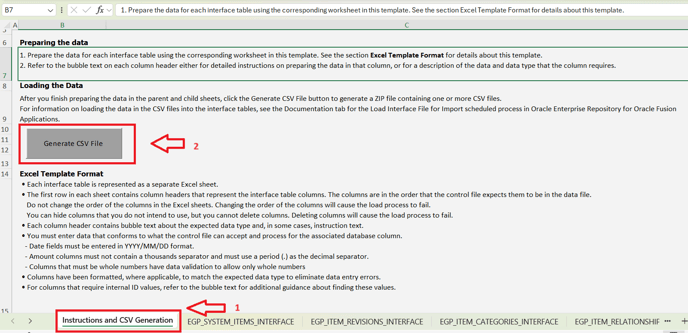
5. Input the name and save it.
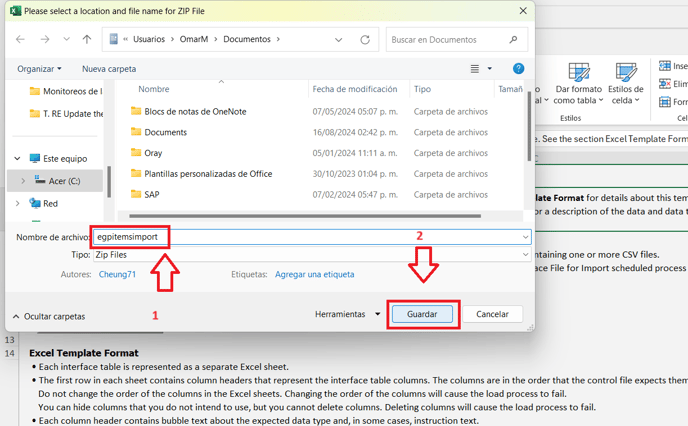
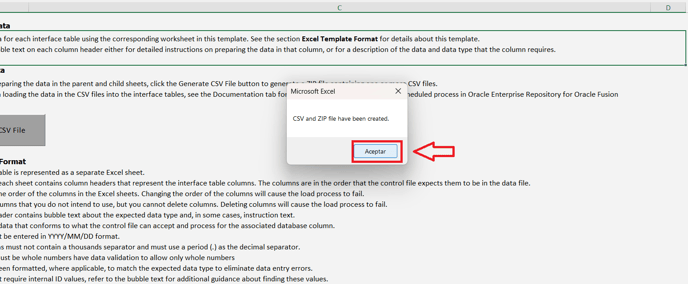
6. It will show a message saying file has been created. Click on "ok" or "Aceptar".
II. Load Interface File for Import section.
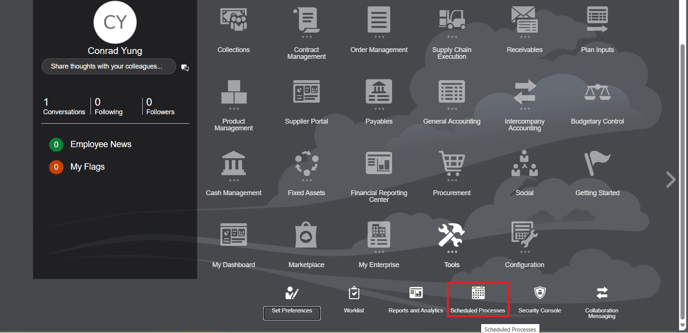
7. Now go to Tools -> Scheduled Processes.
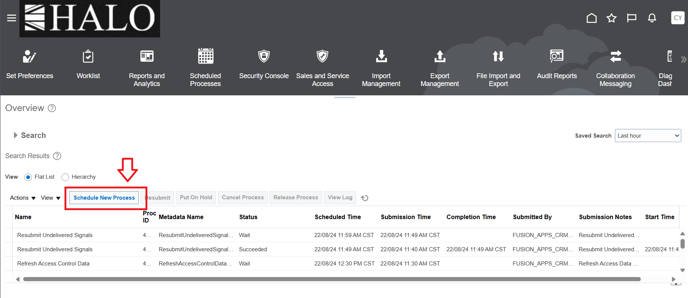
8. Click on "Schedule New Process".
9. After that click on the more options icon and then on "Search".
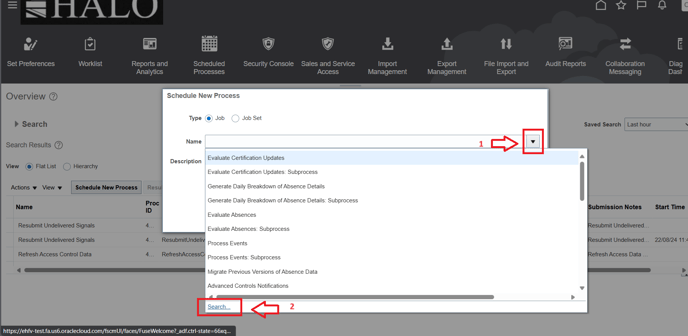
10. Input "Load Interface File for Import" and click on "Search".
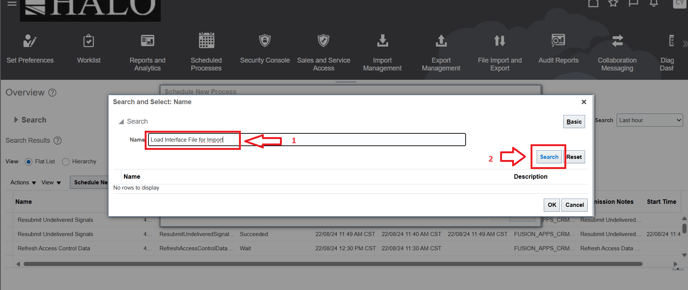
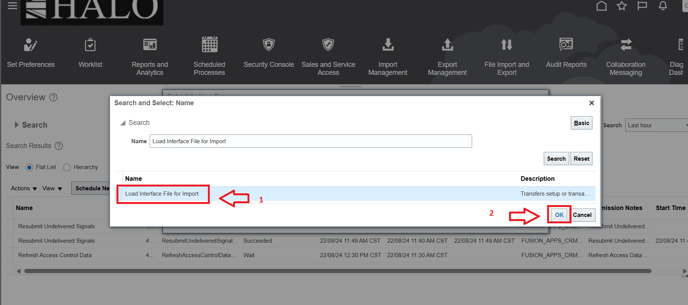
11. Select it and click on "ok".
12. It will change the window. Click again on "ok".
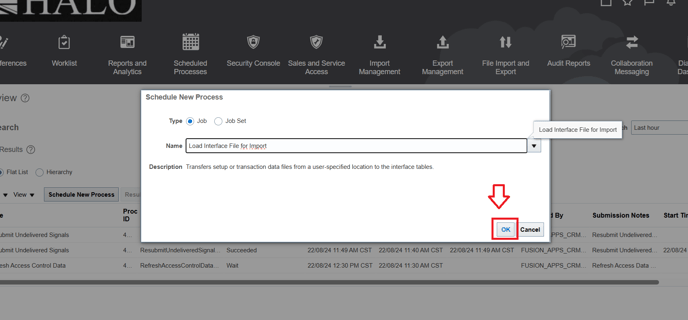
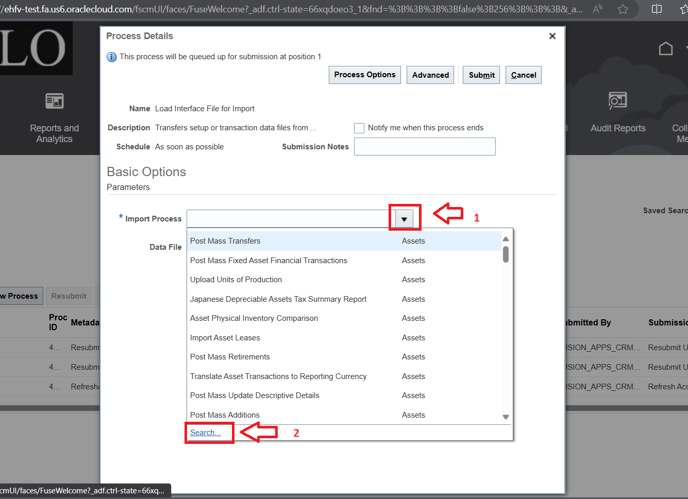
13. It will change again the window. In the "Import Process" field select the more options icon and click on "Search".
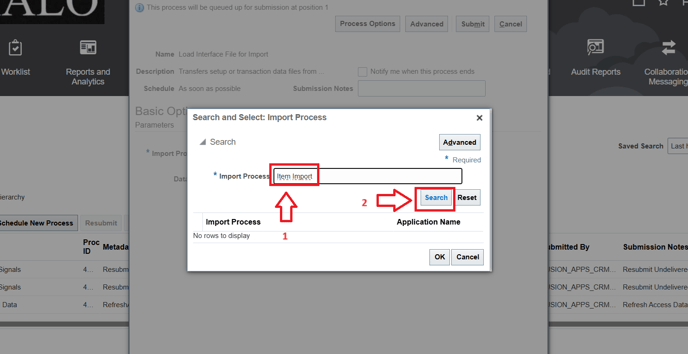
14. Input "Item Import" and then click on "Search"
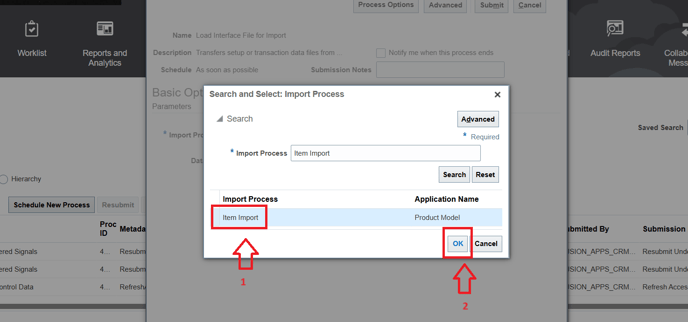
15. Select it and click on "ok".
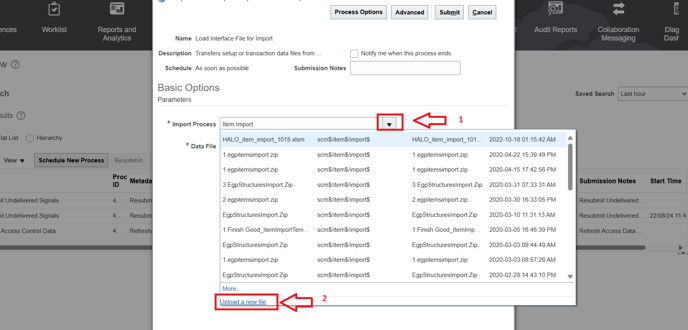
16. You'll go back the previous window. Now in the "Data file" field select the more options icon and then on "Upload a new file".
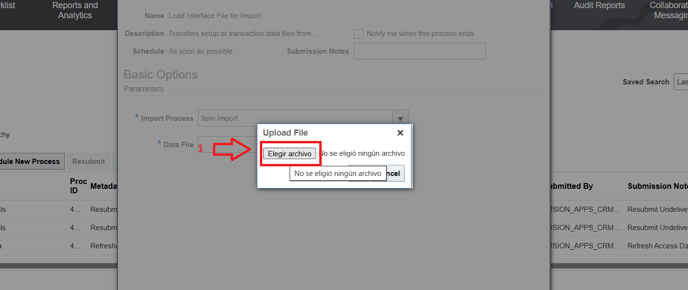
17. Click on "select file" or "Elegir archivo".
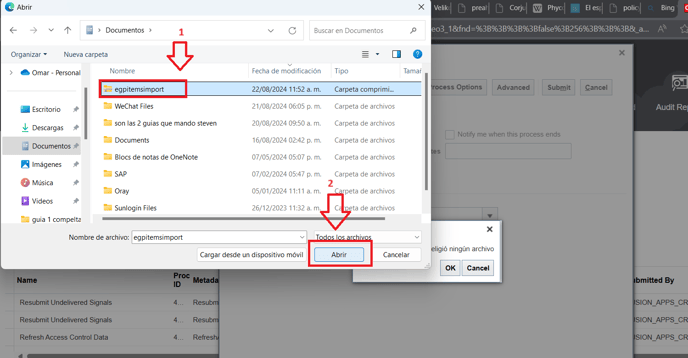
18. Select the zip file you created and click on "open" or "Abrir".
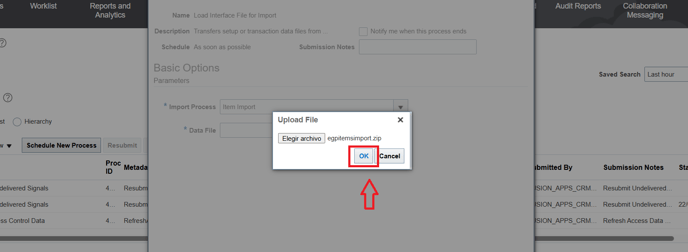
19. Now click on "ok".
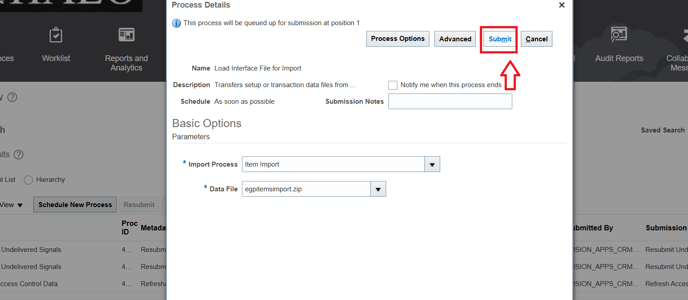
20. You'll go back to the previous window. After that click on "Submit".
21. It will show you the process ID. Click on "ok".
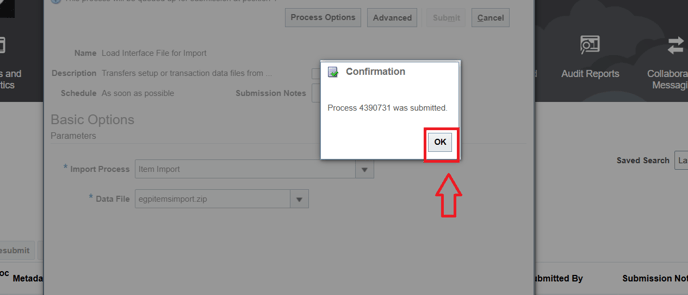
22. Wait until the process is succedeed.
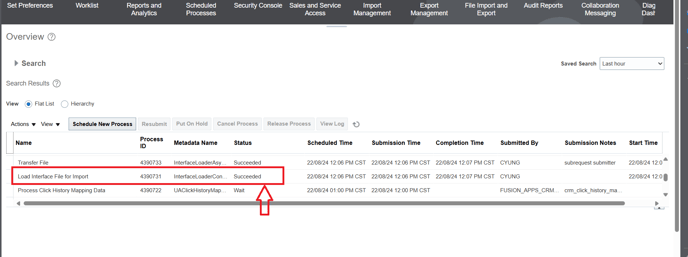
III. Import Item section.
23. Now is necessary schedule a new process.
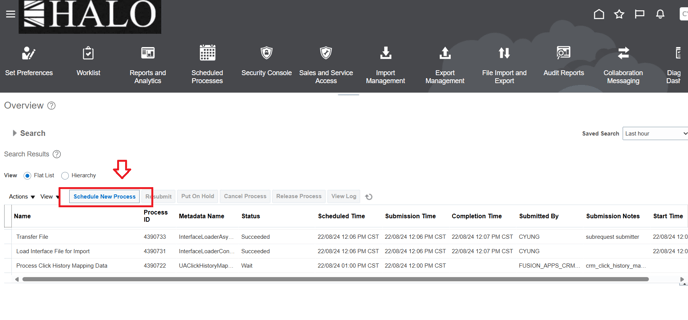
24. The steps are the same:
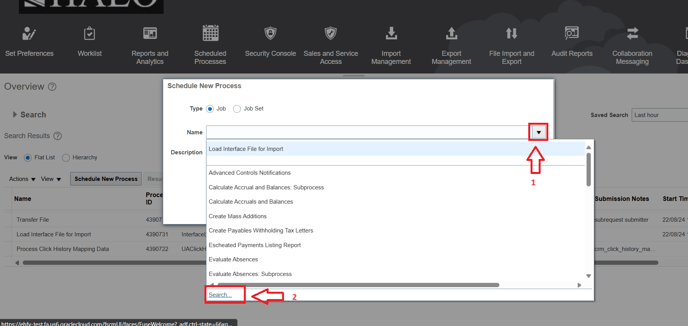
25. Now input "Item Import" and click on "Search".
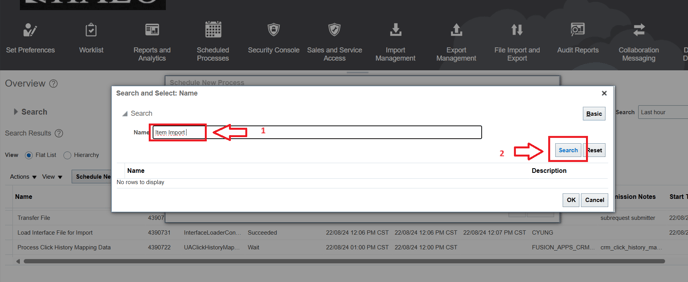
26. Select it and click on "ok".
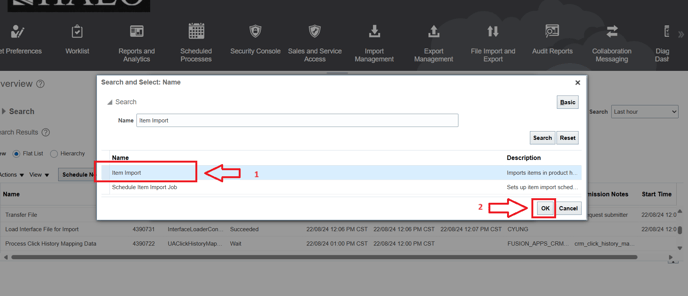
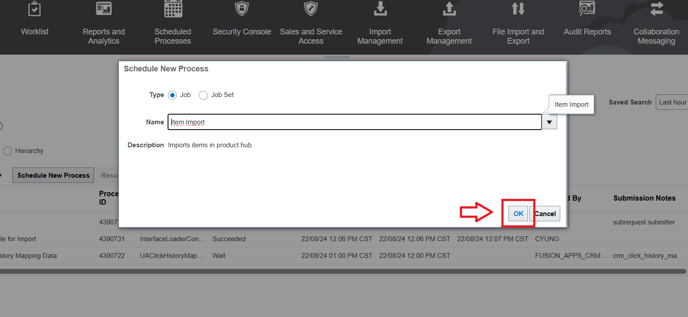
27. Click again on "ok".
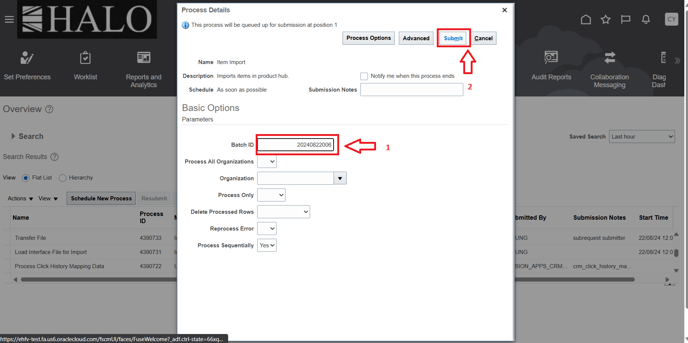
28. Input the batch ID and click on "Submit".
29. It will show the process ID. Click on "ok".
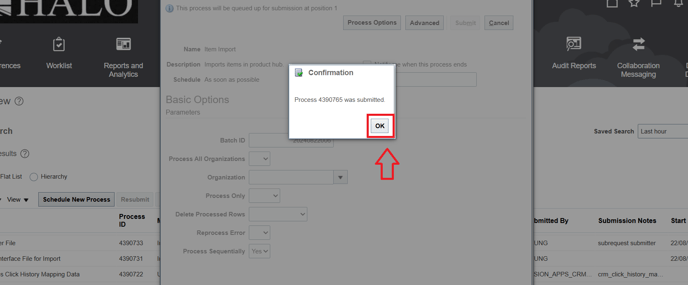
30. Wait until process is succeeded.
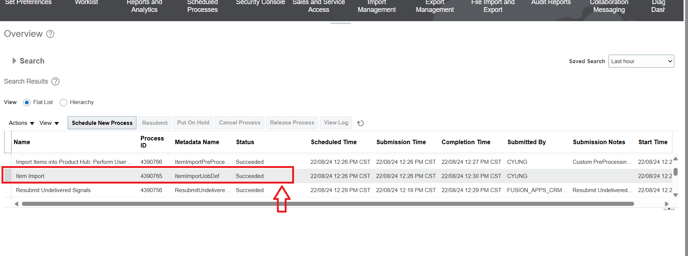
IV. Check updated information section. We will check if List Price is updated for the 3 items we selected. Let's start
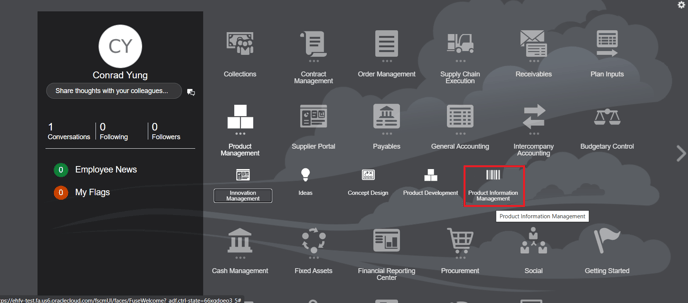
31. Now go to Product Management -> Product Information Management.
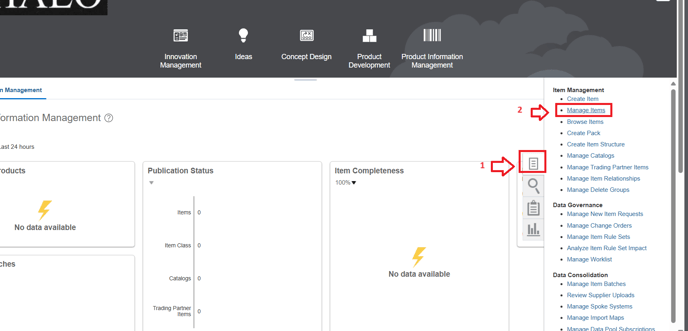
32. Click on tasks icon and after that on "Manage Items".
33. Input item code for the first item and click on "Search".
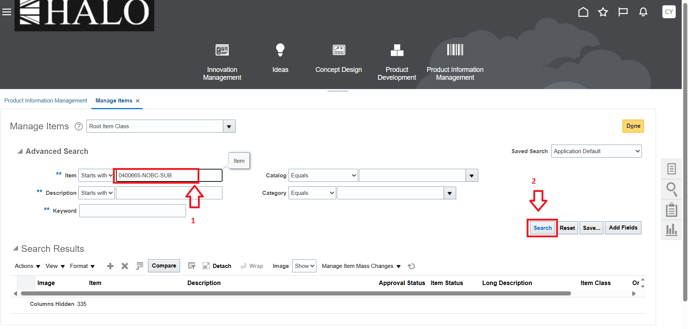
34. Click on it.
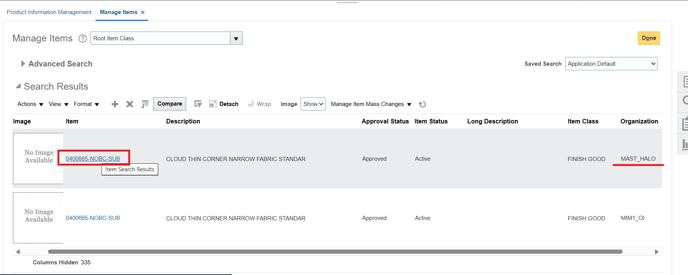
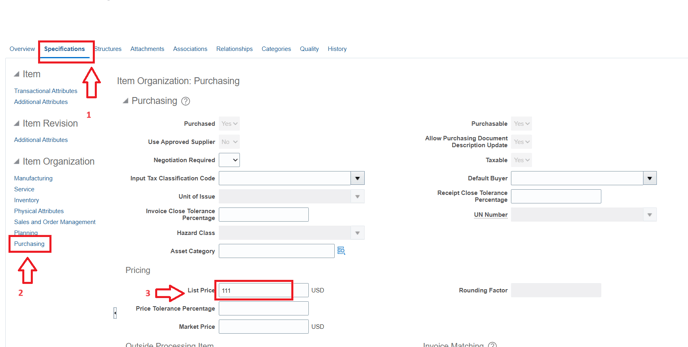
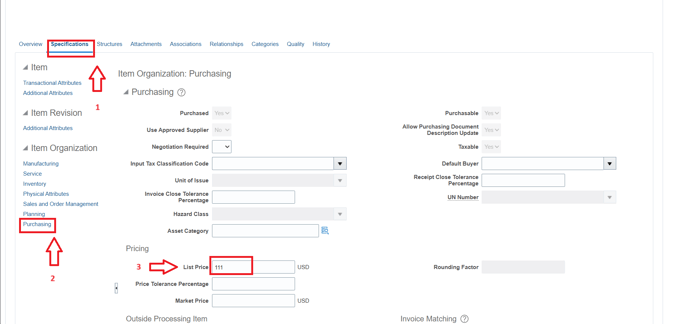
35. Go to "Specifications", "Purchasing" and check that "List Price" field is updated.
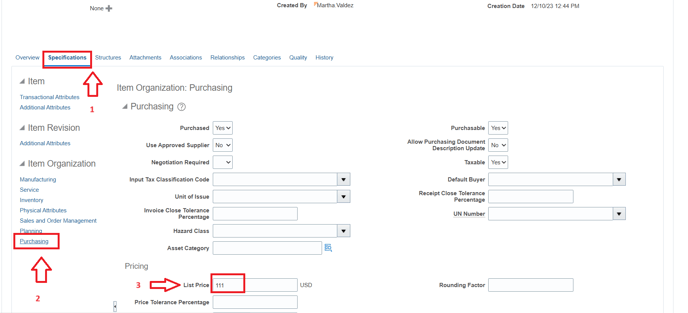
36. Now we'll check the same information for BLIN item in MIM1:
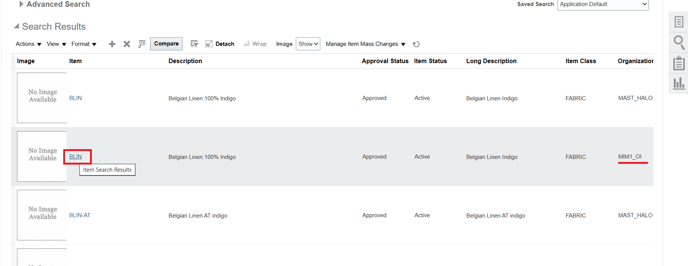
37. "BLIN" List Price is correct.
38. And finally let's check "LUGS" item in MIM2:
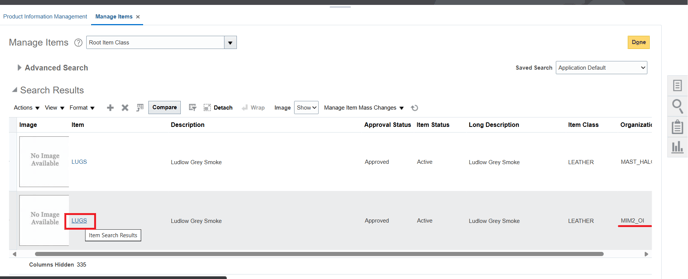
39. "LUGS" also is ok.