Preliminary
Before starting we have to keep in mind how to check the information of a PO:
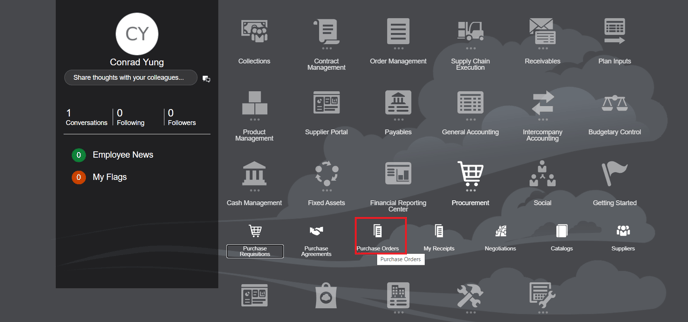
I. Go to Procurement -> Purchase Orders.
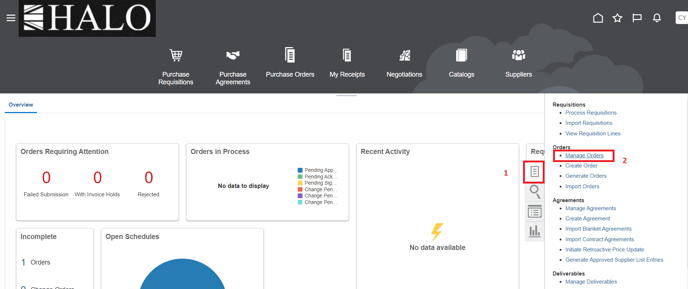
II. Then click on tasks icon and after on "Manage Orders".
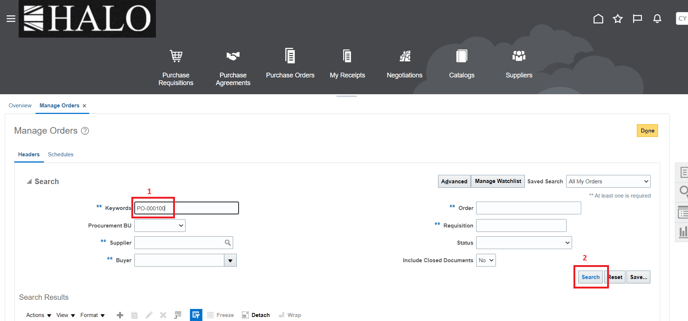
III. Input PO number and click on "search".
IV. Click on the PO.
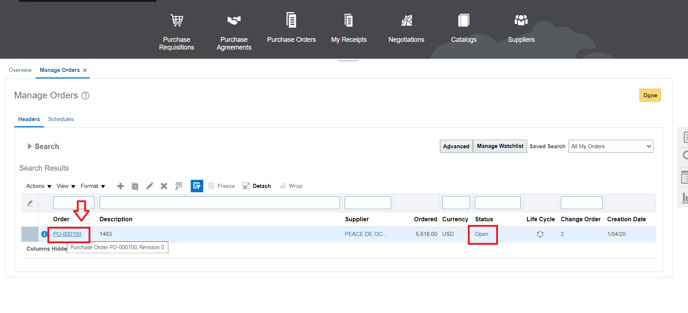
V. In this example is possible to see "PO-000100" has 3 open lines.
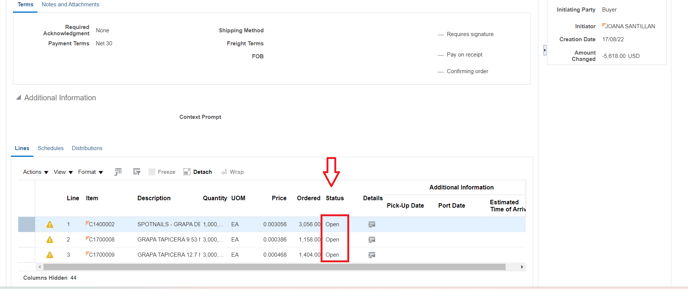
Now we will close them, so here starts the guide:
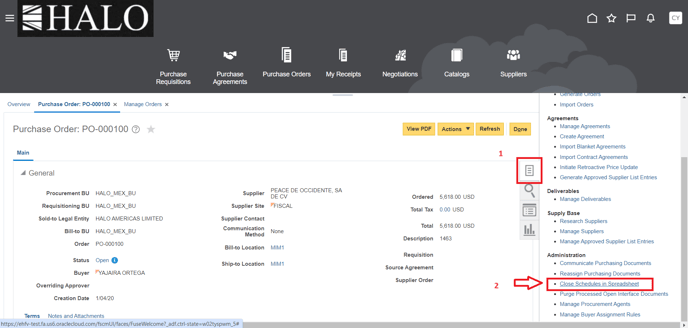
1. Again, in Procurement -> Purchase Orders click on tasks icon, scroll down and click on "Close Schedules in Spreadsheet".
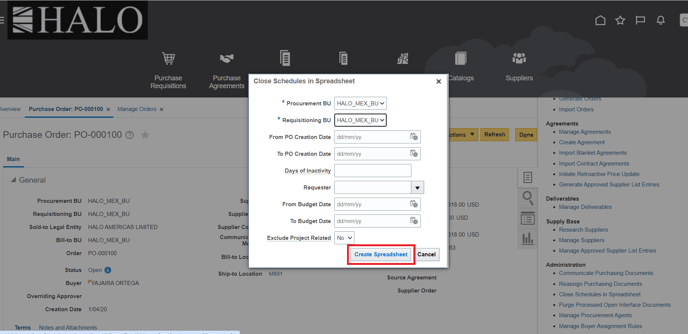
2. It will deploy a window. Input the necessary information and click on "Create Spreadsheet".
3. An Excel file will be downloaded. Open it.
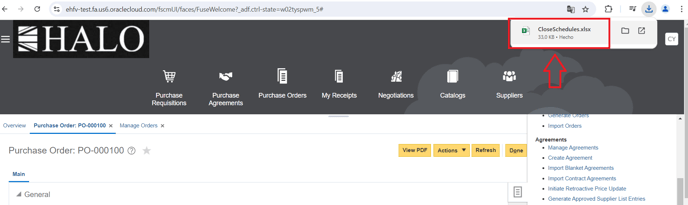
4. It will ask you if you want to connect, click on "Yes" or "Sí".
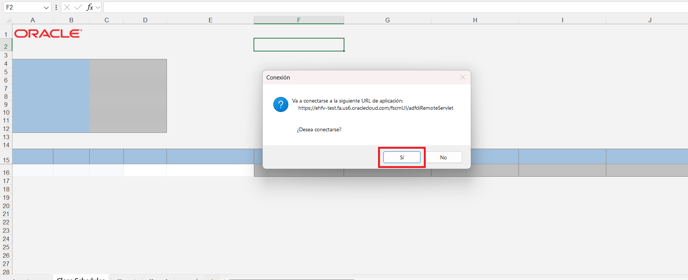
5. Input your Oracle login information.
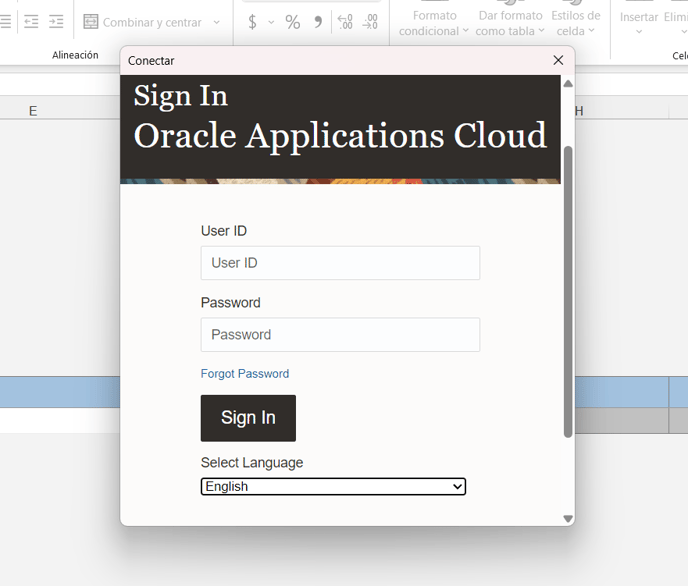
6. Wait until information is loaded.
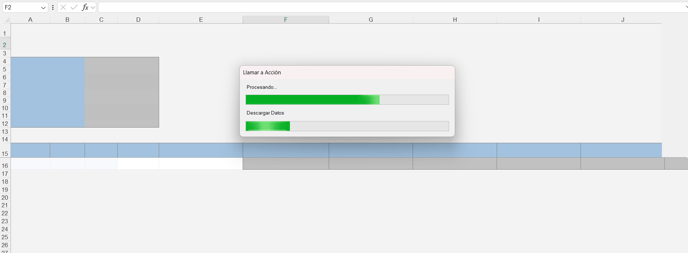
Note: If in this step a small window is displayed saying that the limit of 5000 is exceeded, please generate again the template considering a shorter period of time. If you don't do this it will be not displayed all the lines you need to close.
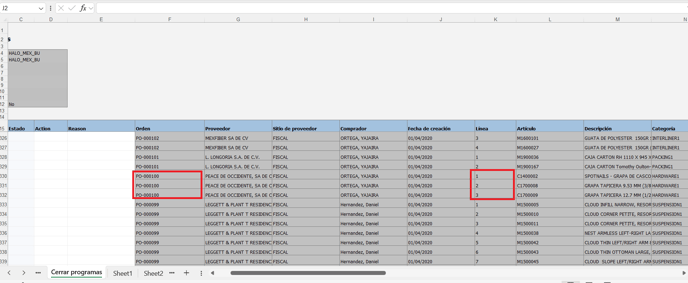
7. Locate all the POs is necessary to close. For this example we just want to close the 3 lines of "PO-000100".
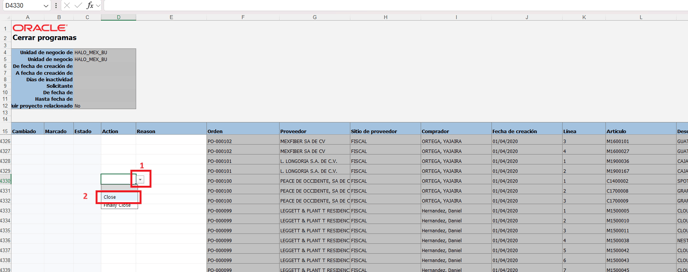
8. Now locate the "Action" column and click on the icon on the right. Select the "Close" option.
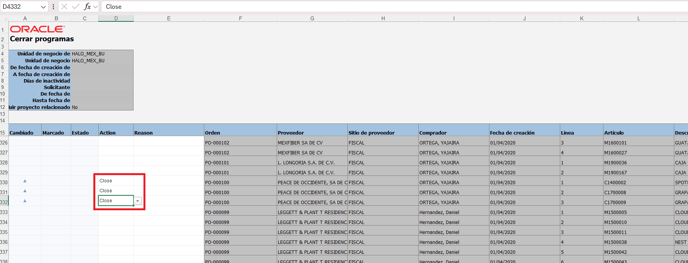
9. Close all the necessary lines.
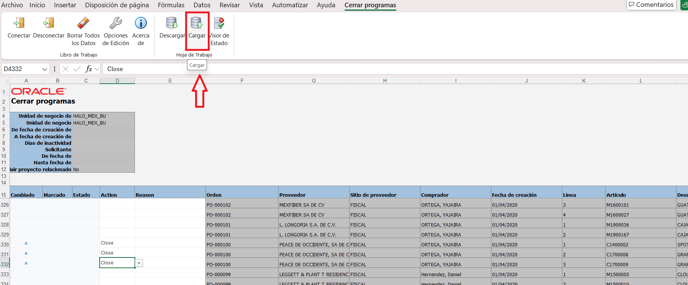
10. After that click on "Upload" or "Cargar".
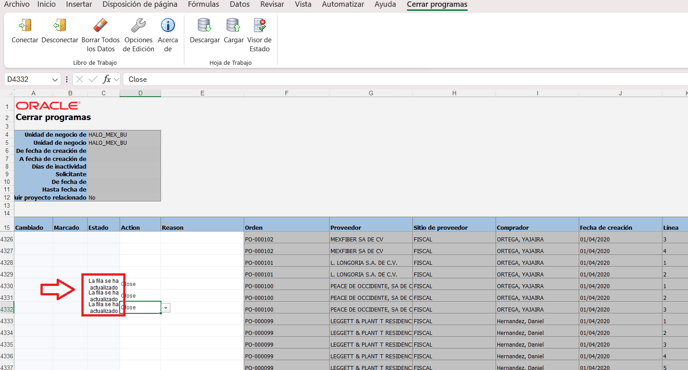
11. It will show a message saying that "lines have been uploaded" or "La línea se ha actualizado".
12. Go back to Oracle and search again the PO.
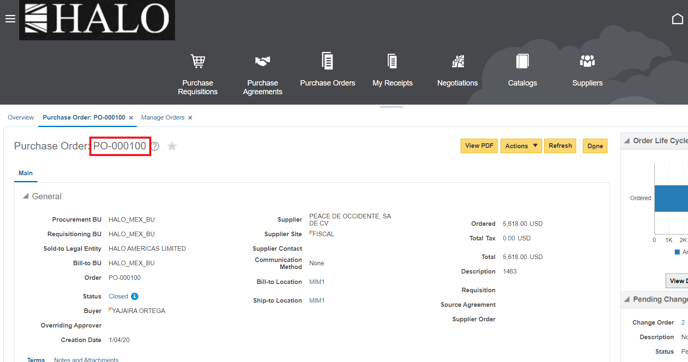
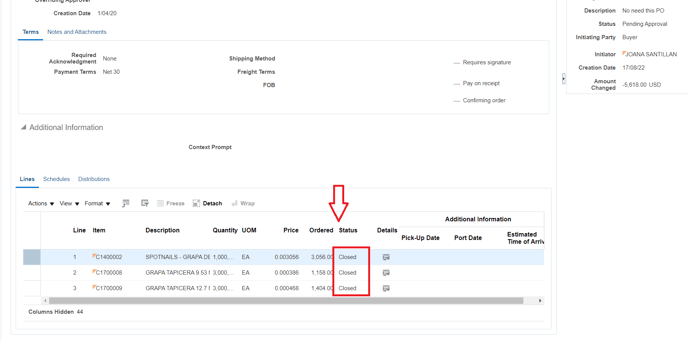
13. And finally check that the lines now have "Closed" status.