|
Archive Email Knowledge Document |
|
|
LAST UPDATE DATE |
Jan-26-2024 |
|
LAST UPDATE BY |
Neo Li |
|
DOCUMENT TYPE |
Solution / Guideline |
|
RELATED SYSTEM |
Archive Email |
|
|
|
|
PROBLEM DESCRIPTION: |
|
|
This document describes that how to archive the email to free up the space on the server. |
|
|
|
|
|
Guideline: |
|
|
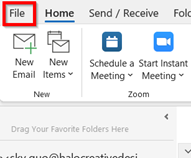
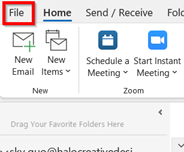
Windows 10 1. Go to the “File” button in your Outlook.
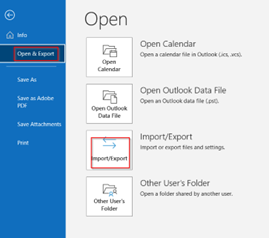
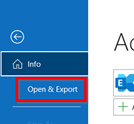
2. Click “Open & Export” -> “Import/Export”.
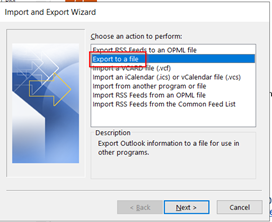
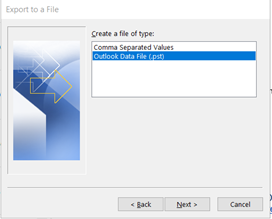
3. Choose the option ‘Export to a file’ and ‘NEXT’, then choose ‘OUTLOOK DATA FILE. Pst’
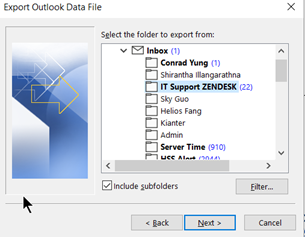
4. Choose the email folder you want to archive and hit ‘NEXT’,
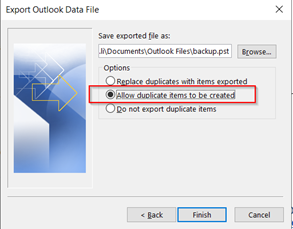
5. The default location is “C:\Users\yourname\Documents\Outlook Files”, and you can save any location. You can also select the duplicated items from exporting.
6. Click “OK” and the archive file will be running.
7. You can Import your archive file to the Outlook, go to “File”.
8. Select “Open & Export”.
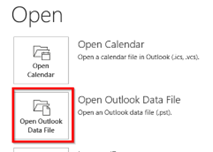
9. Select “Open Outlook Data File”.
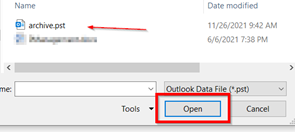
10. Choose your archive file, click “Open”.
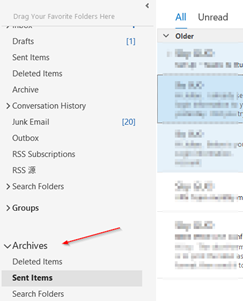
11. The archive will display in your Outlook.
Mac OS
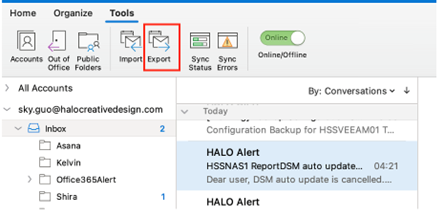
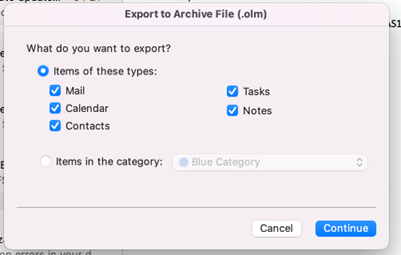
1. Open your Outlook and go to Tools, click “Export”.
2. Select what you want to export, click “Continue”.
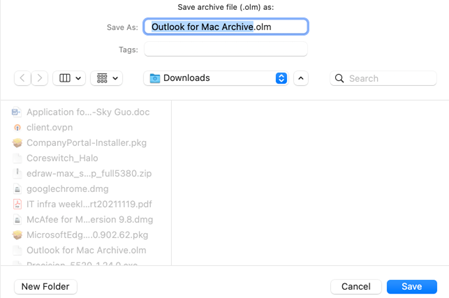
3. Choose the saved location, click “Save”.
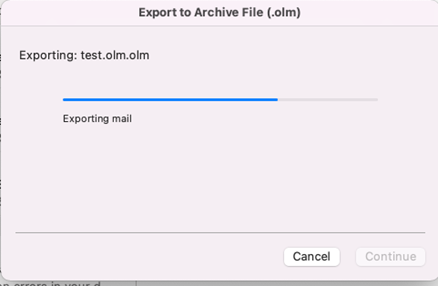
4. The process is running.
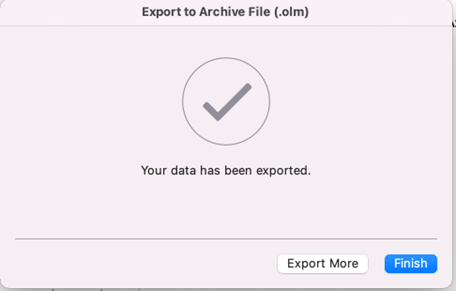
5. Finish.
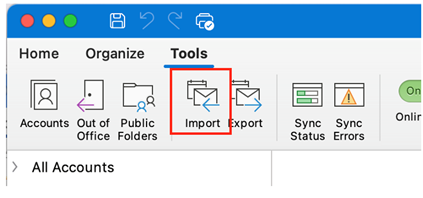
6. Click “Import” if have local outlook file to view.
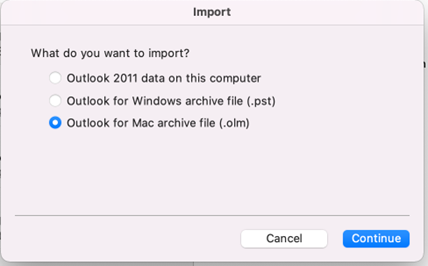
7. Select the format(Windows: pst, MacOS: olm), click “Continue”.
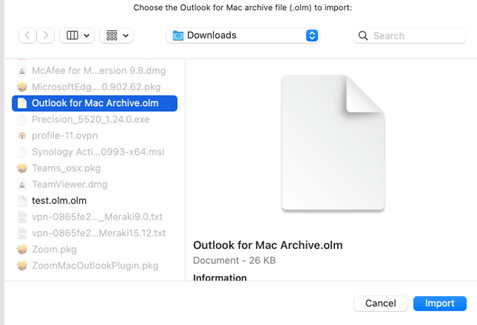
8. Choose the location and click “Import”.
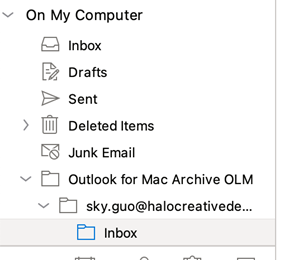
9. After finish, the Archive folder structure will display.
|
|
|
END |
|